Change of Grade / Official Dropped
The Change of Grade / Official Dropped module lets authorized users manage student grades after they have been finalized. This is usually used for corrections, adjustments, or officially dropping a student.
It has two main features:
1. Change Student’s Grade – lets you update or correct the grade of a specific student per term and period.
2. Reset Grades by Section – lets you reset grades for multiple students in a section. You can select specific students or reset for the whole class.
Required Permission
- Change of Grade / Official Dropped - This permission allows the user to update individual student grades per term and reset grades for selected students or an entire section. It is intended for authorized personnel who are responsible for managing grade corrections or processing official student drops.
How to Access the Module
To access the module, make sure you have the Change of Grade / Official Dropped permission. If it doesn’t appear in your portal, request access from your System Administrator.
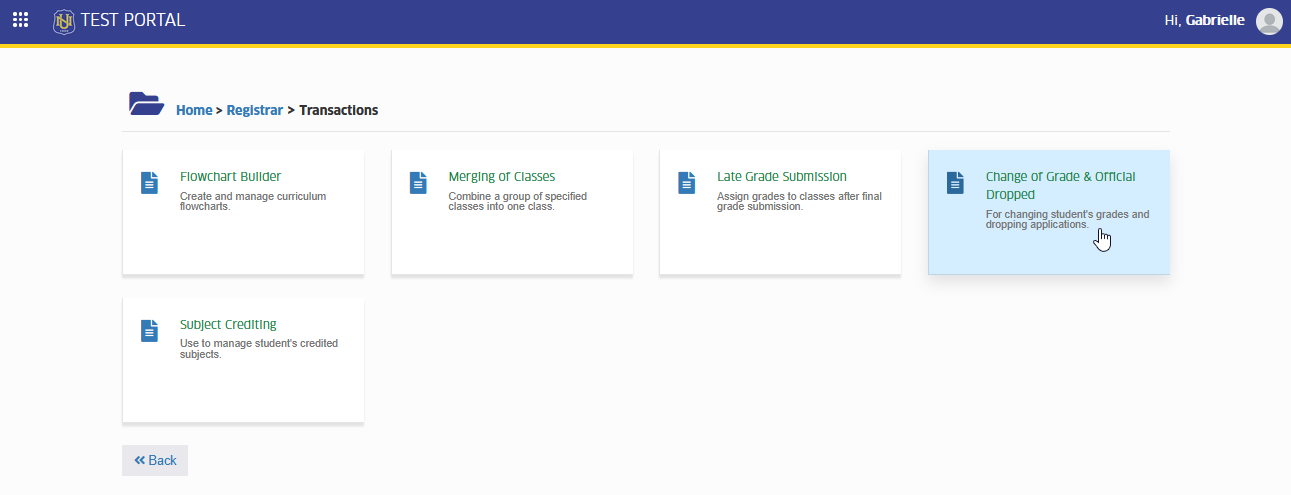
Go to Registrar > Transactions > Change of Grade / Official Dropped. Click the module tab to redirect to Change of Grade / Official Dropped page.
How to Use the Module
Follow the steps below to perform actions in the module. The instructions are divided into two parts:
-
Change Student’s Grade
-
Reset Grades by Section
Change Student's Grade
This feature is used if you need to adjust the grade of one student in a particular term and period.
STEP 1. In the Change of Grade / Official Dropped page, under the Per Student tab, specify the School Year , Term and Student ID to process.
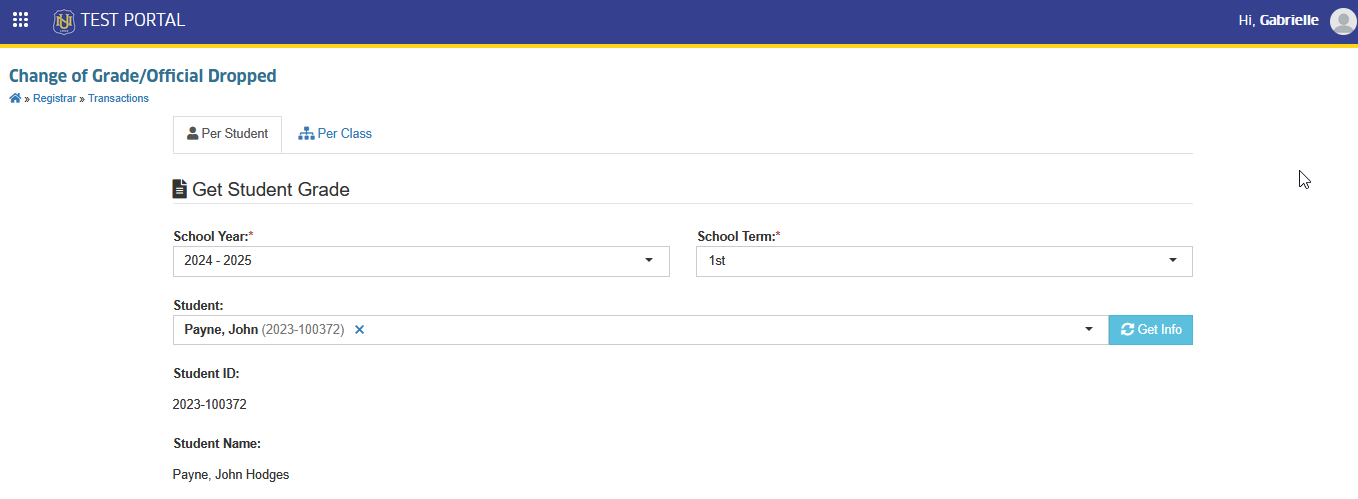
STEP 2. Once the required fields are filled in, the page will display the student's grades for the specified year and term in Subjects Grade section.
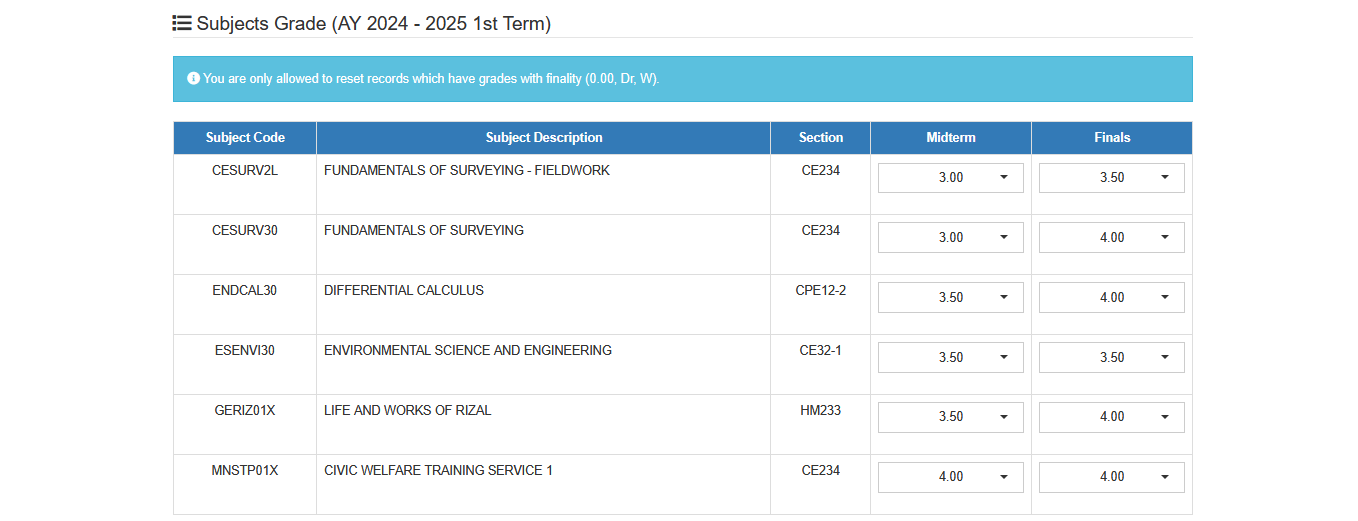
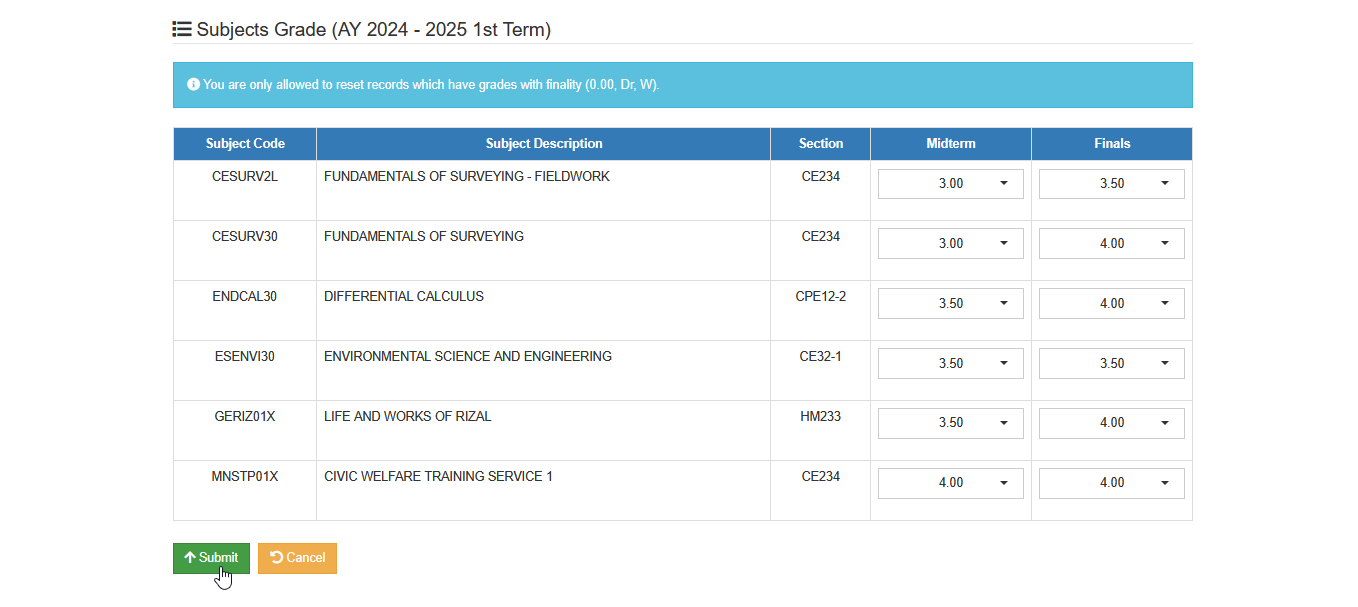
STEP 3. In the Subjects Grade section, update student's grade and click the button to save the record.
Reset Grades by Section
This feature is for resetting grades of a whole section or selected students in a section.
STEP 1. In the Change of Grade / Official Dropped page, go to Per Class tab.
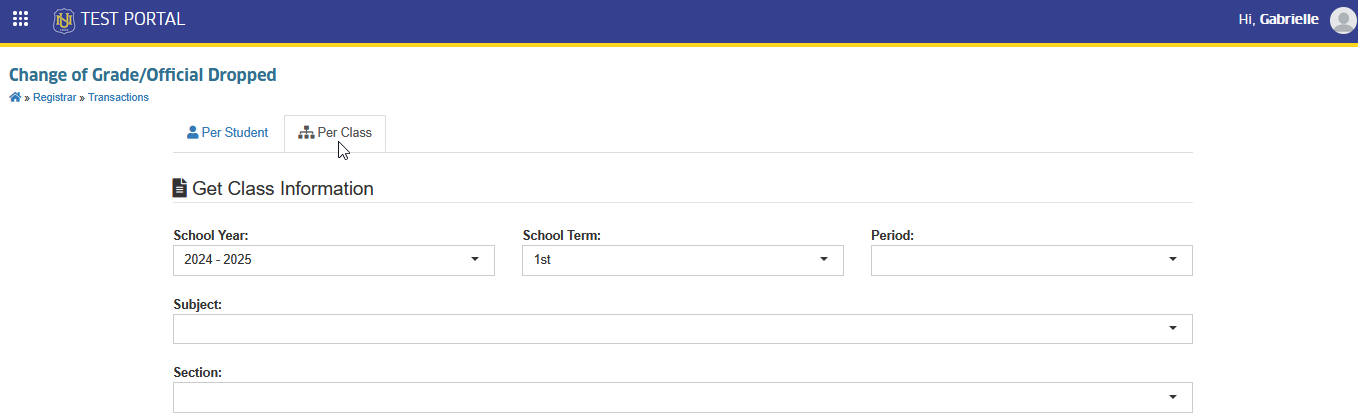
STEP 2. Specify the class informtion such as, School Year, Term, Period, Subject Name, and Section.
STEP 3. The page will display the class list of the specified section, select the student(s) you want to reset then click the button.
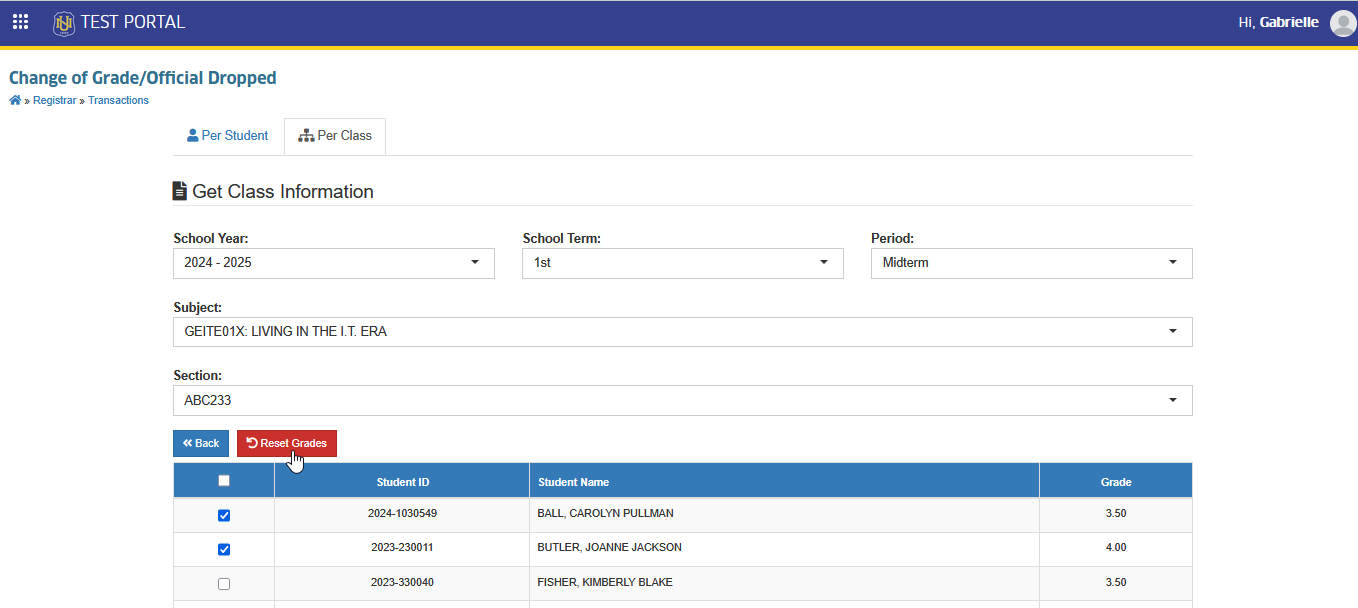
Users are only allowed to reset records which have grades with finality (0.00, Dr, W).
For more questions or concerns, email us at nu-desk@national-u.edu.ph