My Performance Evaluation
View and manage standard performance evaluation.
The My Performance Evaluation module is designed to streamline and digitize the process of evaluating faculty performance. It serves as a centralized platform where faculty members can submit their performance evaluations for review and approval by their immediate superiors.
This module aims to promote transparency, accountability, and ease of use in the evaluation process. By providing a structured and accessible system, it helps ensure that all faculty performance reviews are documented, reviewed, and approved in a timely and efficient manner.
Who should use this module?
This module is intended for use by all teaching personnel within the University, including:
-
Full-time Faculty Member - Required to complete and submit their annual SPES form throug the system.
-
Part-time Faculty - They have the option to submit or not, since they are not required to complete the forms. Their superiors will be the ones to encode their Class Observation Rating, while their Final OTE Rating will be automatically reflected based on their OTE result in the system.
Required Permission
-
My Performance Evaluation - This permission grants access to the My Performance Evaluation module, allowing teaching personnel to view, complete and submit their performance evaluation based on their employment status. This permission allows the user to:
-
Access the evaluation page
-
Input and edit performance data
-
Upload supporting documents
-
Submit evaluations for review and approval
-
Track evaluation status
How to access the module?
To access the module, make sure you have the My Performance Evaluation permission. If it doesn’t appear in your portal, request access from your System Administrator.
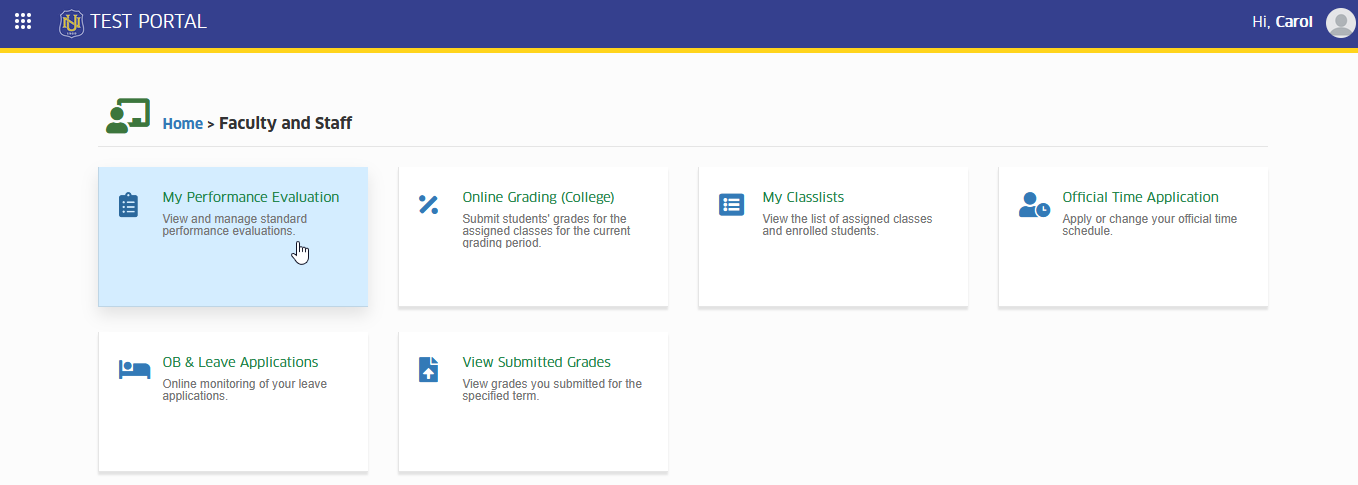
To access the module go to Faculty and Staff > My Performance Evaluation
Click the module tab to redirect to My Performance Evaluation page.
How to submit evaluation form?
This module allows teaching personnel to submit their performance evaluations online. The form layout varies depending on whether the user is a full-time or part-time faculty member.
Follow the steps below on how to submit evaluation form.
STEP 1. On the My Performance Evaluations page, locate and click on the button in the upper left side of the list view page.
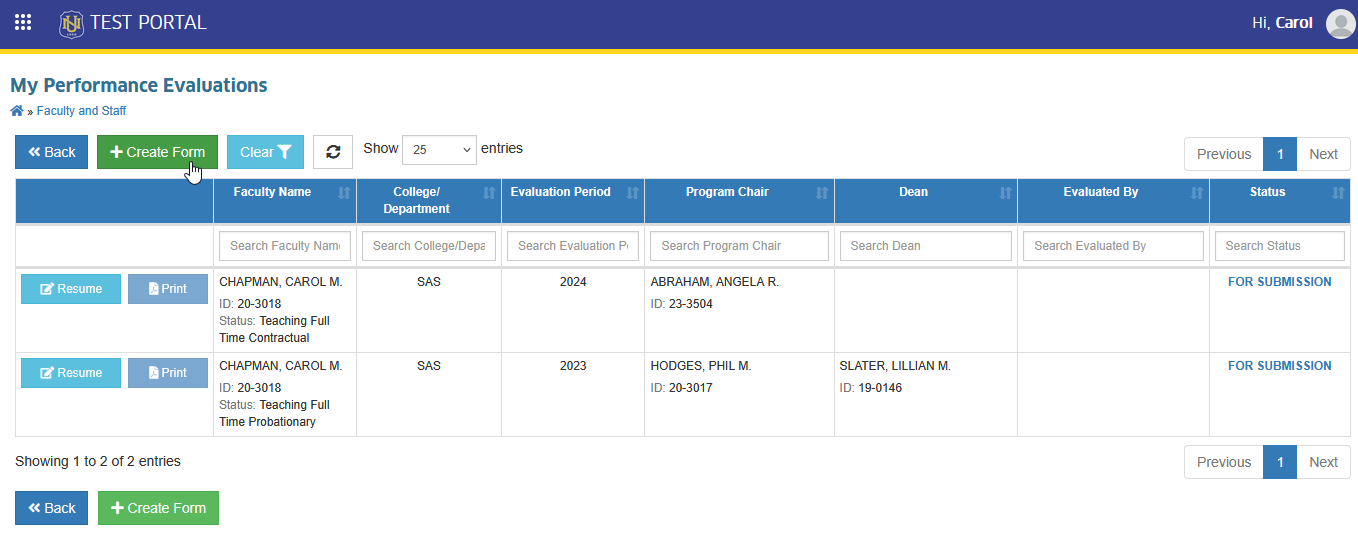
For Part-time Faculty, there is no need to create a form themselves, as their superior is responsible for generating it. They only need to submit the form available on the list view page for their superiors to approve.
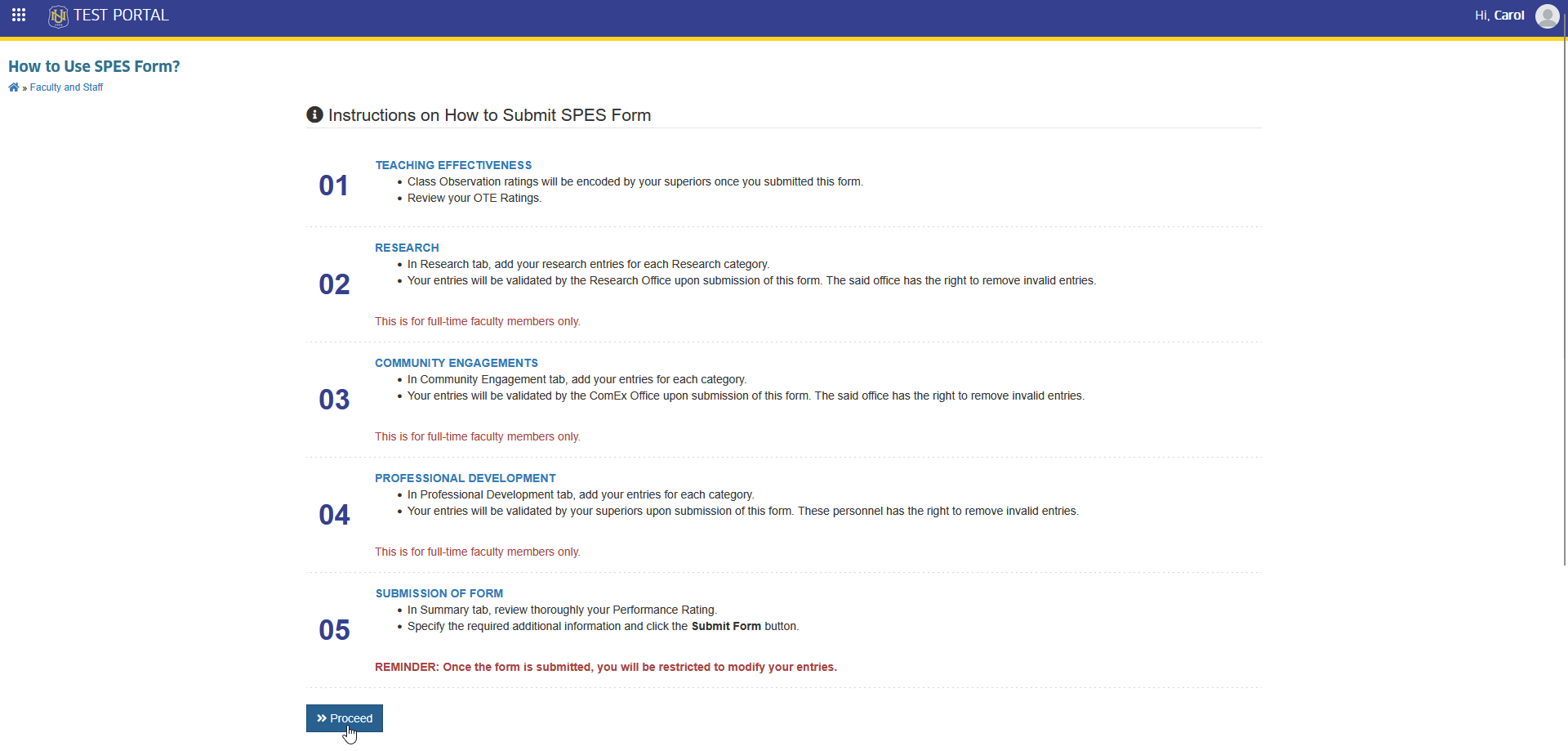
STEP 2. After clicking the button, Instructions on How to Submit SPES Form will be displayed. Read and understand them carefully before clicking the button to continue with the evaluation form.
STEP 3. User will be redirected to Manage SPES Form page. Carefully read and understand the instructions provided on how to enter the required details by clicking the button.
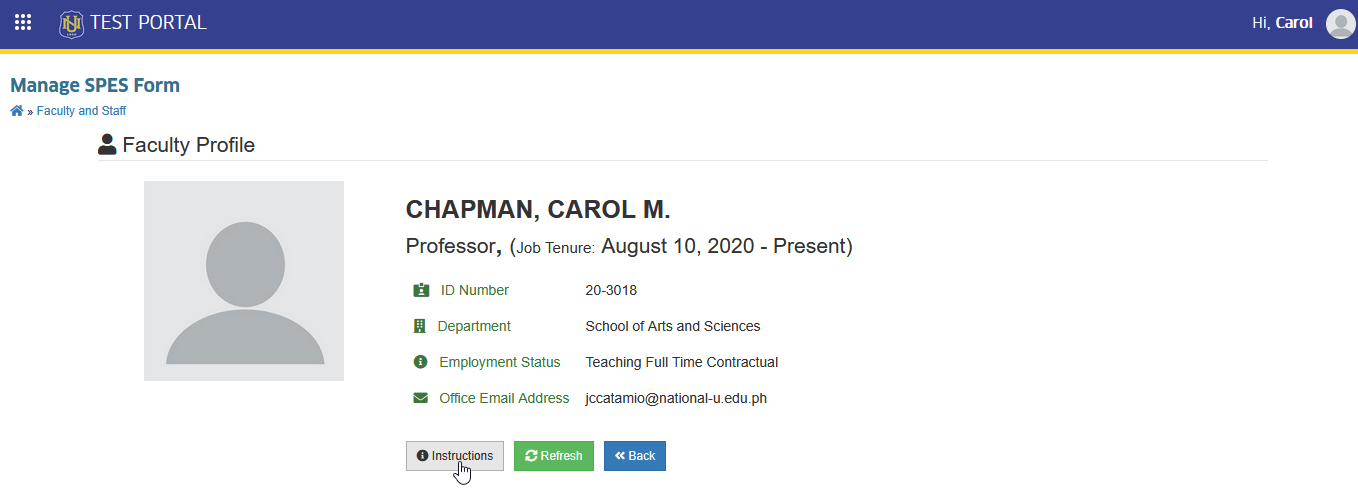
Always verify your Department and Employment Status on this page. This details should be always up to date. If they are not, click the button to reload the data. If the information still appears outdated, kindly seek assistance from the HR office to update your employment record.
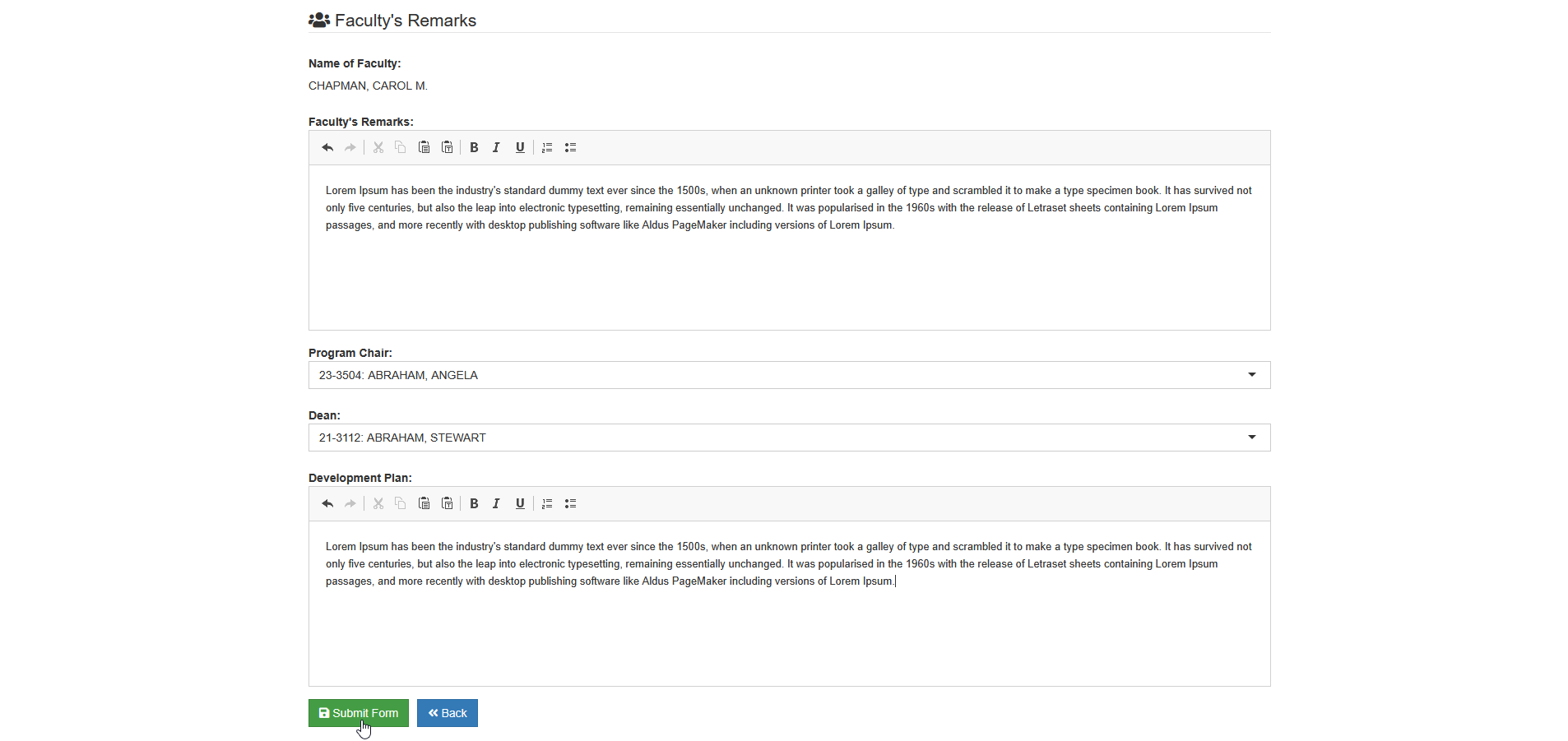
STEP 4. Once all required field has filled out, specify the names of Program Chair and Deans to whom you want to submit the form for approval. Click the button in the bottom part of the Summary tab to complete the submission and wait for the approval.
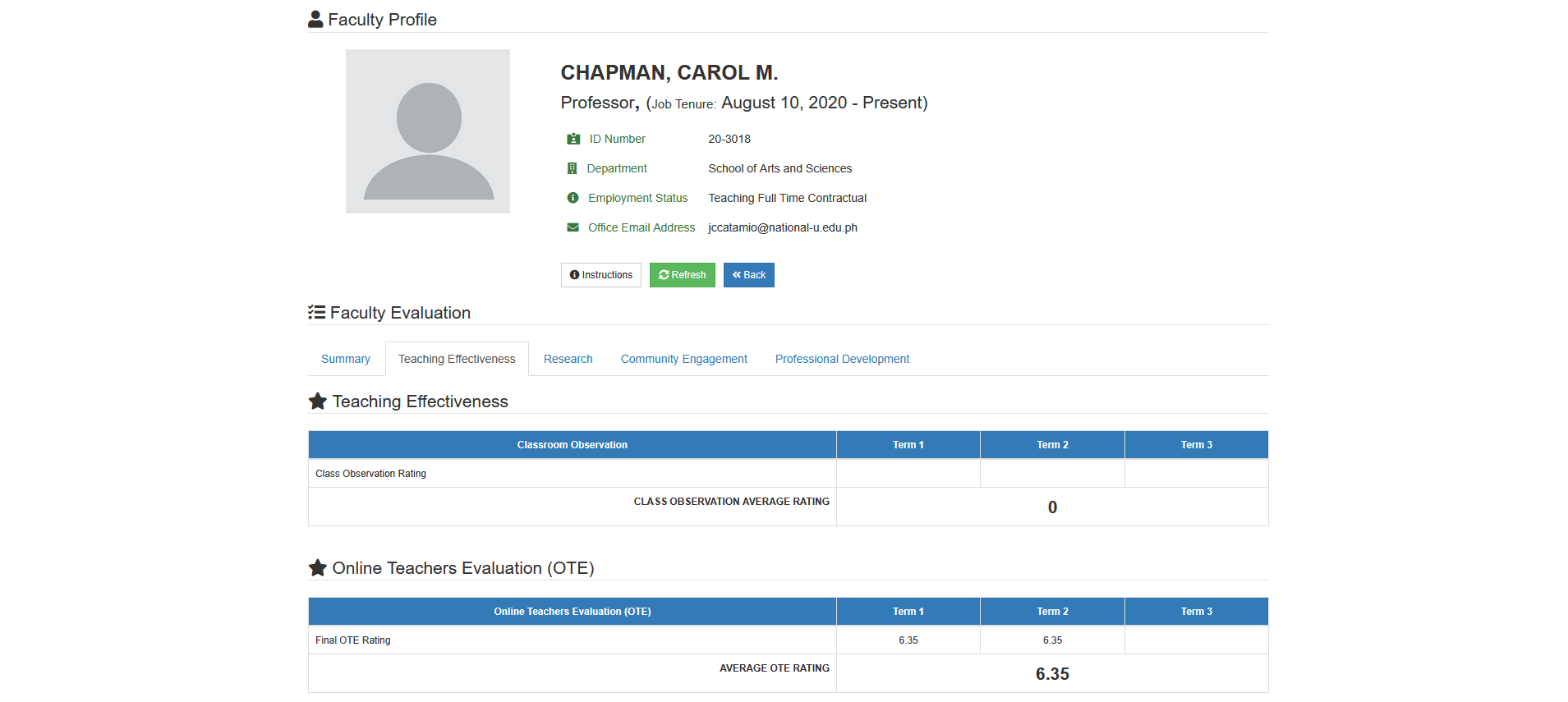
Teaching Effectiveness Tab
This tab is available to both Full-time and Part-time faculty members. It contains two main sections:
1. Teaching Effectiveness - where the faculty's immediate superior enters the classroom observation ratings for the term.
2. Online Teachers Evaluation (OTE) - which automatically displays the faculty member's OTE ratings for the term. Review first before you submit the form.
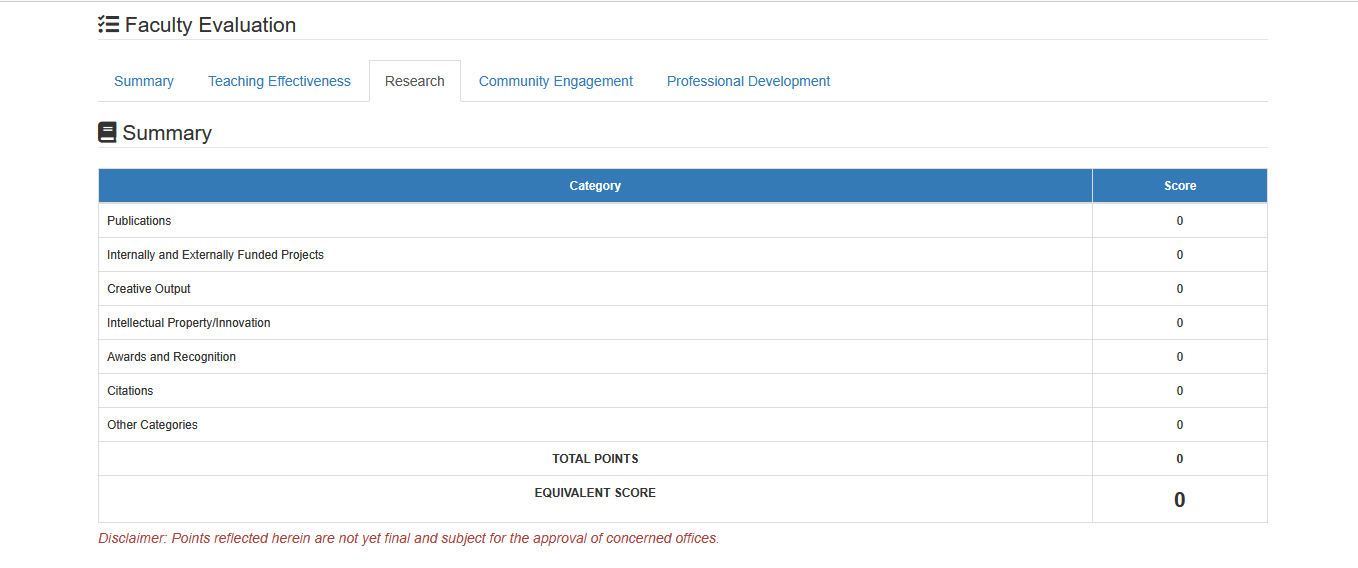
Research Tab
The Research tab allows users to record their research activities for the school year and upload supporting documents. This helps keep research information organized and easy to review.
-
Add your research entries for each research category.
-
Your entries will be validated by the Research Office upon submission of this form. The said office have the right to remove invalid entries upon validation process.
This tab is applicable for Full-time Faculty members only.
How to Add Research Entries
This section guides you through the steps to add your research activities. You can enter research details for the school year and upload any supporting documents needed for review.
STEP 1. In the Research tab, scroll down the page to view all available research categories.
List of Research Categories
-
Publications
-
Internally and Externally Funded Projects
-
Creative Output
-
Intellectual Property/ Innovation
-
Awards and Recognition
-
Cititions
-
Other Categories
STEP 2. The button should be clicked under the specific research category where the research is to be entered.
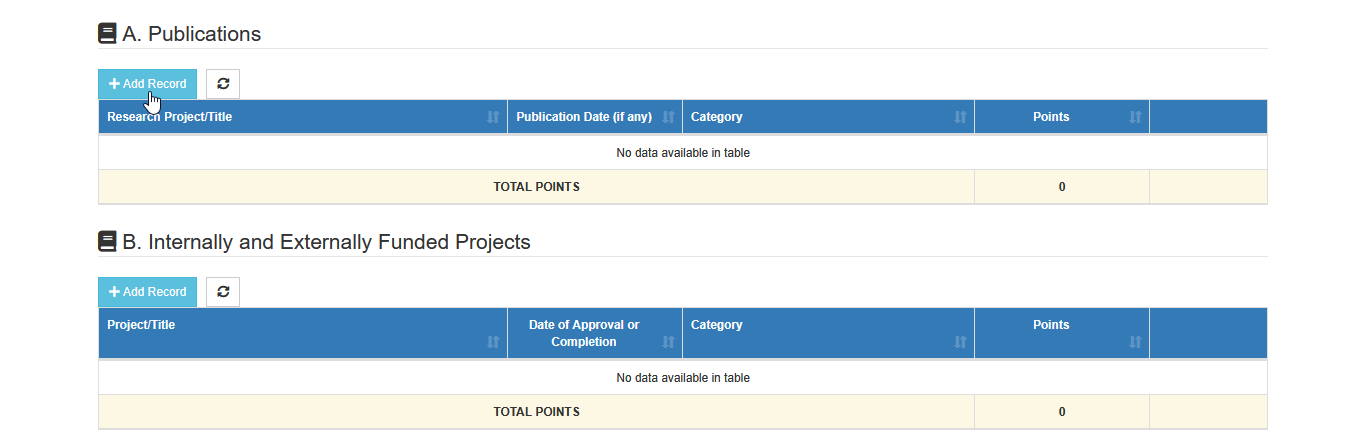
STEP 3. Specify the research project/title and upload the file by clicking the button and complete the required entry fields.
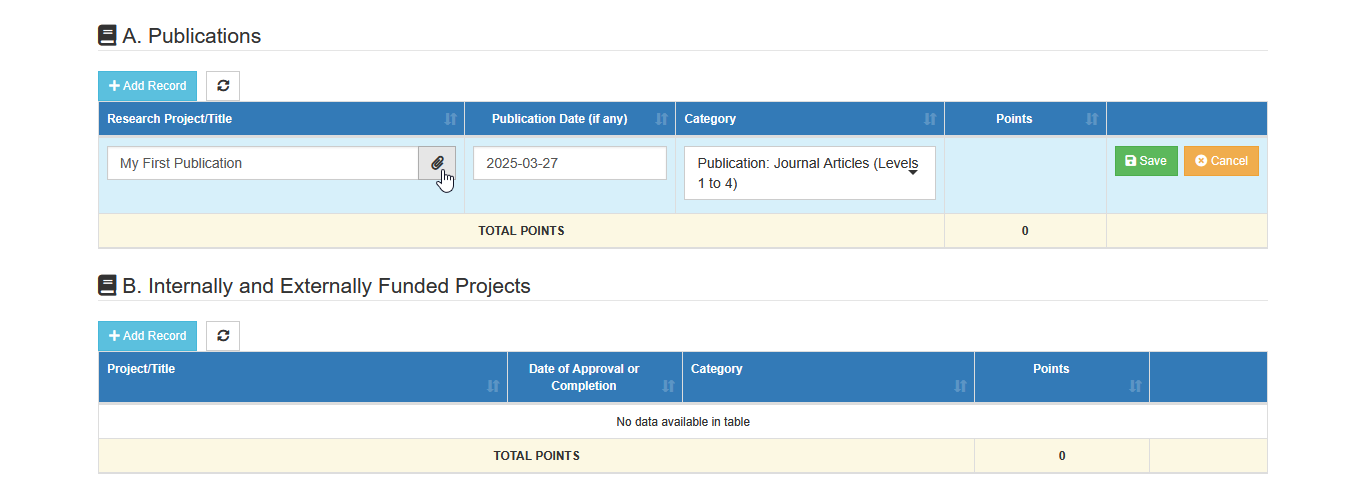
STEP 4. Click the button to save your entry.
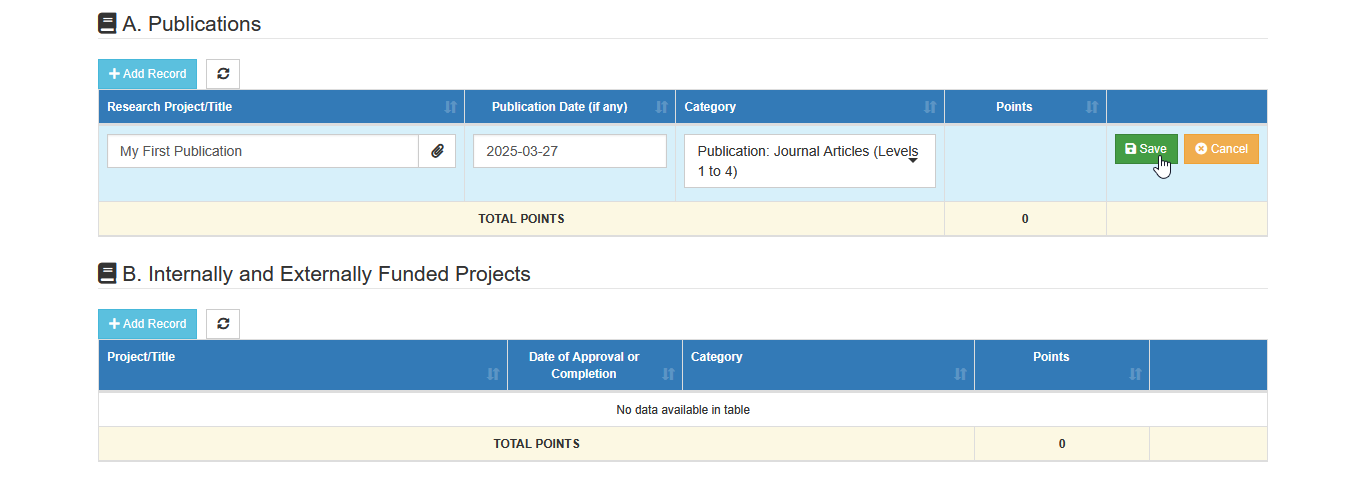
Once the entry has been successfully saved, the equivalent points for the specific entry will be automatically displayed.

How to Delete Research Entries
This section explains how to remove a research entry that was added by mistake or is no longer needed. Follow the steps below to delete an entry safely from the system.
STEP 1. Go to the Research tab and look for the specific entry that needs to be removed.
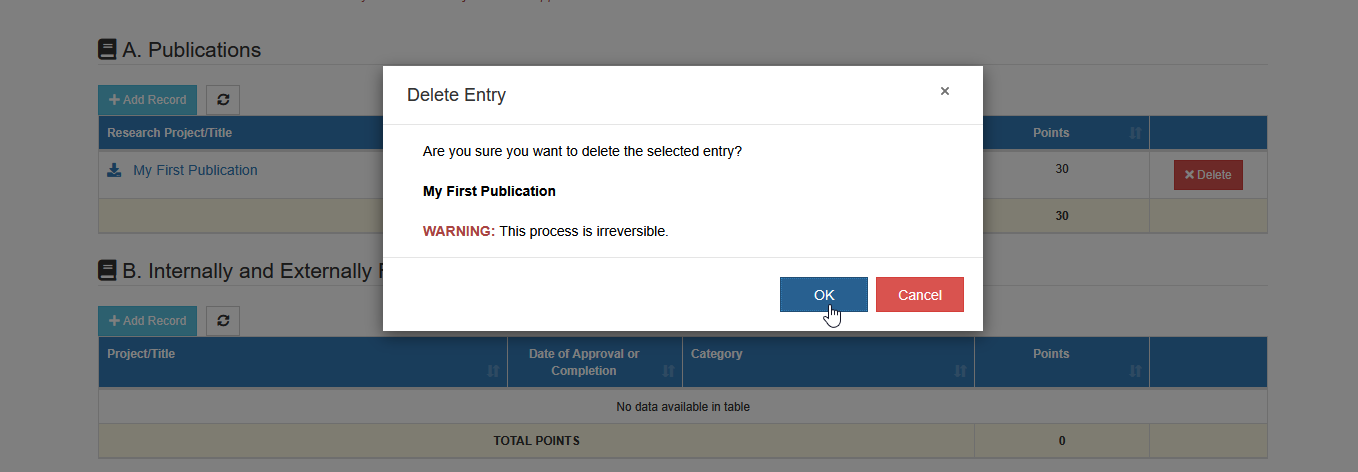
STEP 2. Click the button for the specific entry.

STEP 3. Confirm the deletion to safely remove the entry.
Community Engagement Tab
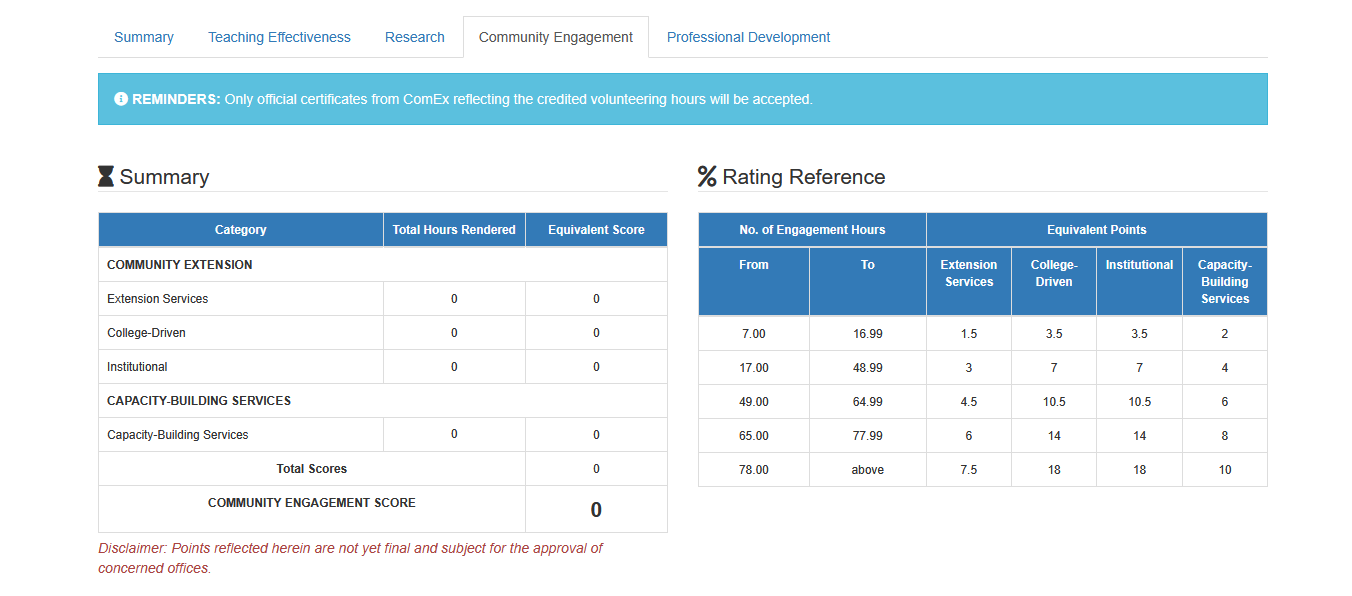
The Community Engagement tab allows users to record community extension programs they have attended and upload the certificates provided by the COMEX office as supporting documents.
- Add your entries for each community engagement categories.
List of community engagement categories
-
Extension Services
-
College-Driven
-
Institutional
-
Capacity-Building Services
- Entries will be validated by the ComEx Office upon submission of this form. The said office has the right to remove invalid entries.
How to Add Community Engagement Entries
This section guides you through the steps to add your communnity engagement activities. You can enter COMEX activity details for the school year and upload any supporting documents needed for review.
STEP 1. In the Community Engagement tab, scroll down the page to view all available community engagement categories.
STEP 2. The button should be clicked under the specific community engagement category where the COMEX activity details are to be entered.
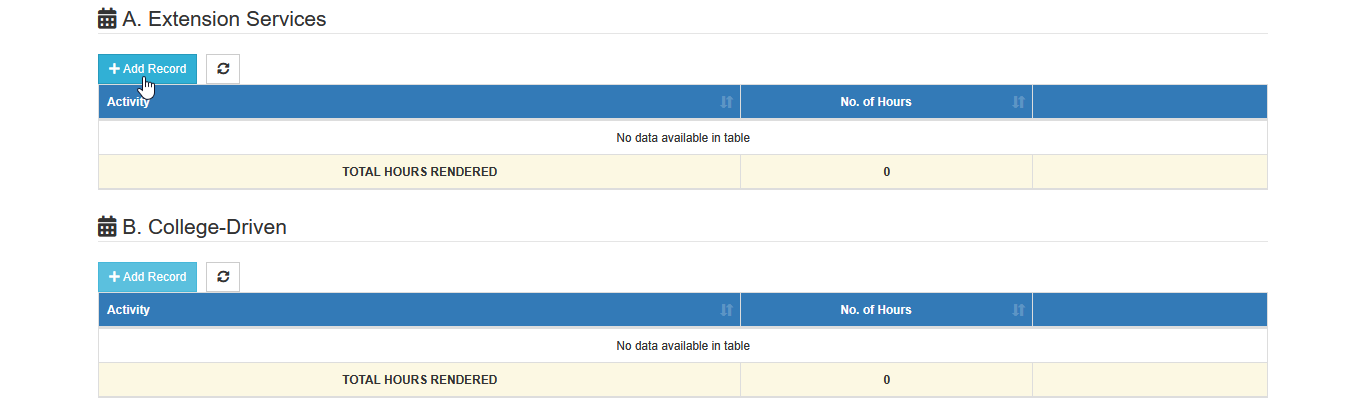
STEP 3. Specify the activity name and upload the file by clicking the button and enter the number of hours for the specific activity.

STEP 4. Click the button to save your entry.

-
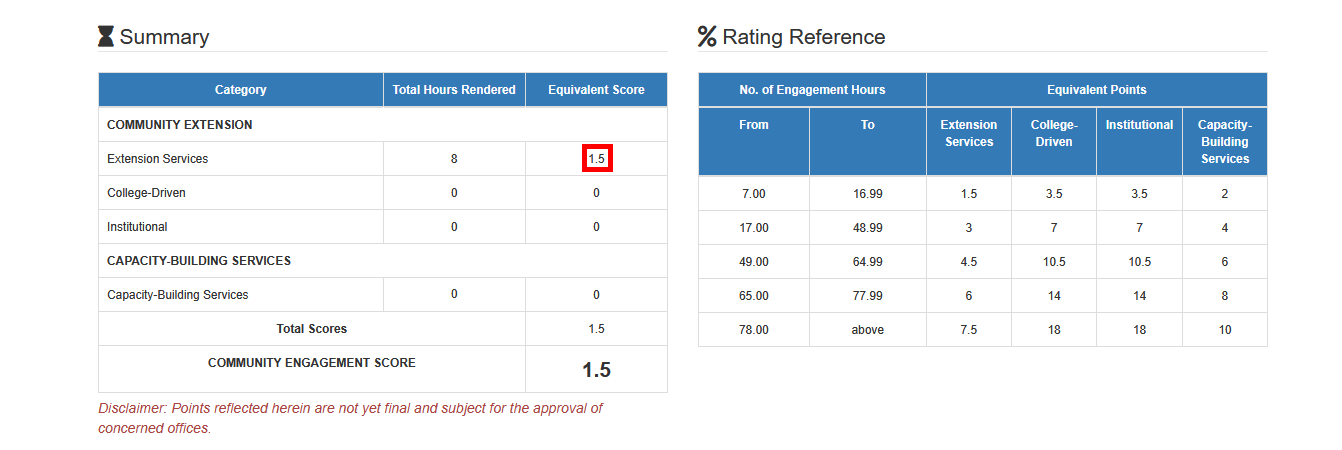
Once the entry has been successfully saved, the equivalent score for the specific entry will be automatically displayed under the Summary section of the page.
-
Points reflected in the summary are not yet final and subject for the approval of the concerned office.
How to Delete Community Engagement Entries
This section explains how to remove a community engagement entry that was added by mistake or is no longer needed. Follow the steps below to delete an entry safely from the system.
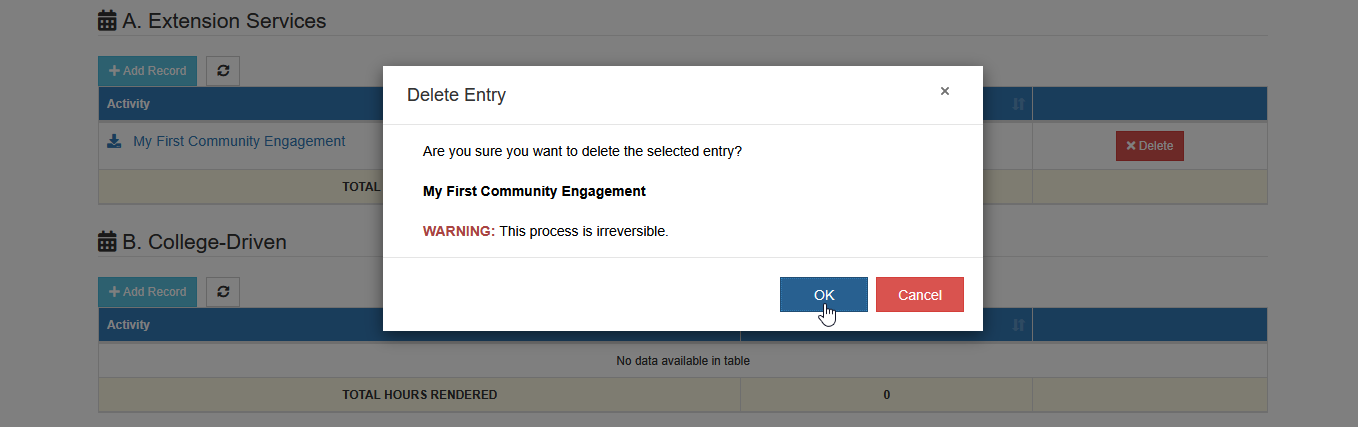
STEP 1. Go to the Community Engagement tab and look for the specific entry that needs to be removed.
STEP 2. Click the button for the specific entry.

STEP 3. Confirm the deletion to safely remove the entry.
Professional Development
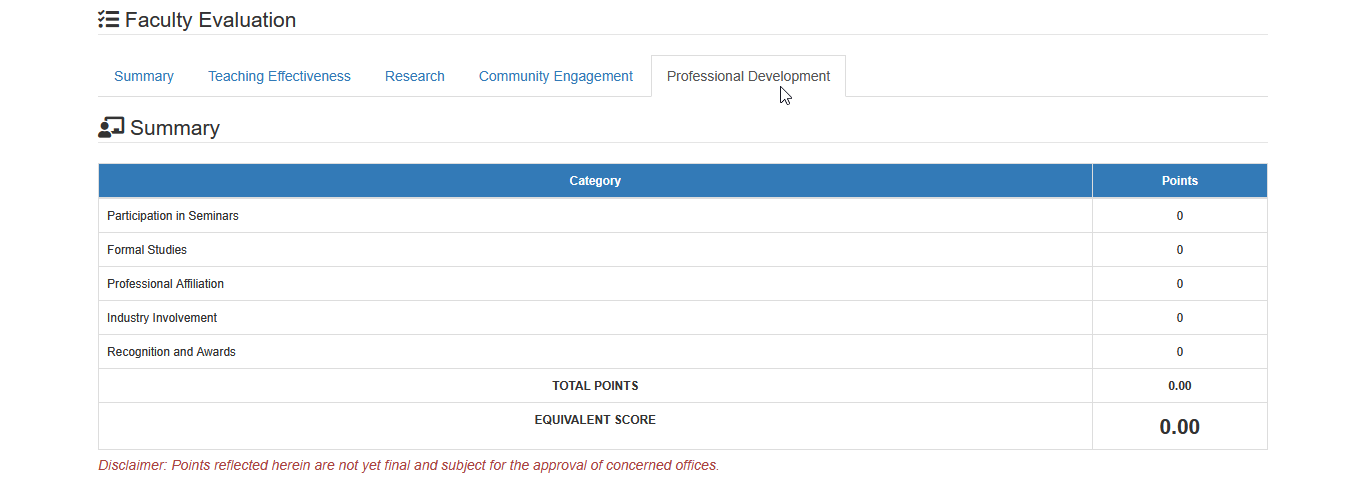
The Professional Development tab allows full-time faculty members to record the professional development activities they have attended and upload supporting documents as proof of participation.
-
Add your professional development entries for each category.
-
Your entries will be validated by immediate superior upon submission of this form. The said personnel have the right to remove invalid entries upon validation process.
This tab is applicable for Full-time Faculty members only.
How to Add Research Entries
This section guides you through the steps to add your professional development activities. You can enter professional development details for the school year and upload any supporting documents needed for review.
STEP 1. In the Professional Development tab, scroll down the page to view all available professional development categories.
List of Professional Development Categories
-
Participation in seminars
-
Formal Studies
-
Professional Affiliation
-
Industry Involvement
-
Recognition and Awards
STEP 2. The button should be clicked under the specific professional development category where the activity is to be entered.

STEP 3. Specify the Name or Title of the activity and upload the file by clicking the button and complete the required entry fields.

STEP 4. Click the button to save your entry.
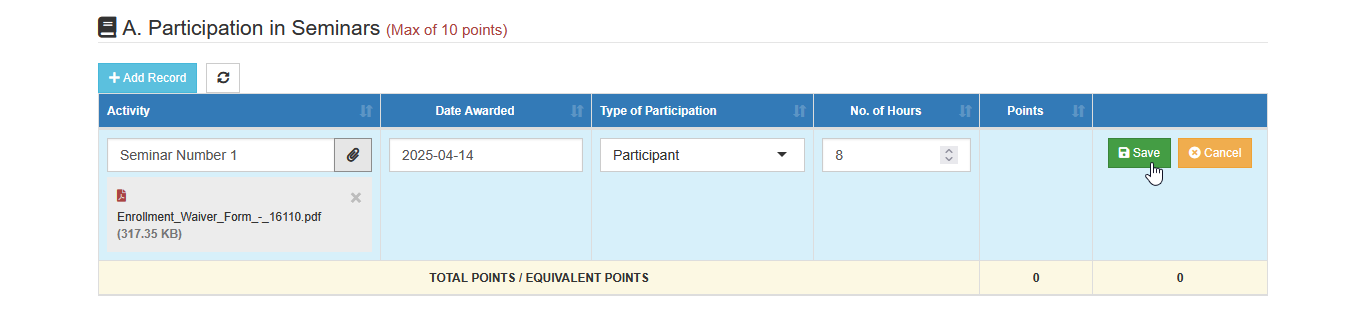
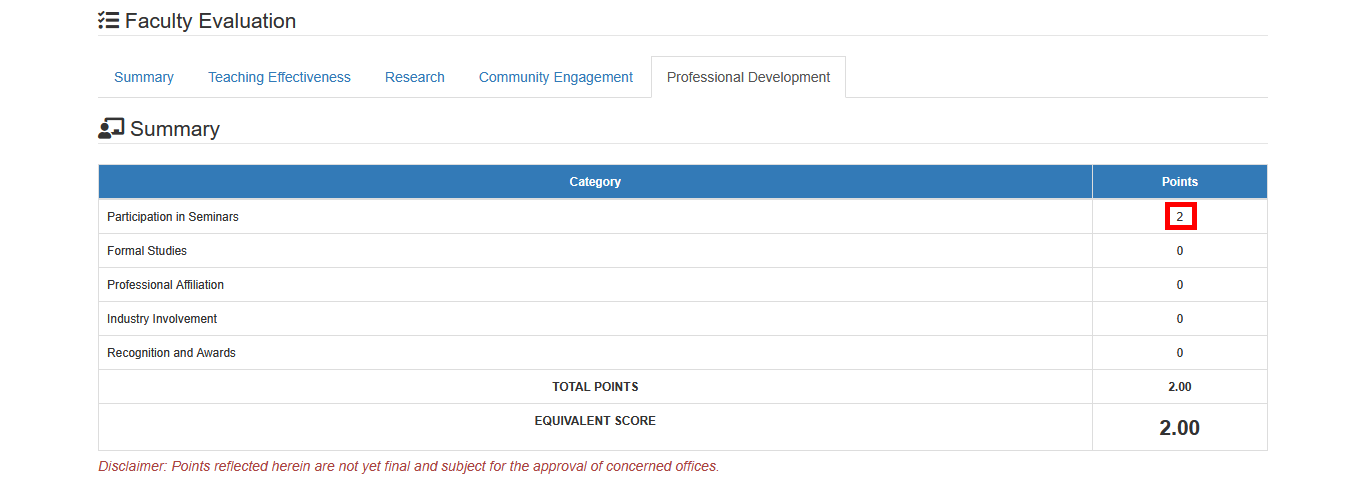
Once the entry has been successfully saved, the equivalent points for the specific entry will be automatically displayed.
How to Delete Professional Development Entries
This section explains how to remove a professional development entry that was added by mistake or is no longer needed. Follow the steps below to delete an entry safely from the system.
STEP 1. Go to the Professional Development tab and look for the specific entry that needs to be removed.
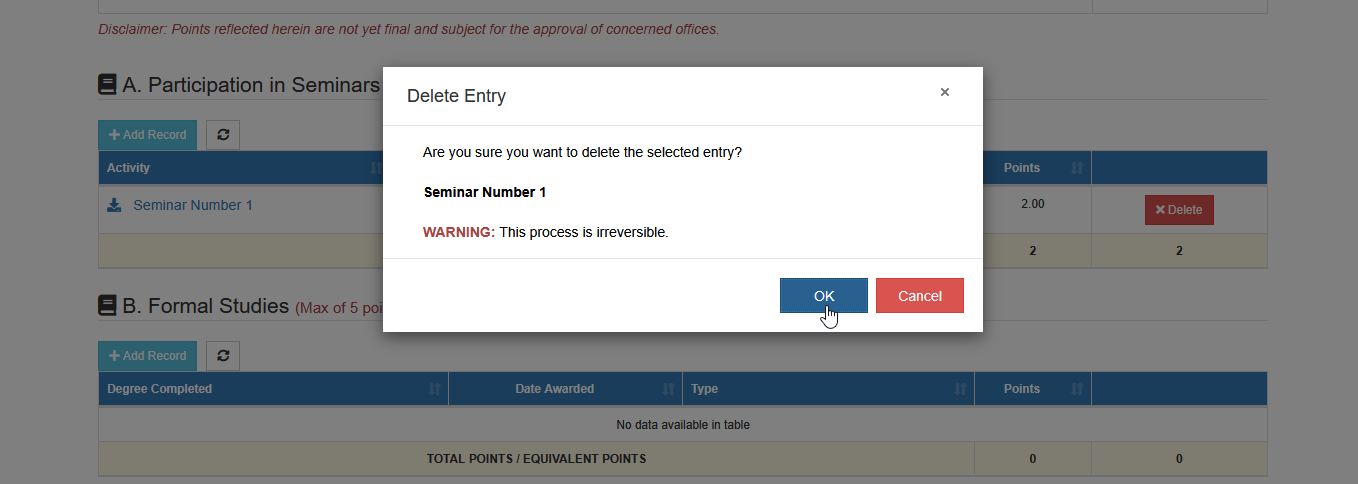
STEP 2. Click the button for the specific entry.

STEP 3. Confirm the deletion to safely remove the entry.
For more questions or concerns, email us at nu-desk@national-u.edu.ph