Online Grading
Submit students' grades for the assigned classes for the current grading period.
Purpose of the module
The Online Grading module is a digital platform designed to streamline the process of grade encoding and submission for faculty members. It allows the user to input and submit students grades. This module is accessible only during the official grade submission period.
Who should use this module?
This module is intended for All Faculty members teaching in both the College and Senior High School departments. Whether full-time or part-time, instructors are required to use the Online Grading module to encode and submit their students' grades during the designated submission period.
Required Permission
- Online Grading - This permission allows the authorized faculty members to access the Online Grading module, where they can view their assigned courses and classlists, encode grades and submit final grade during grade submission period.
How to access the module?
To access the module, make sure you have the Online Grading permission. If it doesn’t appear in your portal, request access from your System Administrator.
To access the module go to Faculty and Staff > Online Grading
Click the module tab to redirect to Online Submission of Grade page.
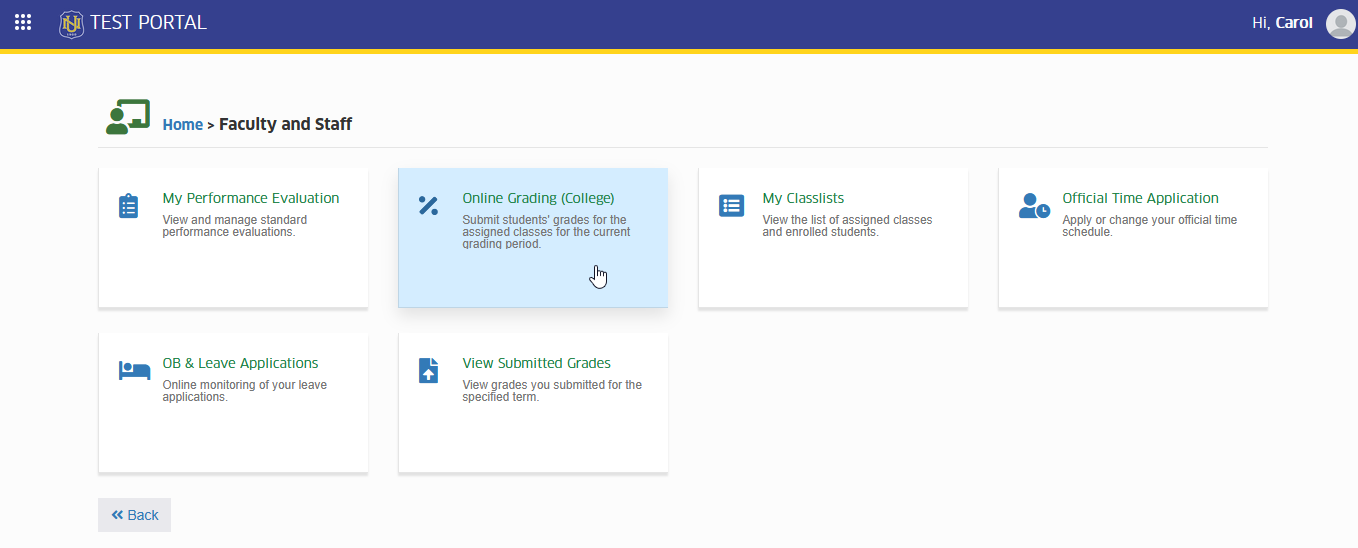
This module is accessible only during Grade Submission period only. Coordinate with Registrar's Office for late grade encoding.
How to encode students grades
This section provides a step-by-step guide on how to properly encode students' grades into the system. Follow the instructions carefully to ensure accurate and timely submission in compliance with academic policies.
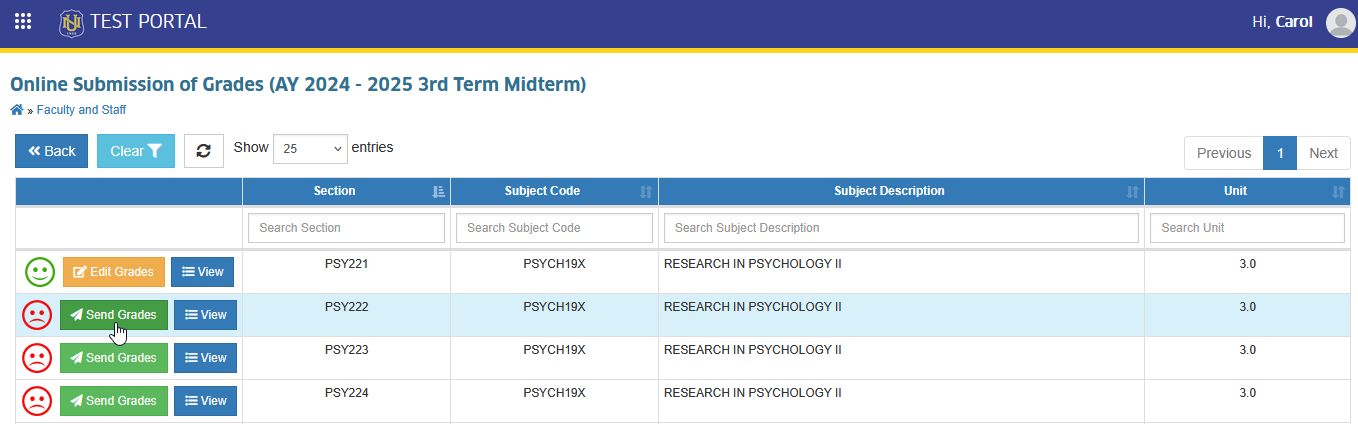
STEP 1. In Online Submission of Grades page, click the corresponding button for the class list you want to encode the grade for. This action will redirect to the class listview page.
STEP 2. In class listview page, scroll down to Student Grades section. The user will see all students enrolled in the selected class. To encode grades, click the dropdown menu in the grade column for each student and select the correct grade.
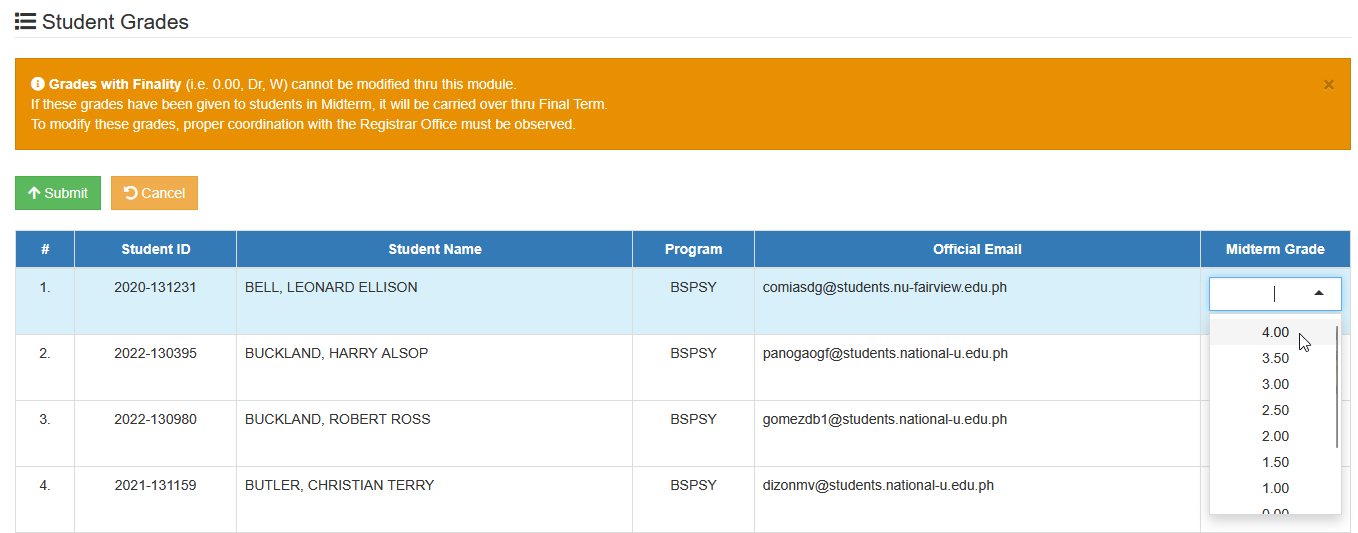
Make sure to encode all students' grades before submitting.
STEP 3. Click the button to save the encoded grades.
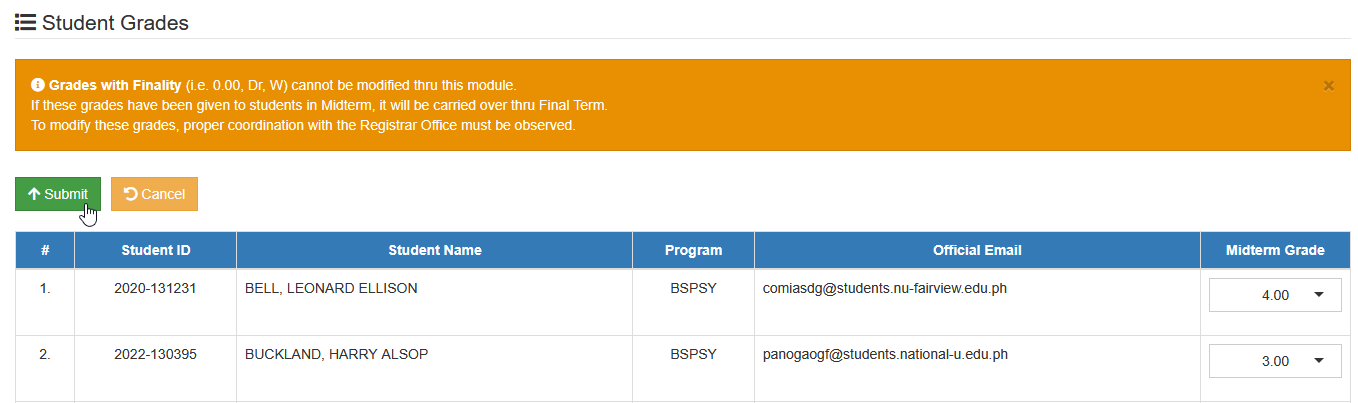
Grades have been successfully submitted.
User will still be able to modify submitted grades as long as Online Grading period is still open.
Grades with Finality (i.e. 0.00, Dr, W) cannot be modified thru this module. If these grades have been given to students in Midterm, it will be carried over thru Final Term. To modify these grades, proper coordination with the Registrar Office must be observed.
How to modify encoded grades?
This section explains the steps required to update or correct grades that have already been encoded. Follow the steps below on how to edit encoded grades and ensure that any changes are properly submitted and reflected in the system.
STEP 1. In Online Submission of Grades page, click the corresponding button for the class list whose encoded grades need to be modified. This action will redirect to the class listview page.
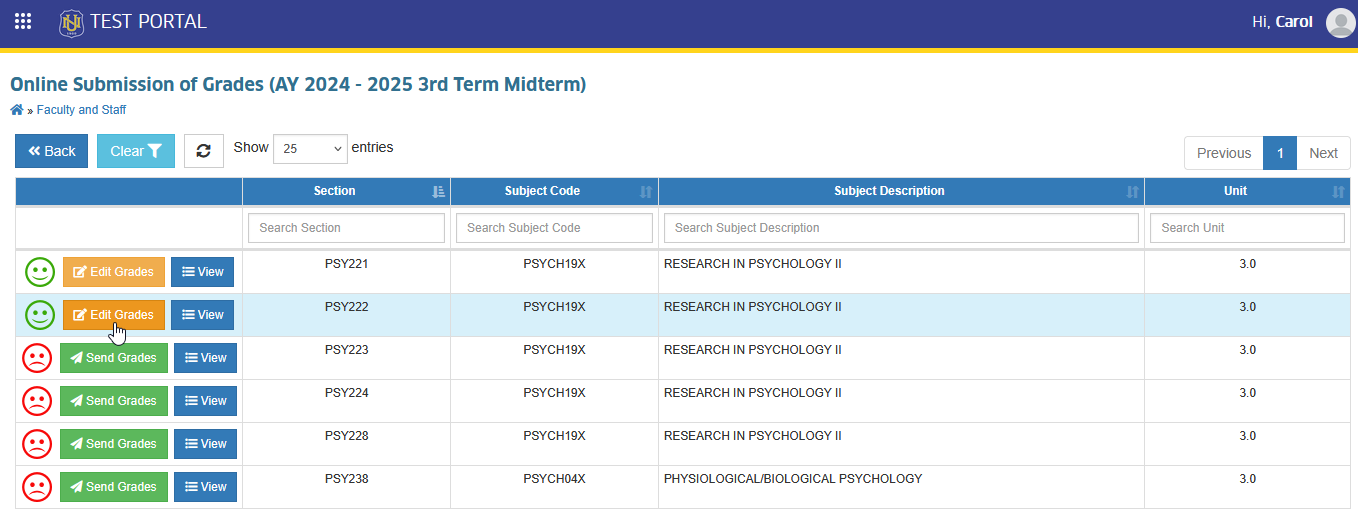
STEP 2. Modify the encoded grades. Click the button to save the changes.
For more questions or concerns, email us at nu-desk@national-u.edu.ph