OB & Leave Applications
Online monitoring of employee's leave applications.
To apply for OB or Leaves, an employee must first have an approved Official time.
Required Permissions
- OB & Leave Applications - This permission allow the user to access the module and apply for OB and Leaves.
How to access the module?
To access the module, make sure you have the OB & Leave Applications permission. If it doesn’t appear in your portal, request access from your System Administrator.
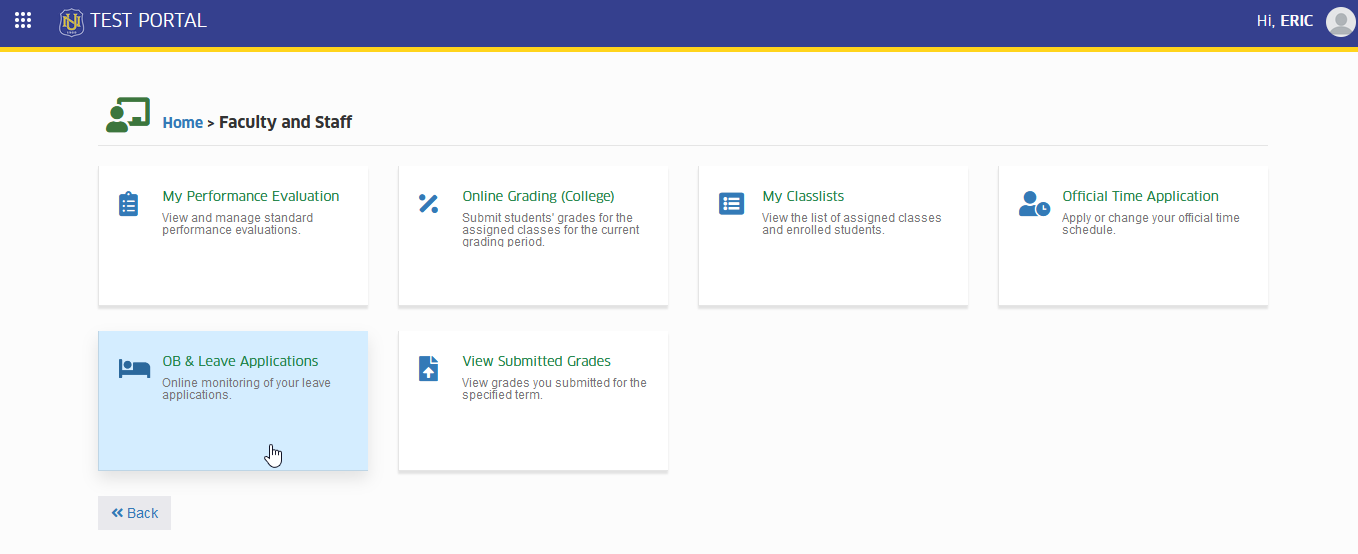
To access the module go to Faculty and Staff > OB & Leave Applications
Click the module tab to redirect to My Leave Applications page.
How to file an OB or Leaves?
This module is available to all employees for the purpose of applying for paid or unpaid leaves.
Follow the steps below on how to file for a leave.
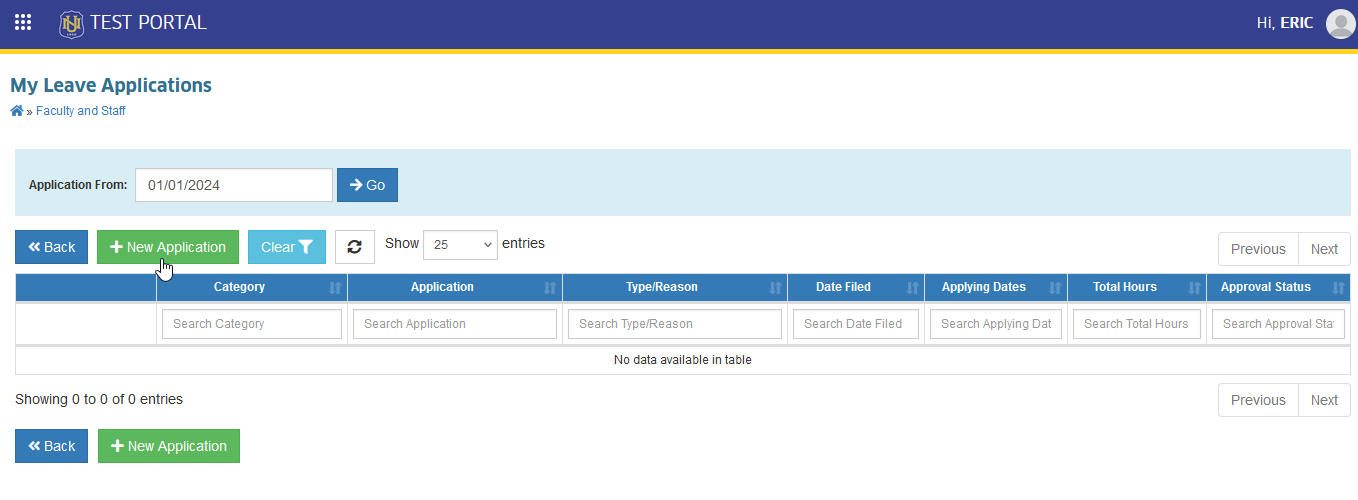
STEP 1. In My Leave Applications page, click the button. This action will redirect to New Application page.
STEP 2. In New Application page, Select the type of leave you want to apply in Application Type, Date Range, Reasons field under Application Details section. Review the application before submission.
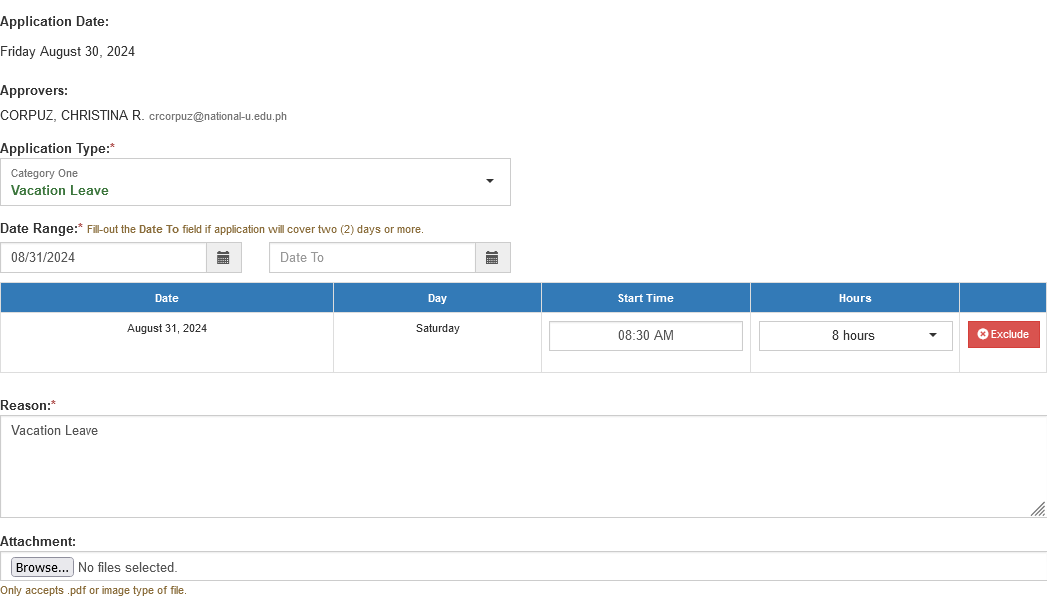
Fill-out the Date to field if application will cover two (2) days more.
STEP 3. Once the application has been finalized, click the button.
Leave application has been submitted, Wait for the Immidiate Supervisor's Approval.
How to Apply Work from Home WFH Leave
Step-by-step process for employees to submit a Work From Home (WFH) leave application, complete required details, upload necessary attachments, and track approval status.
STEP 1. Log in to your NUIS account.
STEP 2. Navigate to the Official Business (OB) & Leave Application module
STEP 3. On the My Leave Applications page, locate and click the button.
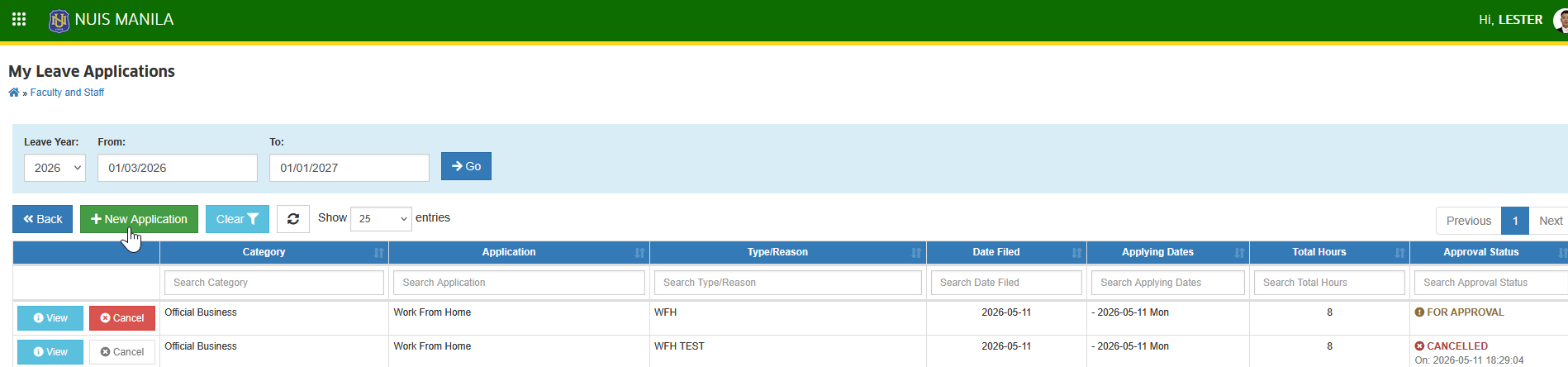
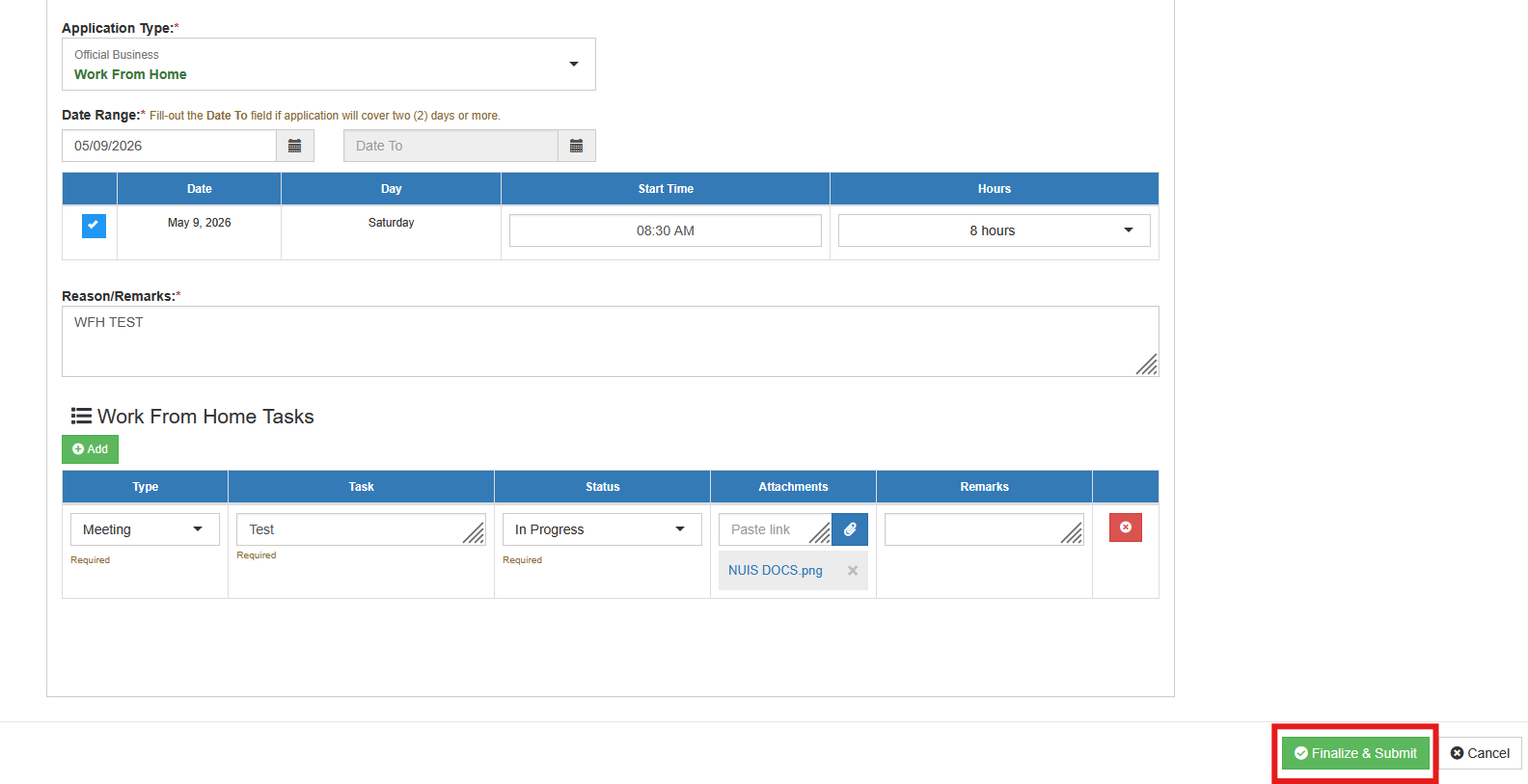
STEP 4. Select WFH as the leave type in the Application Type required field.
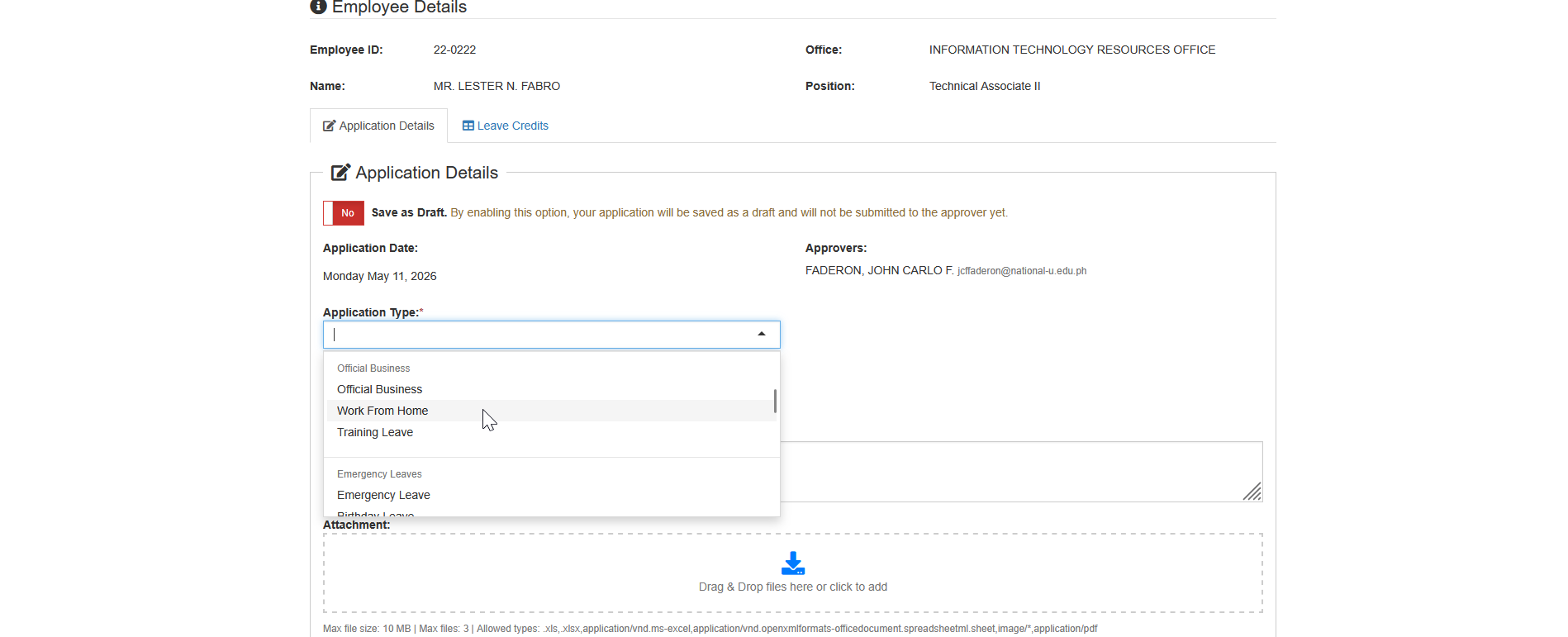
STEP 5. Fill out all the required fields, such as Date Range and the Reason/Remarks.
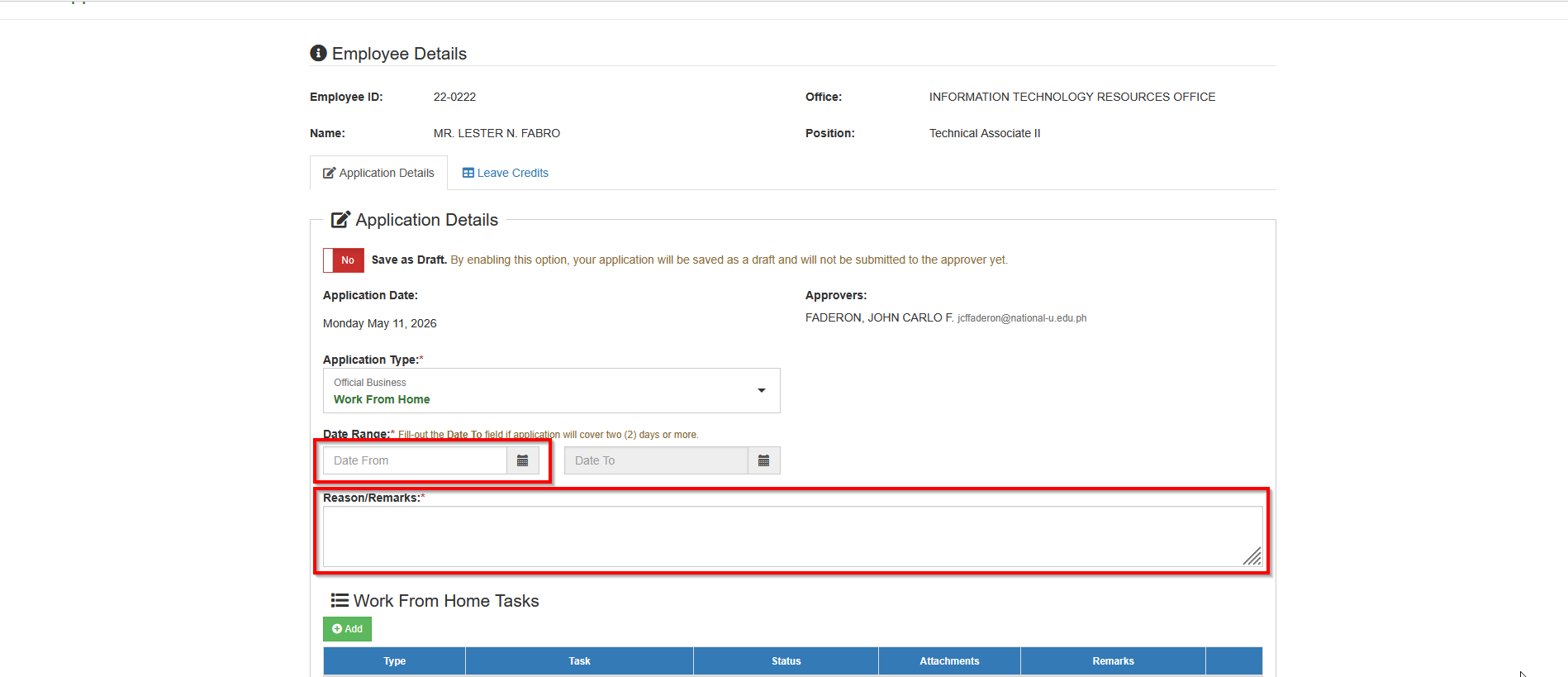
STEP 6. In the Work from Home Tasks section, enter your wfh output and attach supporting documents each entry. To add WFH output, click the button.
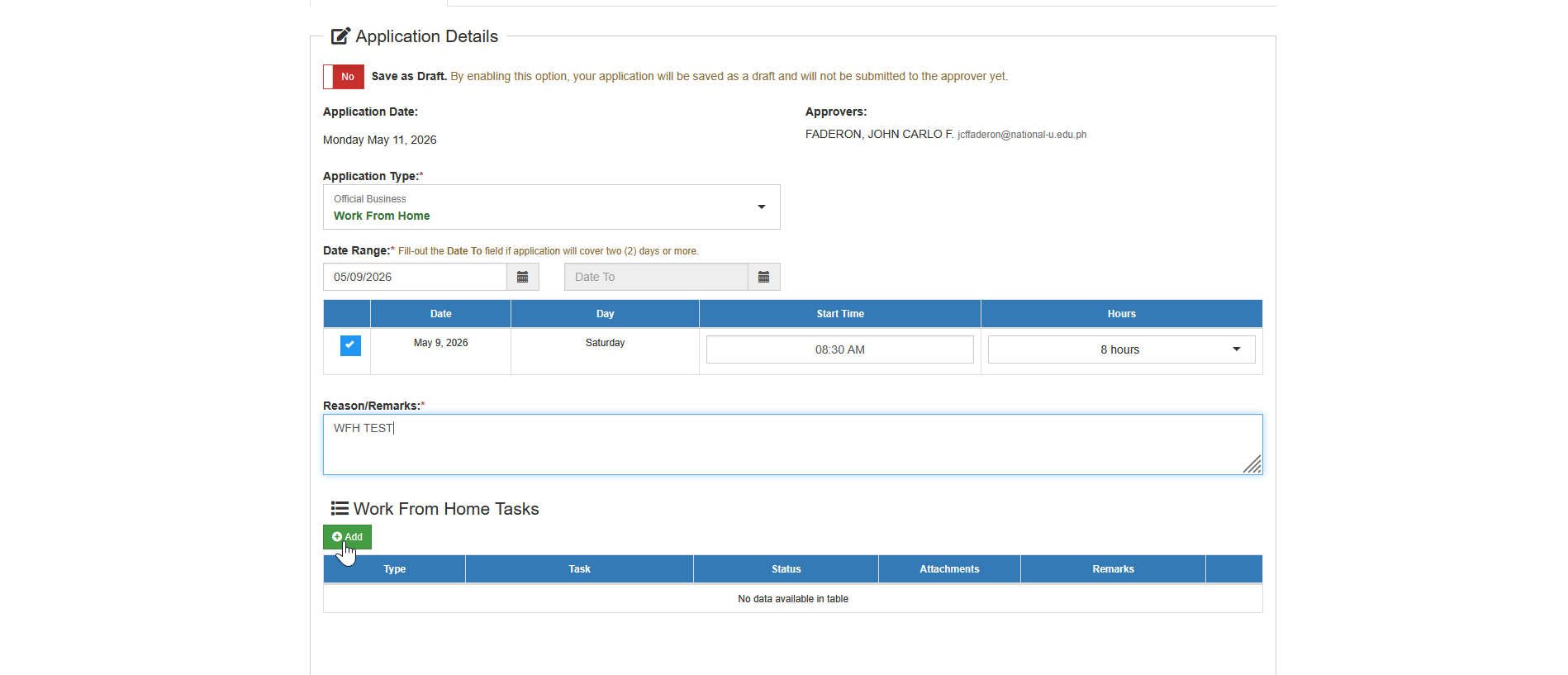
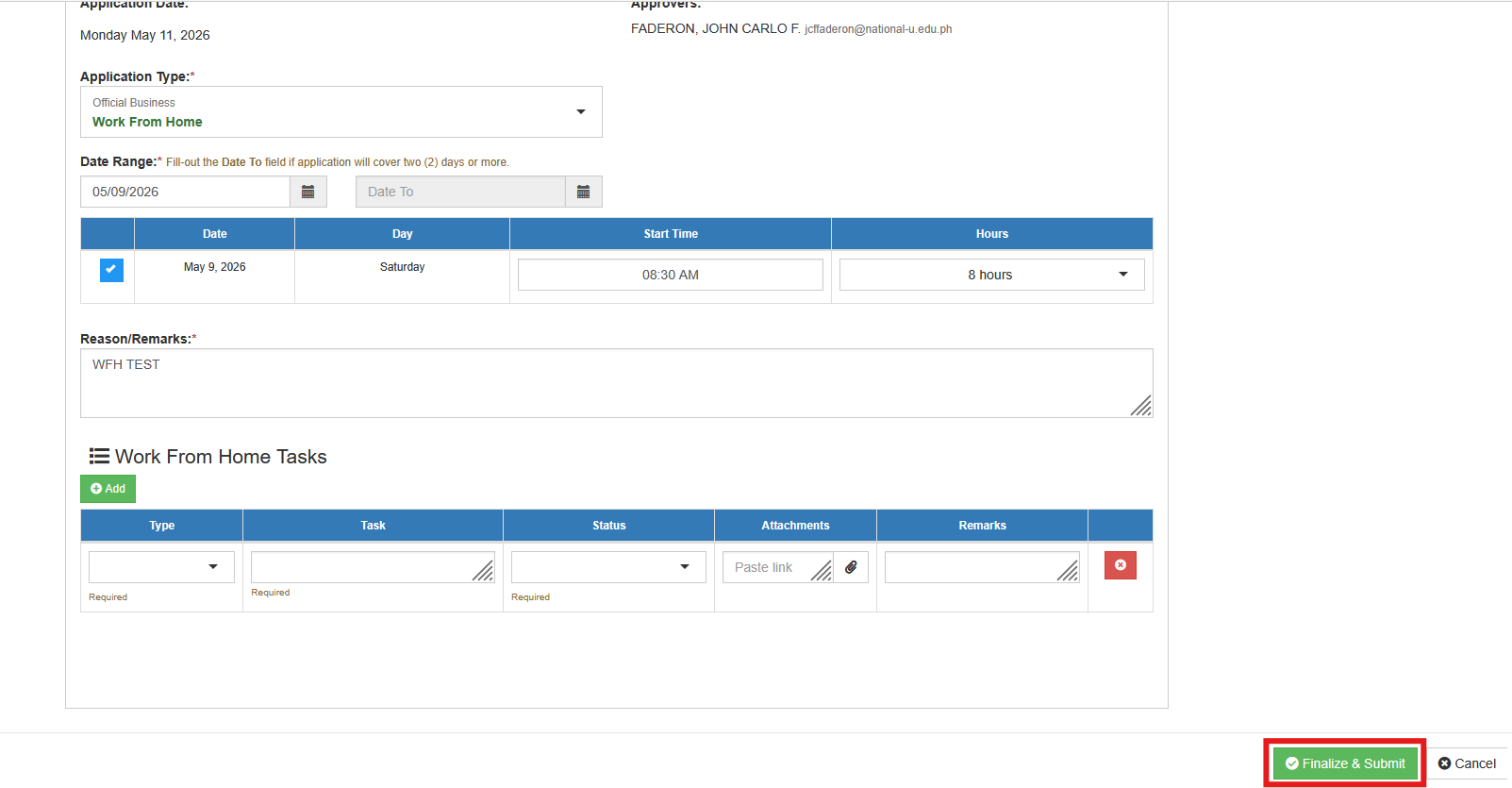
STEP 7. Complete the required fields for each WFH task and upload the necessary attachments.
STEP 8. Click the button to submit your WFH leave application for approval by your immediate superior.
How to Save WFH Application as Draft
Allows users to save their WFH leave application as a draft before final submission, so they can review, edit, or complete it later
Follow the steps below to save your tasks before final submission.
STEP 1. On the Application Details section, Enable the Save as Draft feature by clicking the Save as Draft toggle.
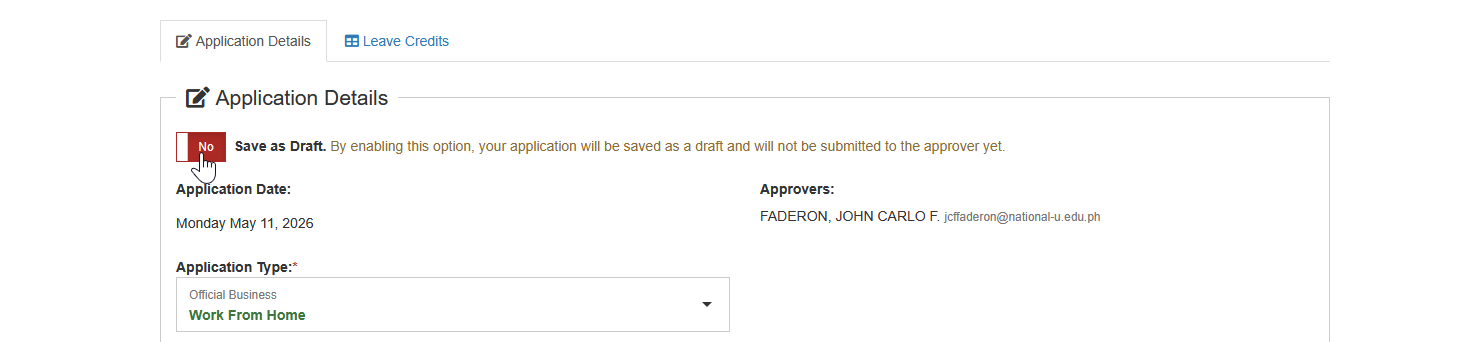
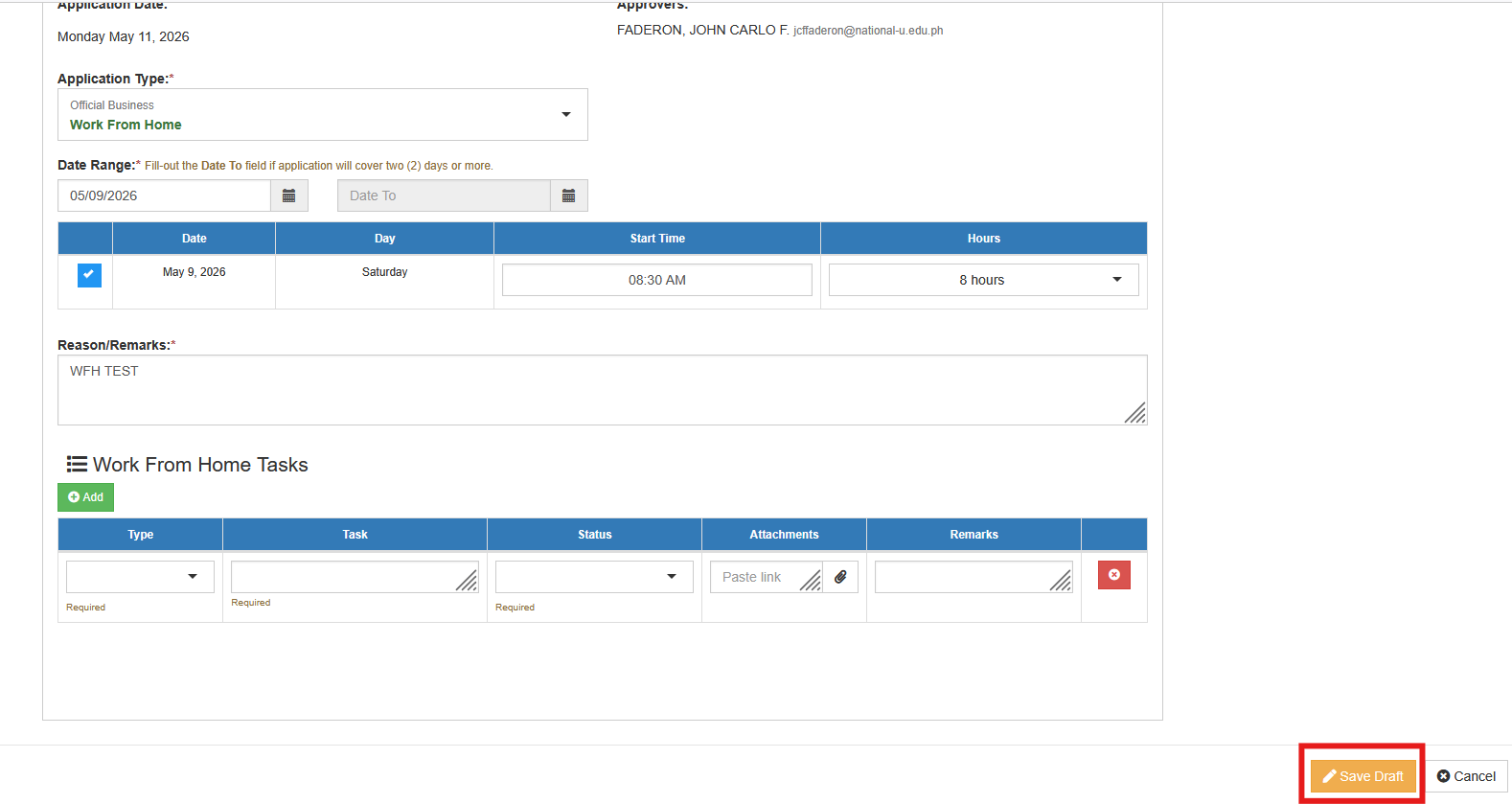
STEP 2. Complete the required fields for each WFH task and upload the necessary attachments.
STEP 3. Click the button to save your tasks as draft.
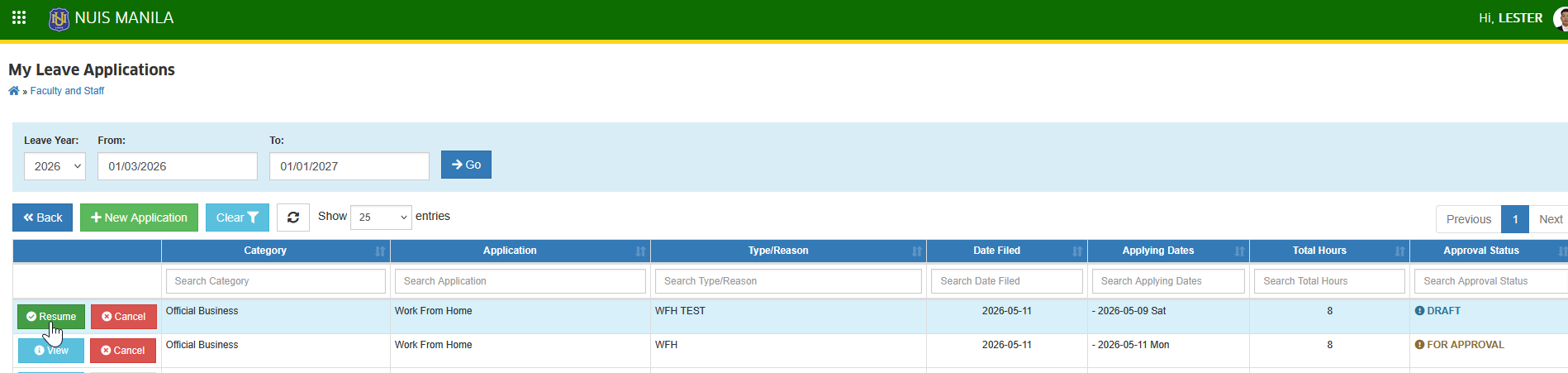
STEP 4. To continue your application later, go to the My Leave Applications page and clicking the button.
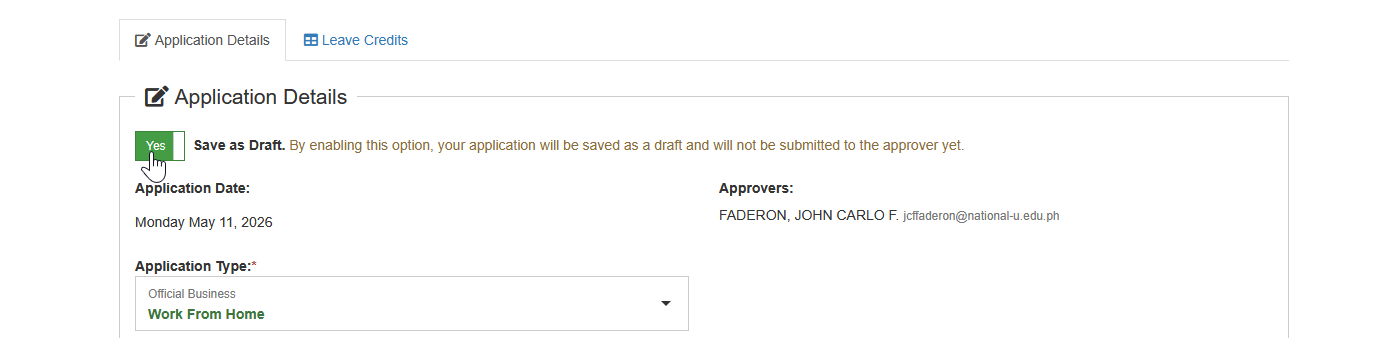
STEP 5. Once all tasks have been completed, disable the Save as Draft toggle.
STEP 6. Click the button to submit your WFH leave application for approval by your immediate superior.
How to remove a day in an inclusive dates of leave?
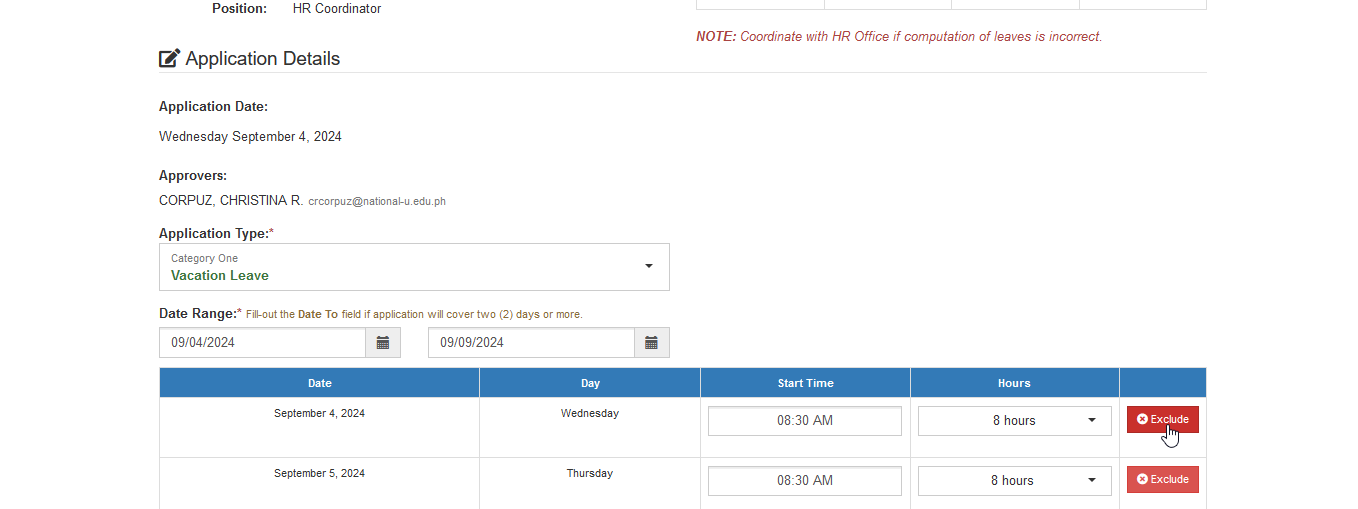
In application for OB & Leave, user can remove selected days from an inclusive dates. Follow the steps below on how to remove day in an inclusive dates of leave.
STEP 1. In New Application page, under the Application Details section, click the corresponding button of the specific days you want to exclude.
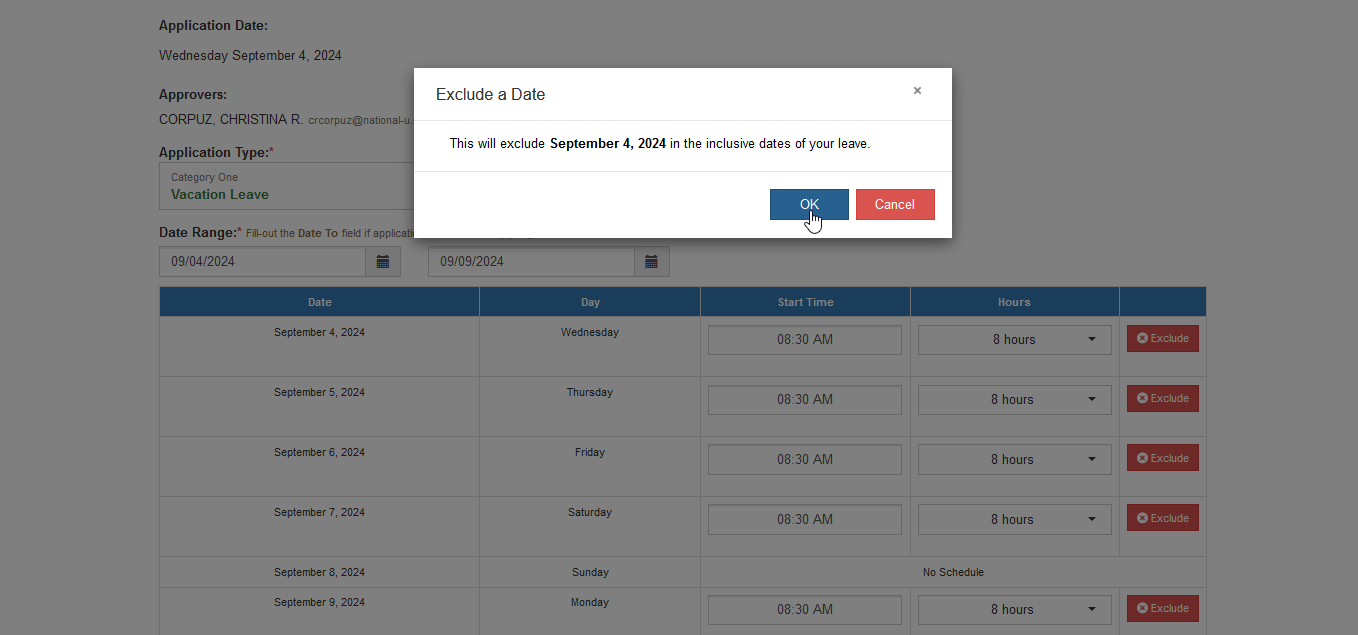
STEP 2. Confirm your action by clicking the button in the confirmation prompt.
STEP 3. Submit the leave application by clicking the click the button.