Applicants
Manage applicant's information and issuance of enrollment permit.
Required Permissions
The following permissions are necessary in managing admission applications
- View Prospect - Permission to view NU Admission applicants.
- Add Prospect - This permission allows the user to add a prospect.
- Edit Prospect - This permission allows the user to edit an applicant, this will also give a user an access to admin access in NU Quest.
- Delete Prospect - Permission to delete prospect.
The following permission are necessary in managing Applicant's Education.
- View refProspectEducation - Permission to view applicant's education background.
- Add refProspectEducation - Permission to add applicant's education background.
- Edit refProspectEducation - Permission to edit applicant's education background.
- Delete refProspectEducation - Permission to delete applicant's education background.
The following permission are necessary in managing Applicant's Employment history.
- View refProspectEmployment - Permission to view applicants employment history.
- Add refProspectEmployment - Permission to add applicants employment history.
- Delete refProspectEmployment - Permission to delete applicants employment history.
- Edit refProspectEmployment - Permission to edit applicants employment history.
The following permission are necessary in managing Applicant's Family records.
- View refProspectFamily - Permission to view applicant's family.
- Add refProspectFamily - Permission to add applicant's family.
- Delete refProspectFamily - Permission to delete applicant's family.
- Edit refProspectFamily - Permission to edit applicant's family.
The following permission are necessary in managing applicant's survey answer ang submitted requirements.
-
Applicants Report (Education & Survey) - Permission to view and edit applicant's survey answers.
-
Manage Submitted Requirements - Permission to manage applicant's submitted requirements.
How to access the module?
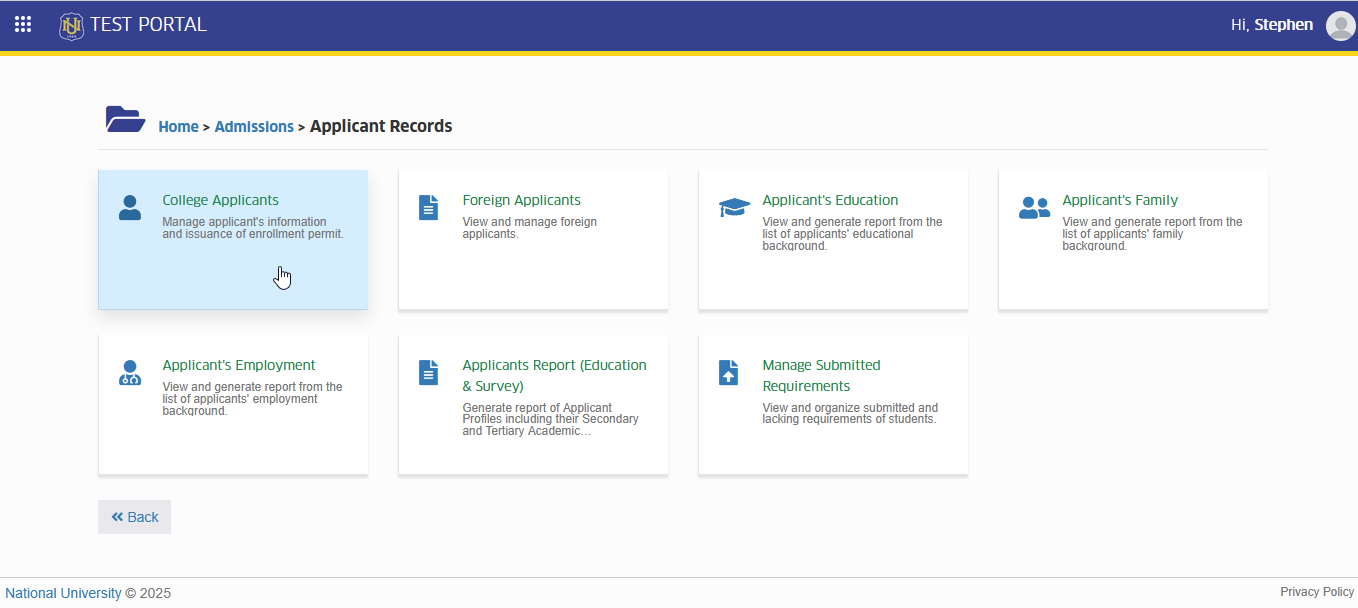
To access the module, make sure you have the View Prospect permission assigned to your role by your System Administrator.
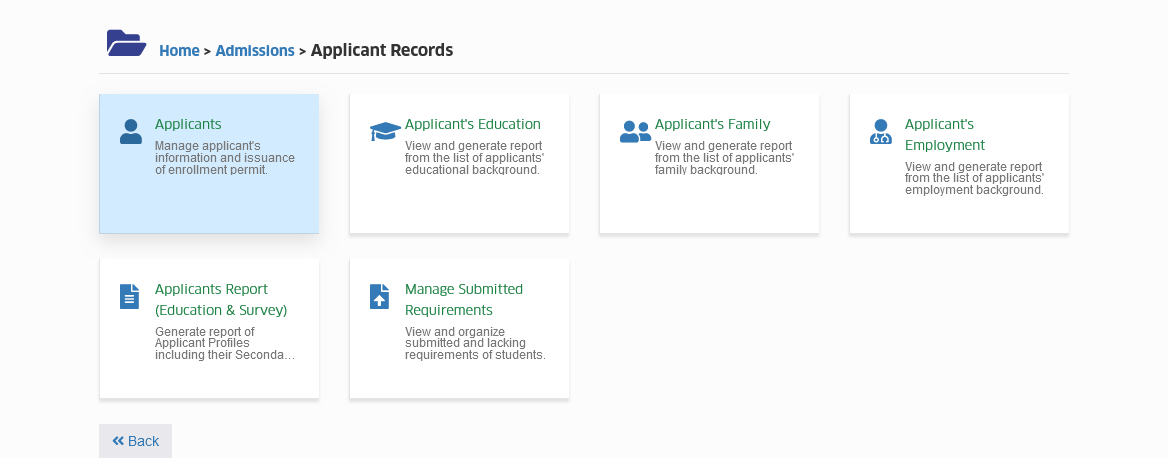
If you already have, it will appear in your portal under Admission > Applicant Records > Applicants group.
Click the module tab to redirect Setup Fee Schedule page.
How to Verify Applicant's Account?
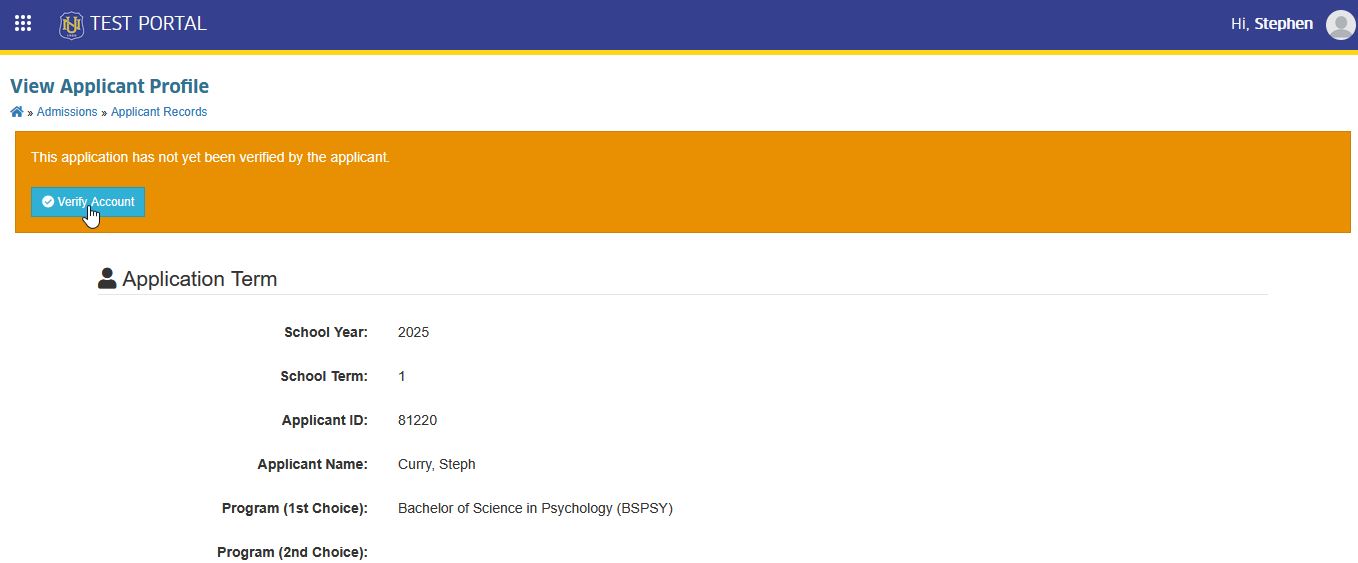
This section explains how admission personnel can verify an applicant’s account if the applicant has not activated or verified their NU Quest account.
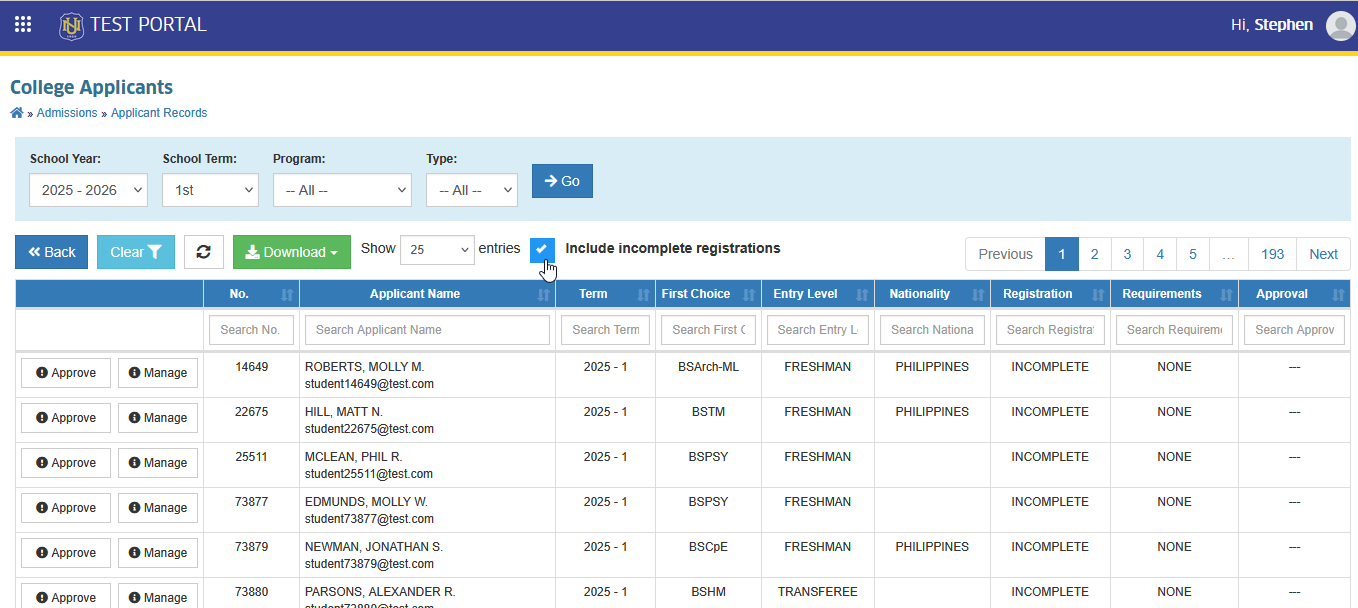
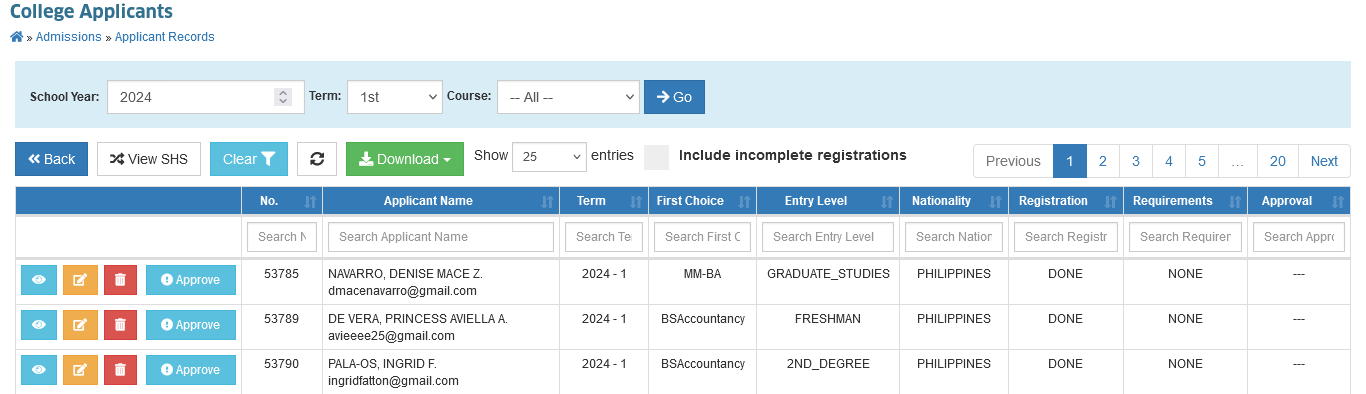
STEP 1. In Applicants list view page, Tick the Include Incomplete Registration checkbox.
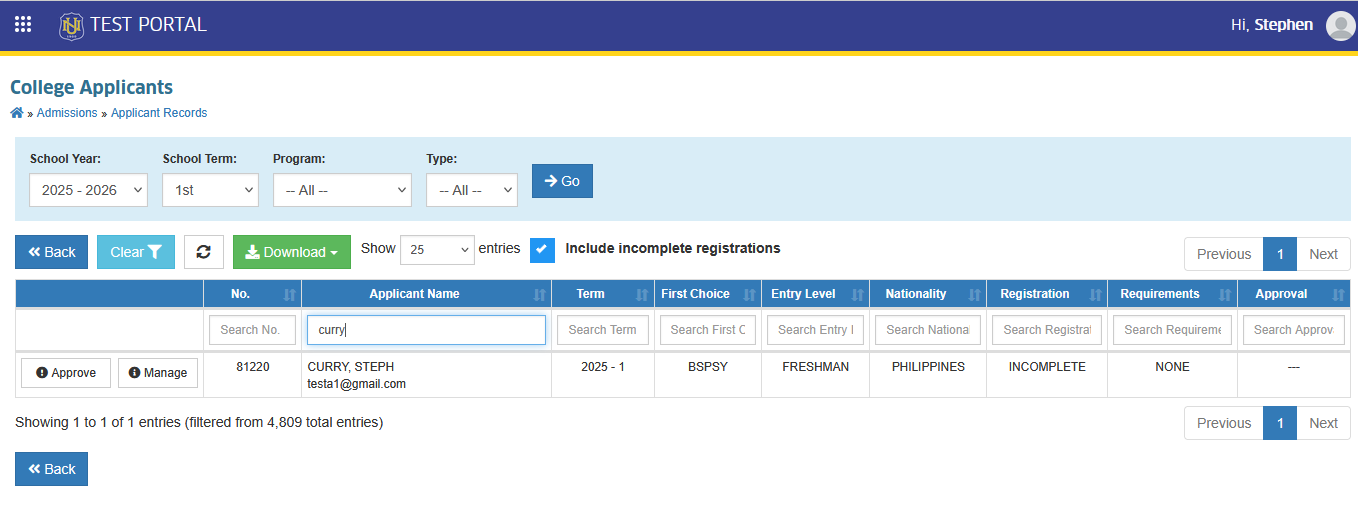
STEP 2. Search for the applicant. Use the filter feature of the module to easily search for the applicant.
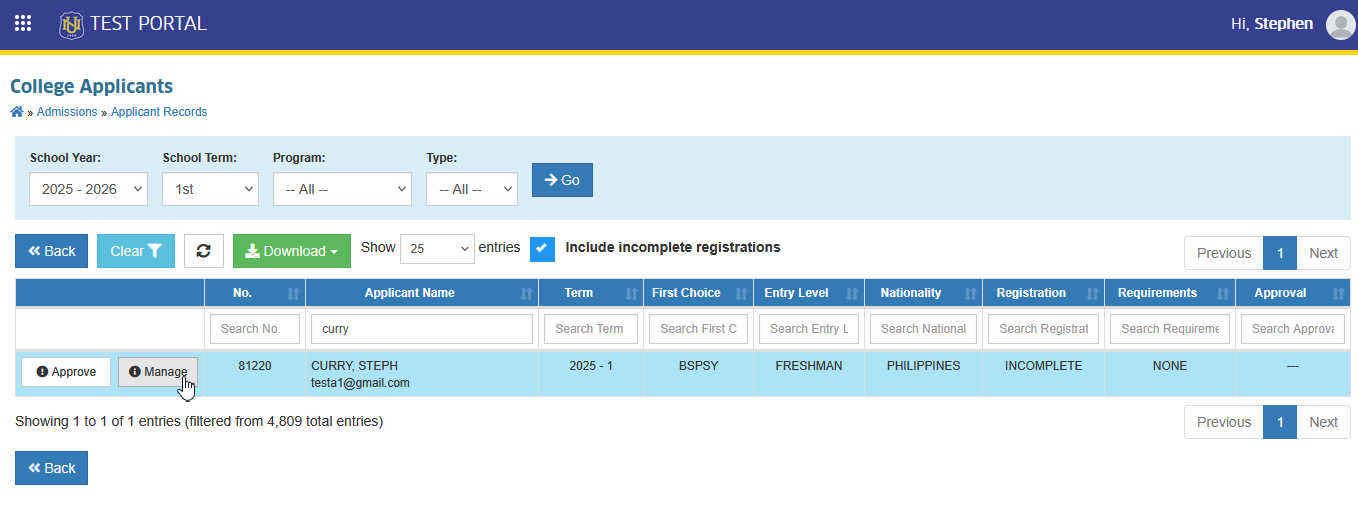
STEP 3. Locate and click the button of the specific record. You will be redirected to View Applicant Profile page.
STEP 4. In the View Applicant Profile page, Click the button to activate the account.
How to edit applicants records?
This module feature will help the Admission Personnel to modify the applicant's Preferred Program , Personal Information , Address , Entry Level , Requirements etc.
Users can directly move to NUIS SHS portal by click the button.
Follow the steps below on how to modify the applicants records.
STEP 1. In Applicants listview page, under the actions column, click the button corresponding to the applicant you want to modify.
STEP 2. Modidy the applicants records by changing the entries in the required field.
How to endorse applicant to Program Evaluator?
Follow the steps below on how to endorse the applicants for evaluation of grades to credit from their previous school.
This is only applicable to Transferee , Second Degree Taker and Graduate Studies applicants.
This task is assigned to Admission personnel only.
STEP 1. To endorse an applicant, go to Admission > Applicant Records > Applicants
Click the module tab to redirect Applicants page.
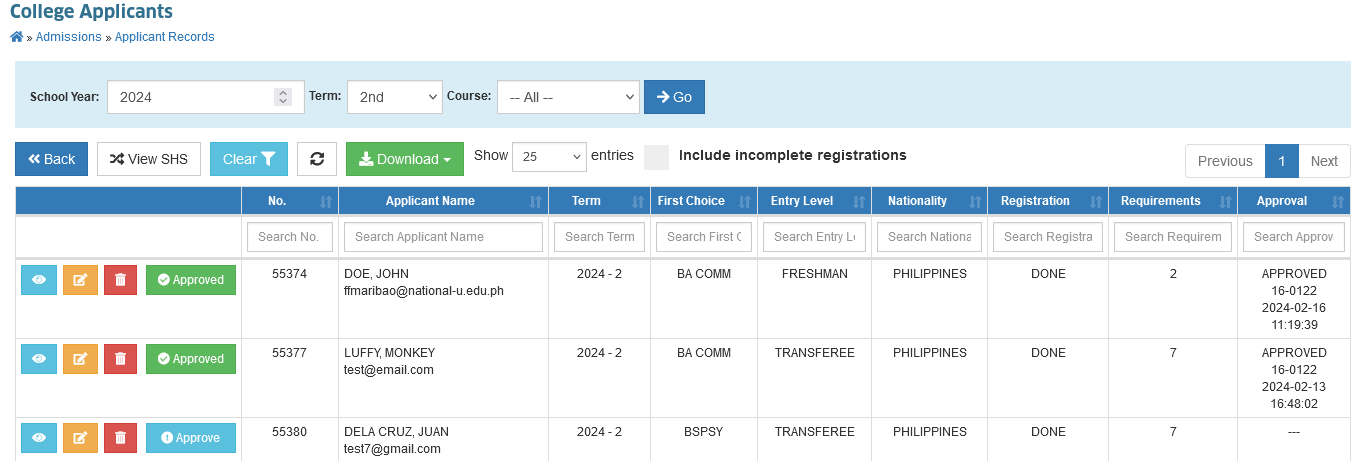
STEP 2. Filter the School Year, Term and Course then click the button.
This will generate a list of applicants based on the filter that you use.
STEP 3. Manage the application by clicking the button corresponding to the applicant that you want to endorse. You wil be redirected to Approve Applicant page.
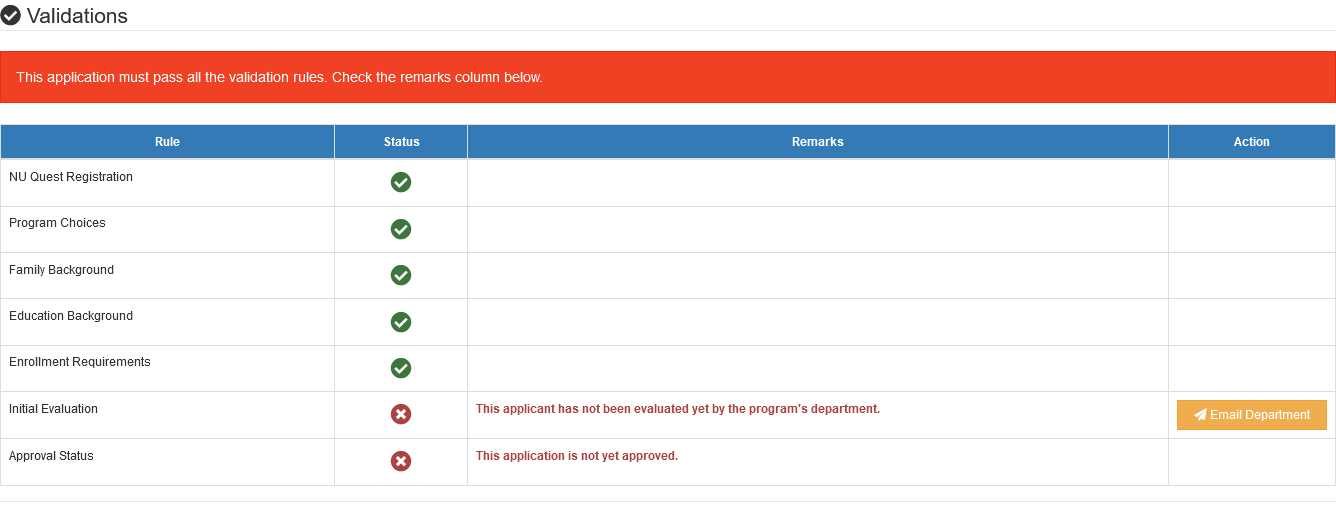
STEP 4. Under Validations section, click the button in Initial Evaluation tab. This action will send an email notification to the Program Evaluator for evaluation of applicants submitted grades.
Successfully emailed the Department Head