Evaluation Period
Manage OTE periods and select active period.
The Evaluation Period module is used by the Campus Faculty Services Office (FSO) to manage and open Online Teacher Evaluation (OTE) periods for students. These periods are opened separately for Midterm and Finals each academic term.
Required Permission
Access to the Evaluation Period module is restricted to authorized users only. All permissions below will only be assigned to Campus FSO Personnel.
- Add OTE Evaluation Period - This permission allows the user to Create and set up new Online Teacher Evaluation (OTE) periods for specific academic year, term, and grading period (Midterm or Finals). While the start and end dates of the evaluation are encoded in the Terms module, which is managed by the Registrar's Office. This permission enables the FSO to activate the OTE period for that term and grading period.
This permission is granted only to Campus FSO personnel, as they are responsible for managing evaluation schedules
-
Delete OTE Evaluation Period - This permission allows the user to remove an Online Teacher Evaluation (OTE) period form the system. But, only if the period has not been used (i.e., no evaluation activity has occurred yet). Once a period has been used, it can no longer be deleted to preserve data integrity.
-
Edit OTE Evaluation Period - This permission allows the user to modify existing OTE period.
-
View OTE Evaluation Period - This permission allows the user to access and view Evaluation Period records.
To manage evaluation items for a created evaluation period record, Campus FSO personnel must have the following permission :
-
Add OTE Evaluation Items - This permission allows the user to add or attach a file containing evaluation items to specific Evaluation Period.
-
Edit OTE Evaluation Items - This permission allows the user to modify specific evaluation items within a given evaluation period.
-
Delete OTE Evaluation Items - This permission allows the user to delete specific evaluation items. However, items that have already been used in evaluations cannot be deleted.
-
View OTE Evaluation Items This permission allows the user to view evaluation items assigned to a specific evaluation period.
How to Access the Module
To access the module, make sure you have the View OTE Evaluation Period permission. If it doesn’t appear in your portal, request access from your System Administrator.
Go to Faculty Services > Teacher Evaluation (OTE) > Evaluation Period . Click the module tab to redirect to OTE Evaluation Periods page.
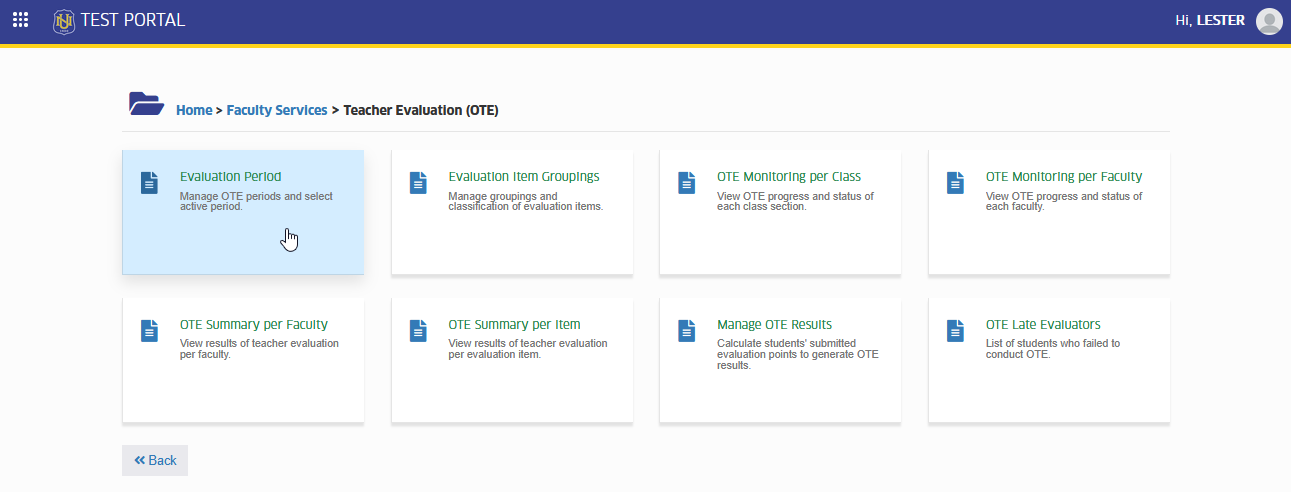
Create a New Evaluation Period
User with correct permission can create new evaluation period record. Follow the instruction below on how to open new evaluation period for a specific year, term and grading period (Midterm or Finals).
STEP 1. In the OTE Evaluation Periods page, click the button. This action will redirect to Add Evaluation Period page.
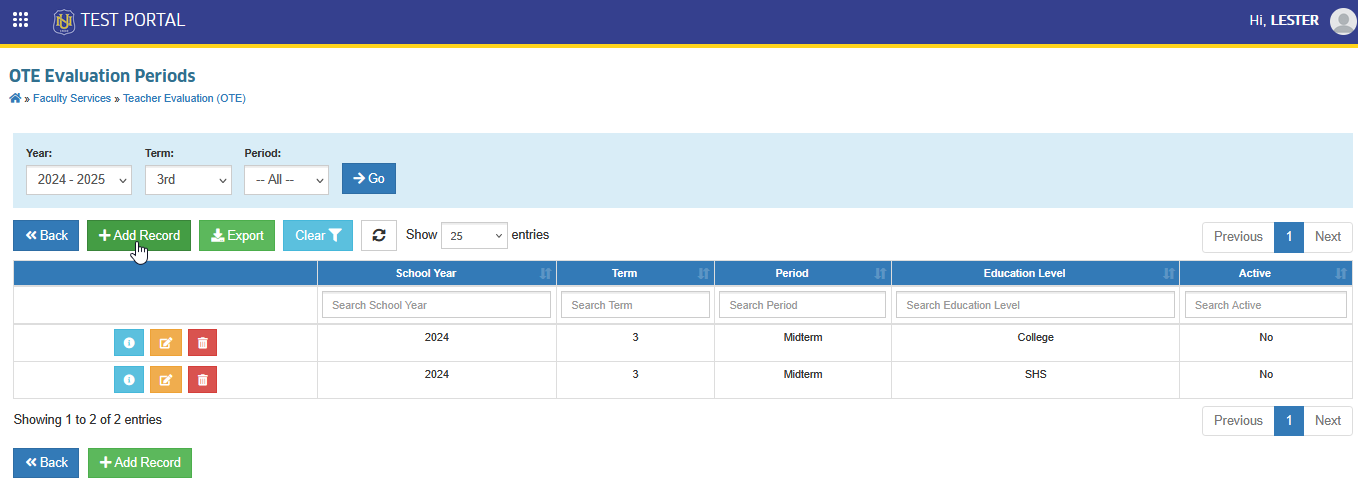
Before creating a new evaluation period, make sure you're on the active term by checking the Year and Term filters at the top of the page.
STEP 2 On the Add Evaluation Period page, complete the required fields, then click the button.
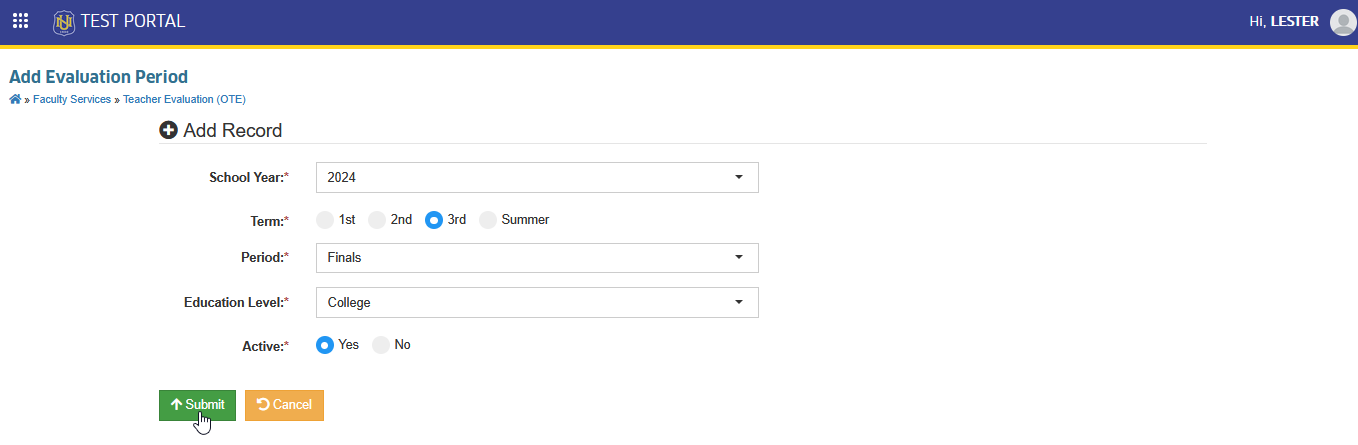
STEP 3. After submitting this will redirect to Edit Evaluation Period page, Click the button.
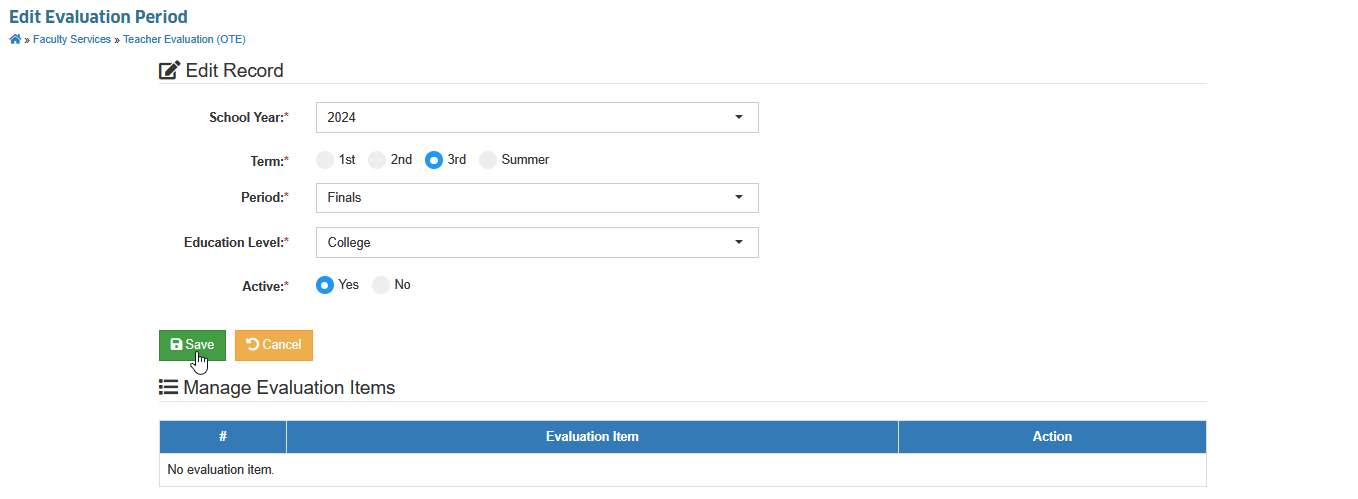
STEP 4. Manage evaluation items. Users with Add OTE Evaluation Items permission can add evaluation items:
- A. Manually - click the button to open the Manage Evaluation Item prompt.
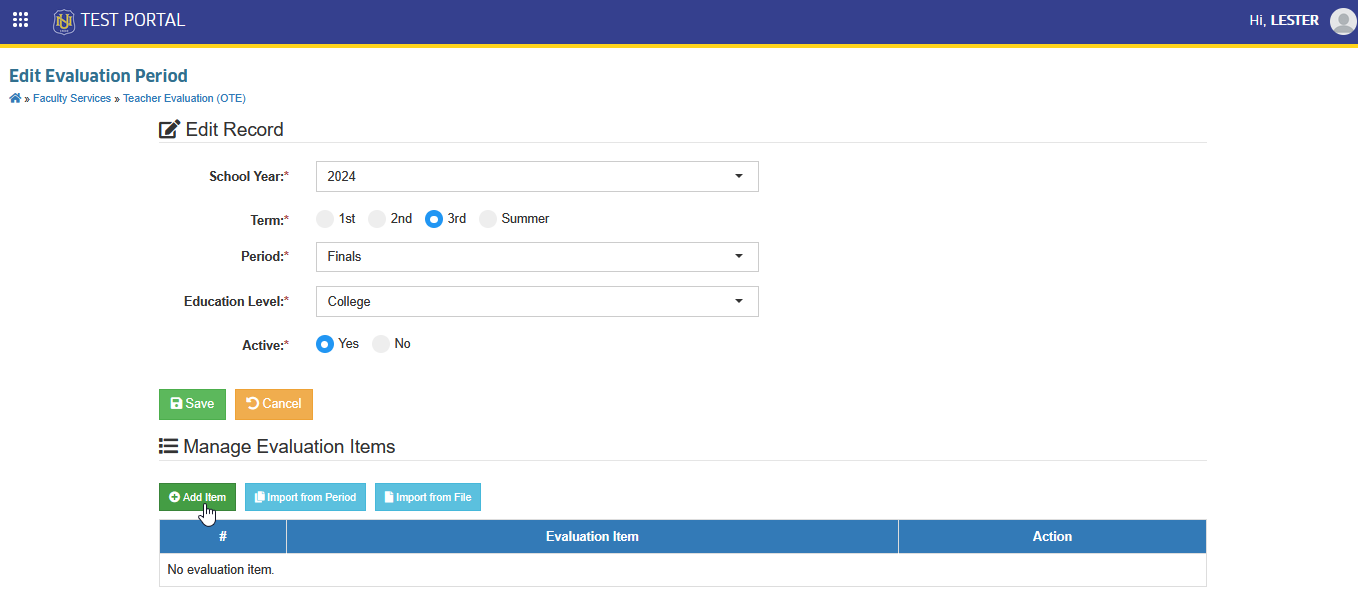
- a.1. The Manage Evaluation Item prompt will appear. Complete the required fields in the prompt, then click button.
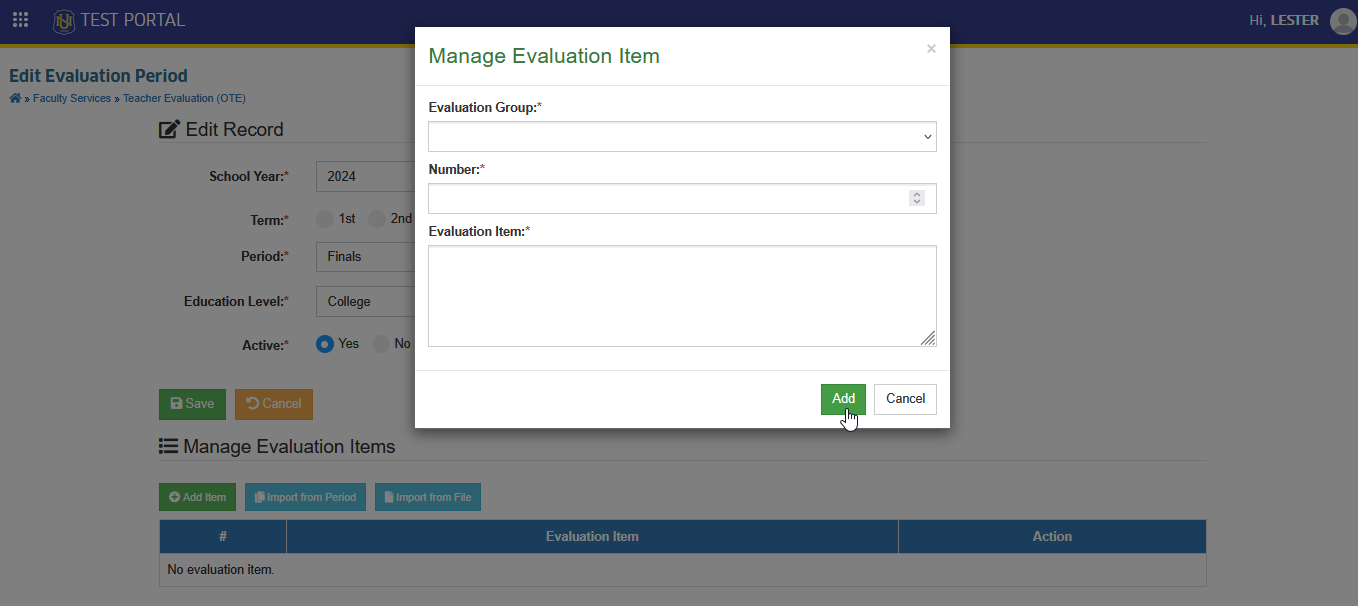
- B. Import from Period - This feature allows the user to copy all evaluation items from the previous ote period. Click the button.
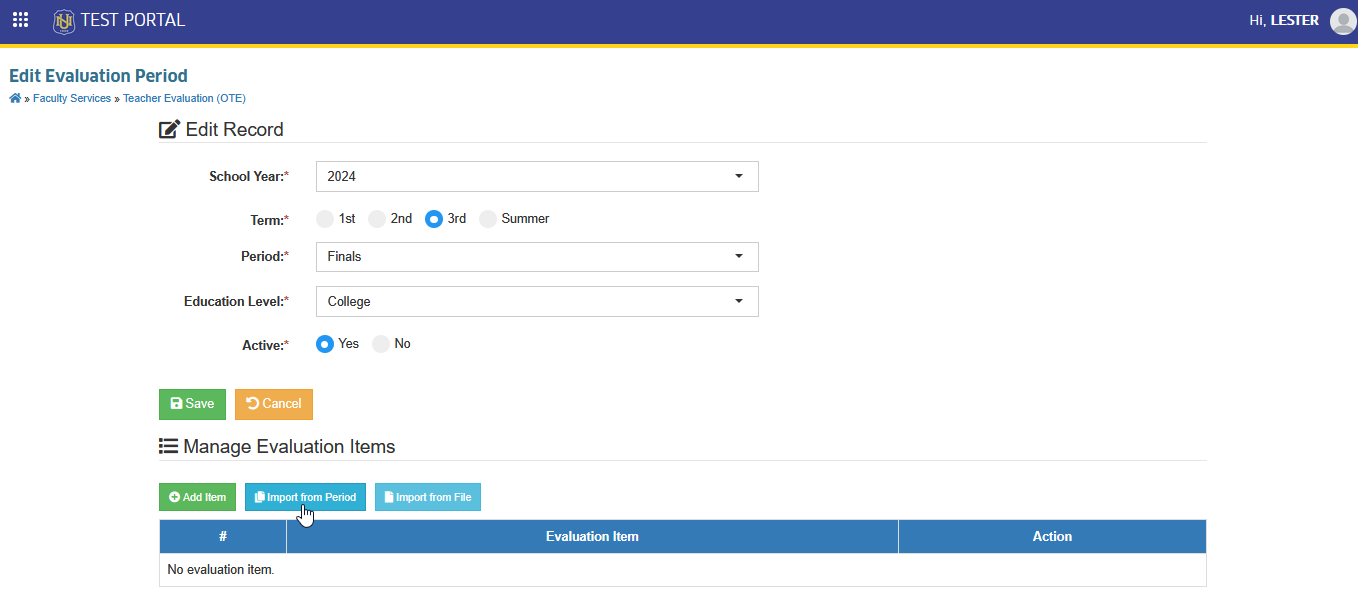
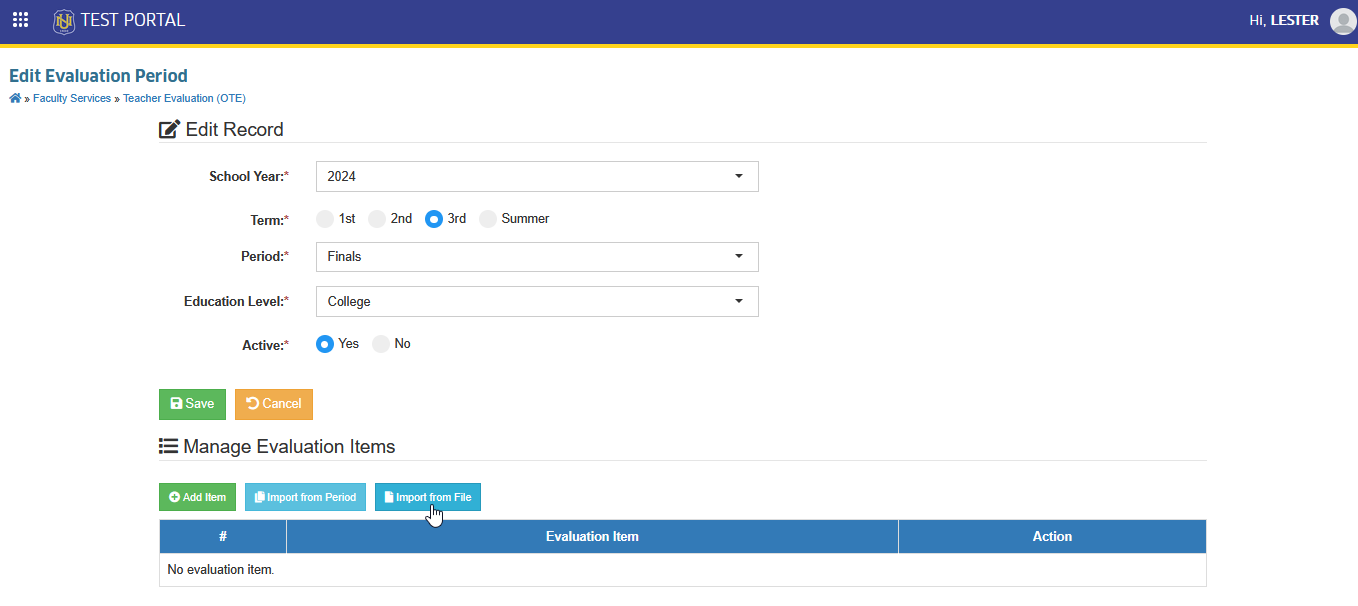
- C. Import from File - This feature allows the user to import a file of evaluation items to be reflected in the system.
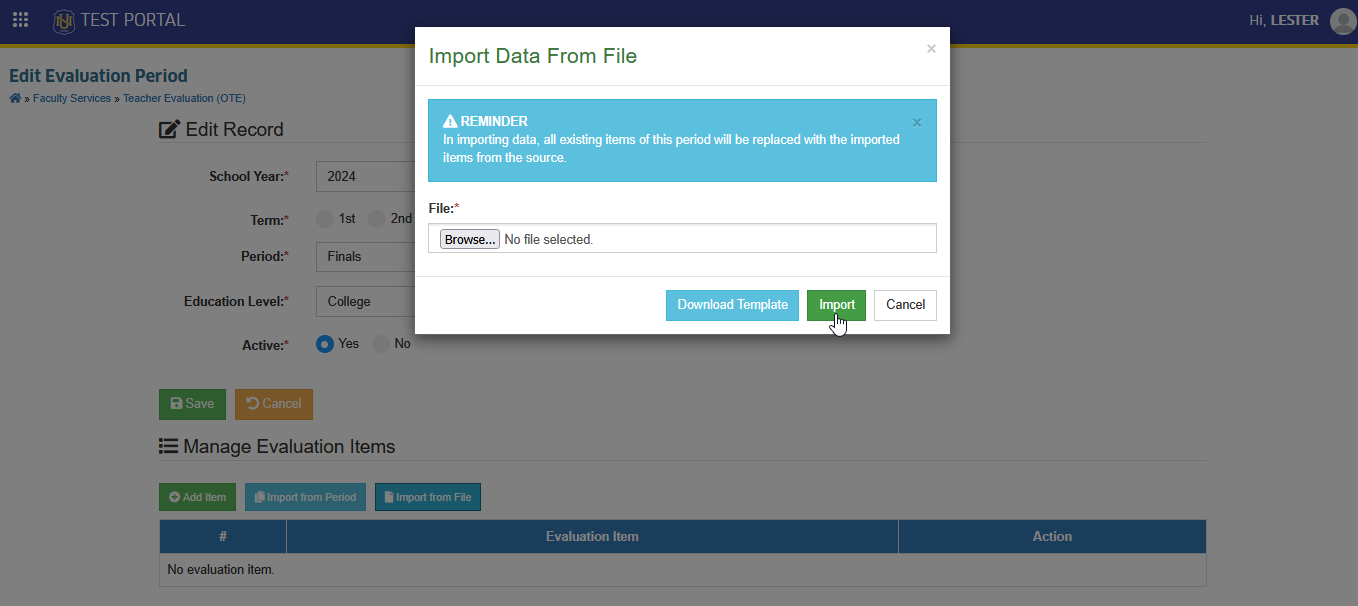
The template for the file is available in the prompt that appears after clicking the button. To download the template, click the button.
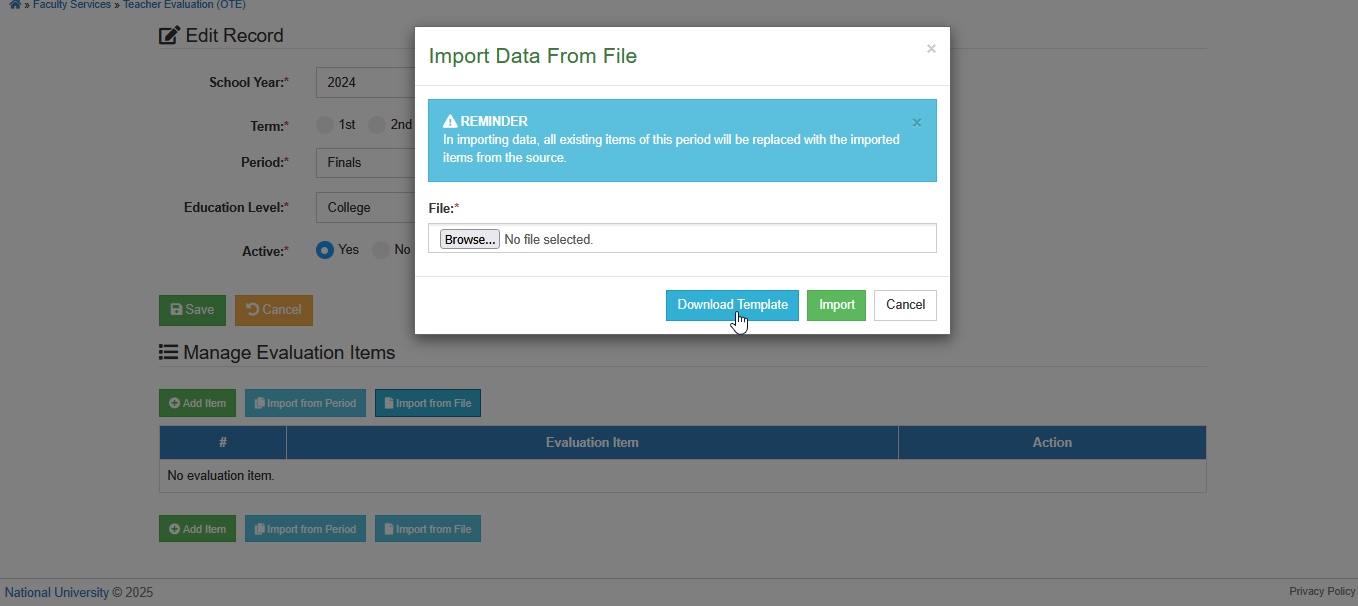
- c.1. To import a file, click the button.
- c.2 Browse and select the file from the device, then click the button.
STEP 5. After managing evaluation items, click the button to save all added data.
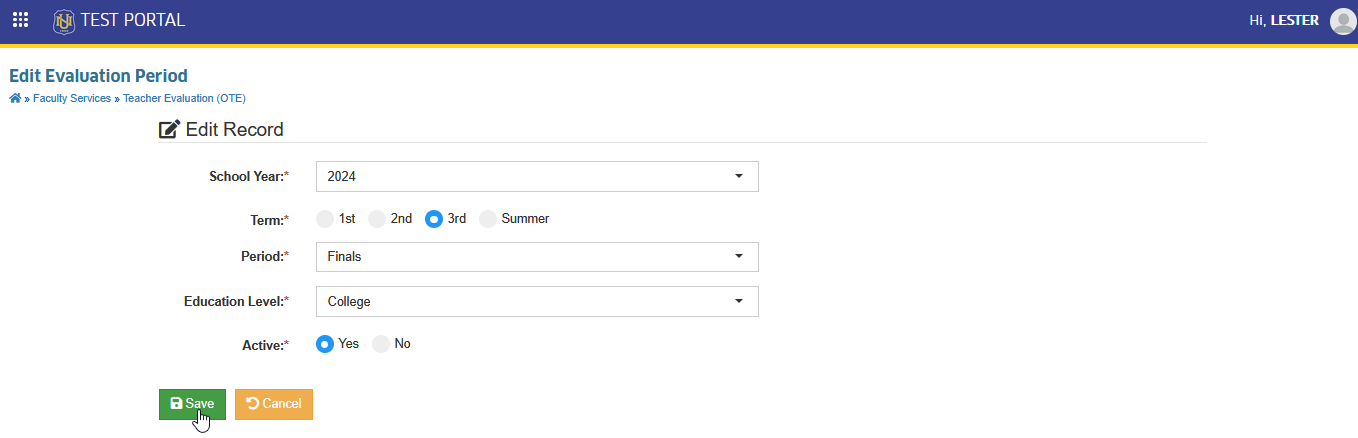
A system notification will appear confirming that the record has been successfully saved.

View or Edit Existing Periods
This module displays a list of all created OTE evaluation periods. From here, users can review existing records and, if needed, edit details such as the assiged year, term or the evaluation items. Follow the steps below to edit an evaluation period.
STEP 1. In OTE Evaluation Period page, click the corresponding button of specific entry to be updated. This action will redirect the user to Edit Evaluation Period page.
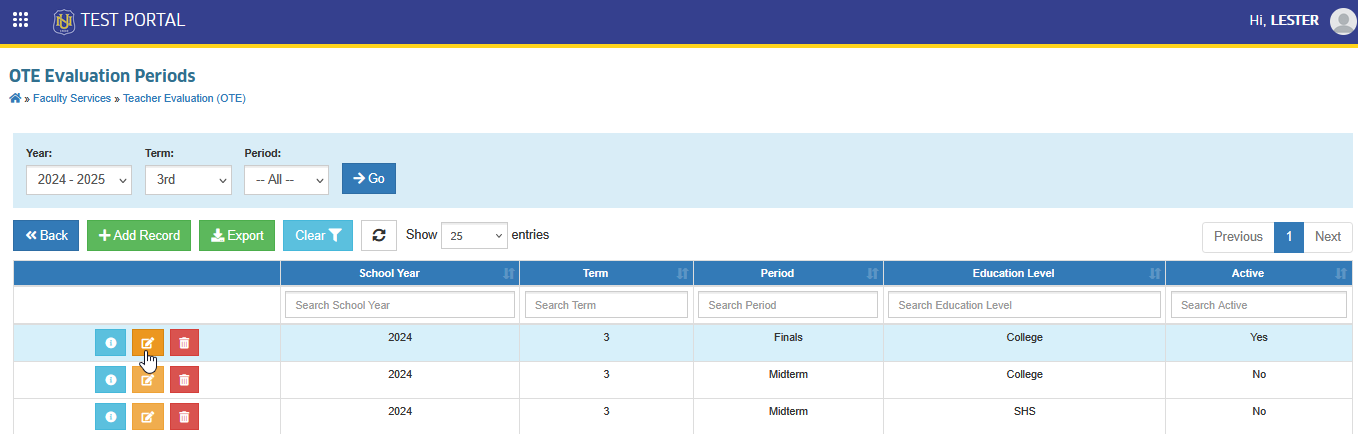
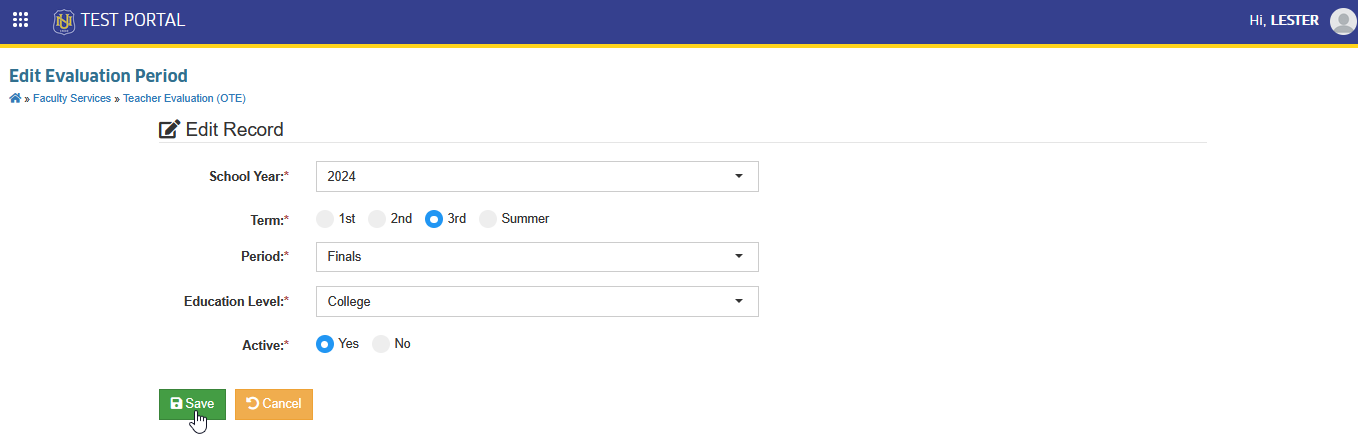
STEP 2. In Edit Evaluation Period page, Make the necessary changes to the entry fields.
STEP 3. After editing, click the button to apply the updates.
Close or Disable a Period Early
Users may manually close an evaluation period using this module or allow it to close automatically based on the OTE period set in the Terms module.
Once a new evaluation period is added for the next grading period, the previously active evaluation period will be automatically deactivated by the system.
Follow the Steps below on how to disable a period.
STEP 1. In OTE Evaluation Period page, click the corresponding button of specific entry to be updated. This action will redirect the user to Edit Evaluation Period page.
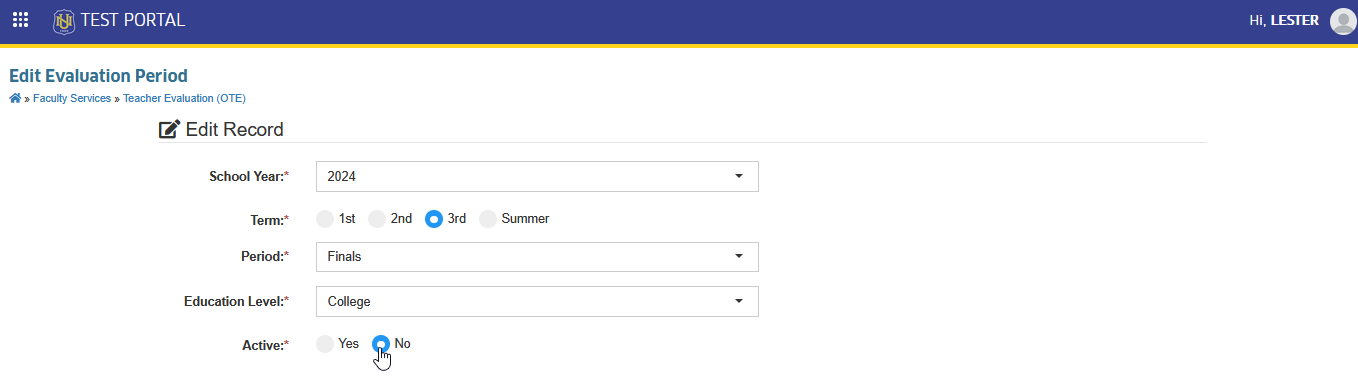
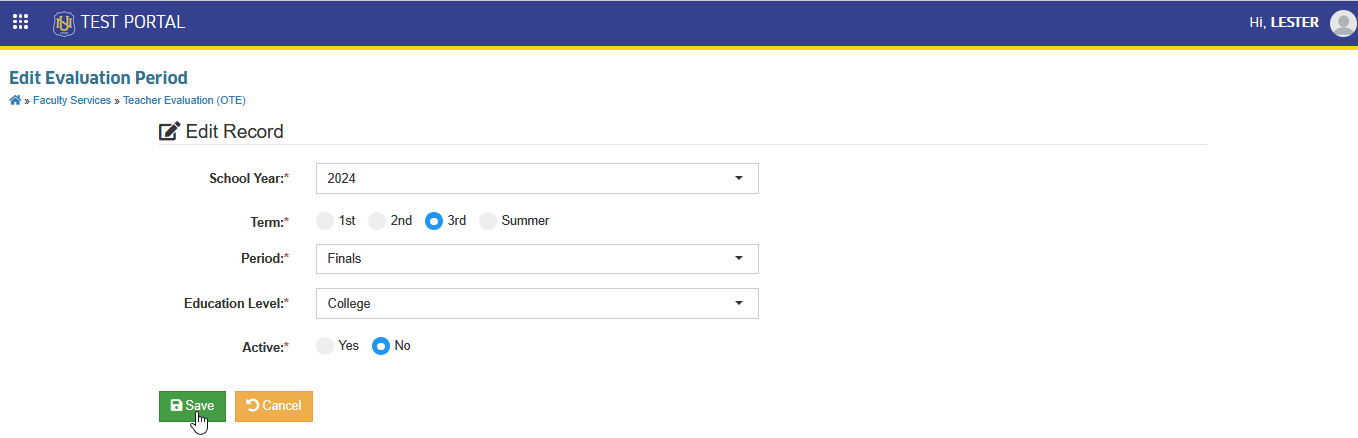
STEP 2. In Edit Evaluation Period page, Edit Record section, change the setting of Active required field to No.
STEP 3. After editing, click the button to apply the updates.
Delete Evaluation Period
This section outlines how to delete an existing evaluation period. Deletion is only allowed if the period has not yet been used , meaning no evaluations have been submitted under it. Once an evaluation period has been used, deletion is automatically disabled to preserve data integrity.
Follow the steps below on how to delete evaluation period.
STEP 1. In OTE Evaluation Period page, click the corresponding button of the record to delete. This action will redirect the user to Delete Evaluation Period page.
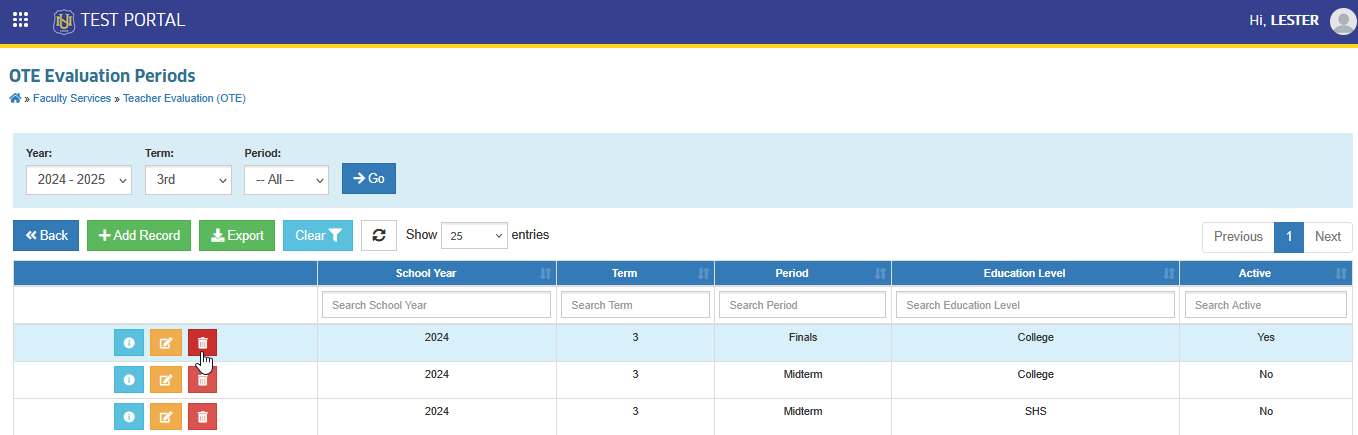
STEP 2. In Delete Evaluation Period page, confirm the deletion by clicking the button.
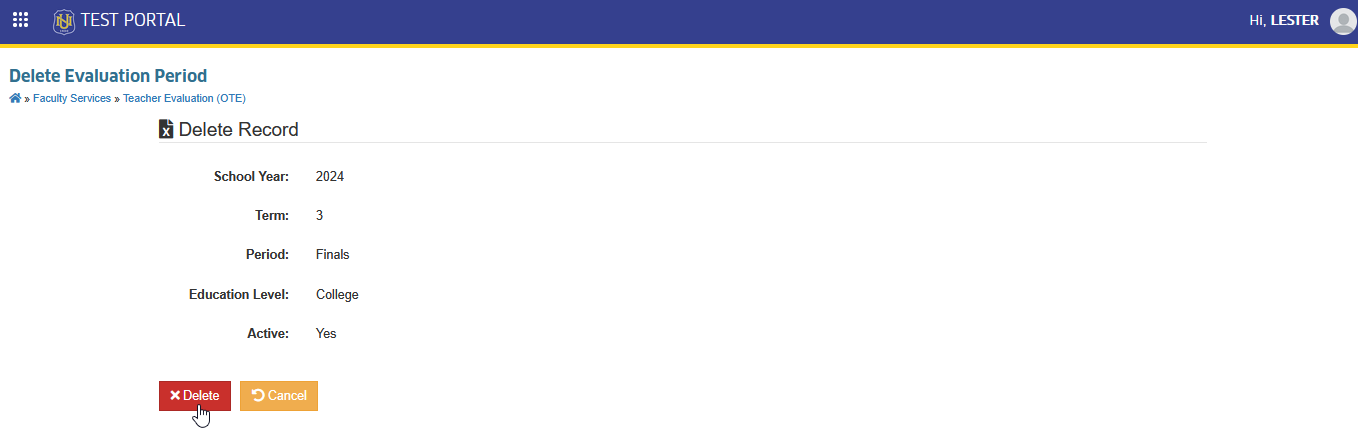
Deletion of a referenced evaluation period is not possible, as it would affect existing evaluation data.
For more questions or concerns, email us at nu-desk@national-u.edu.ph