Manage OTE Results
This module allows authorized users to recalculate Online Teacher Evaluation (OTE) ratings and exclude specific classes from the final computed rating results per faculty. It is typically used after the evaluation period to finalize and clean the data for reporting purposes.
Required Permissions
- Compute OTE Results - Permission to recalculate OTE ratings and finalize evaluation averages.
- Delete OTE Ratings - Permission to exclude or remove specific class evaluations from the final OTE result.
How to access the module?
To access the module, ensure your account has the required permission. If the module does not appear in your portal, request access from your System Administrator.
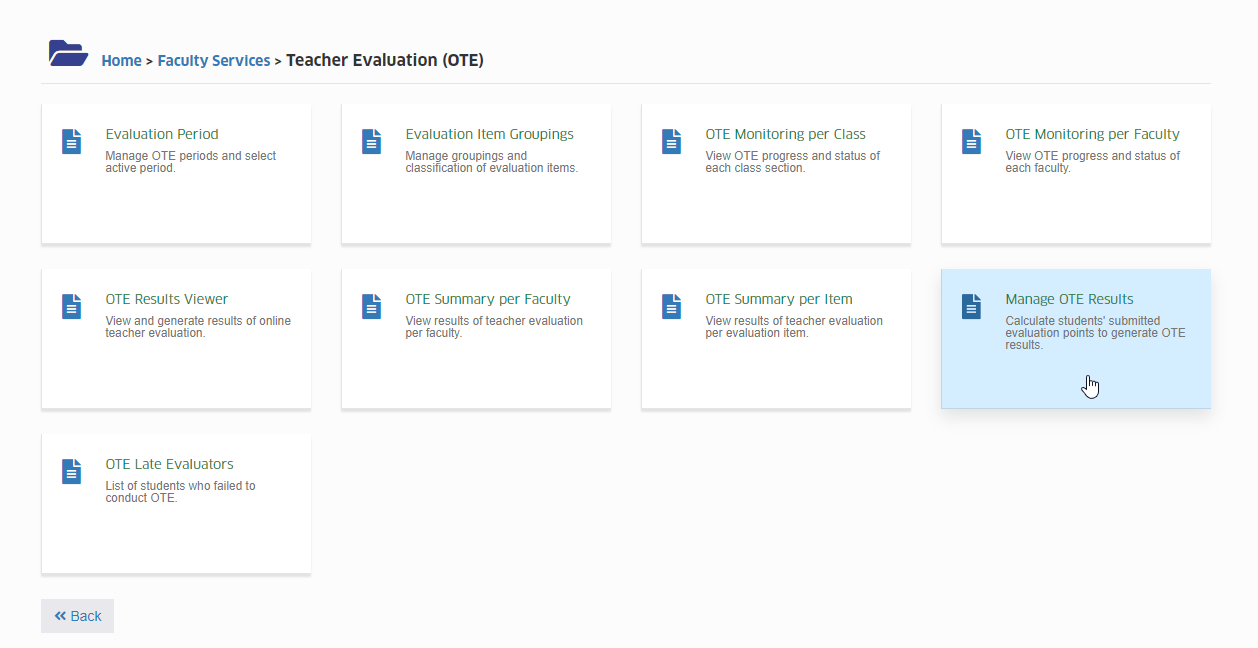
Under Faculty Services > Teacher Evaluation (OTE) group, click the Manage OTE Results tab.
Click the module tab to access the main page.
How to re-calculate OTE Rating
Recalculating ensures that the final average rating of a faculty reflects the most accurate and updated evaluation data.
System Auto-Recalculation
The system automatically recalculates all faculty ratings every four (4) hours of the active evaluation period. However, if you make any real-time changes (like exclusions or restorations), you may manually trigger recalculation to reflect immediate updates.
For Non-Super Admin Users
Users without Super Admin privileges can only recalculate one faculty at a time.
STEP 1. Specify the fields in the form and find the faculty whose rating needs to be recalculated.
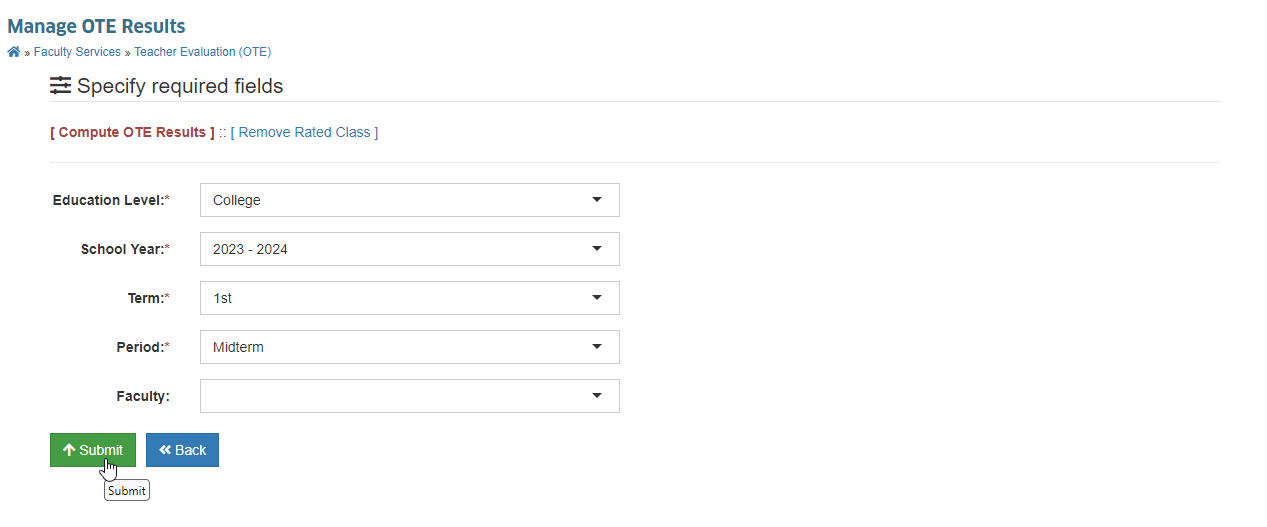
STEP 2. Click the button below the form.
STEP 3. The system will compute a new OTE rating for the faculty.
How to Exclude a Class in OTE Result
This feature allows authorized users to remove a specific class from the computation of the final OTE (Online Teacher Evaluation) rating for a faculty member. This is commonly done if the evaluation data is invalid or the class should not contribute to the faculty's overall score.
When Should You Exclude a Class?
You should exclude a class if:
- The assigned faculty was changed during the term.
- The class was evaluated incorrectly.
- The class has scheduling issues or no valid faculty assignment.
Steps to Exclude a Class
STEP 1. Go to the Manage OTE Results module.
**STEP 2. Click the Remove Rated Class link above the form.
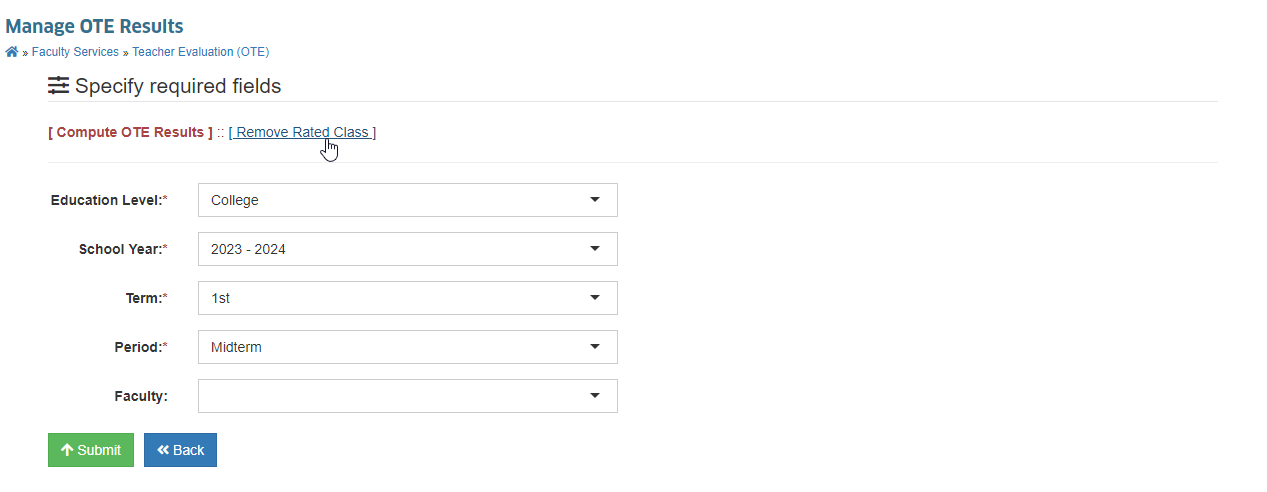
STEP 3. Specify the required filters:
- Education Level (e.g., College)
- School Year (e.g., 2023 - 2024)
- Term (e.g., 1st)
- Period (e.g., Midterm)
- Faculty (select from the dropdown)
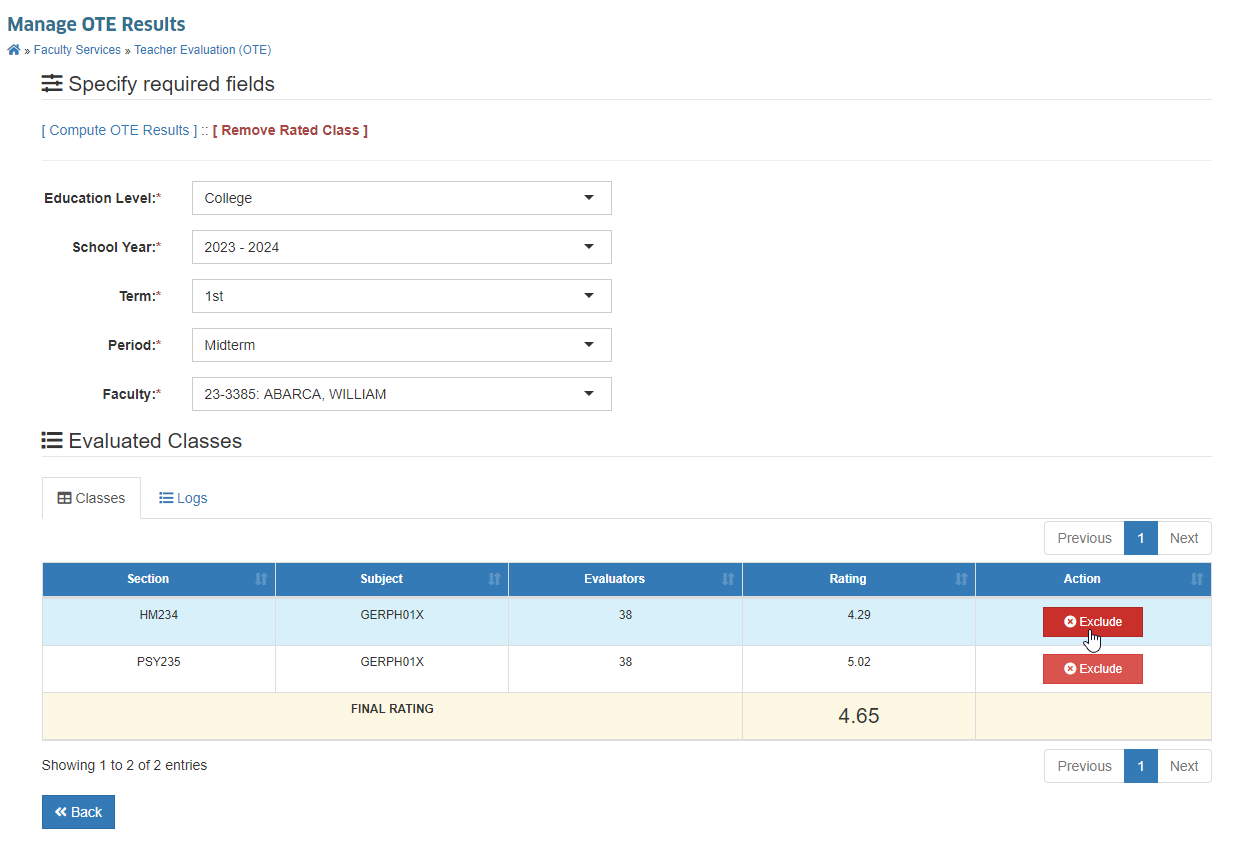
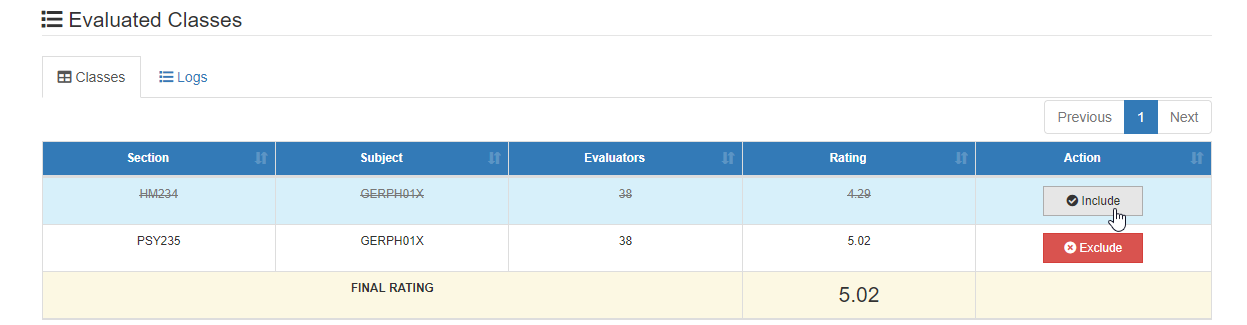
STEP 4. Under the Evaluated Classes tab, locate the list of classes and their ratings.
STEP 5. Click the button beside the class that should be removed from the rating computation.
STEP 6. Provide the reason for exclusion when prompted.
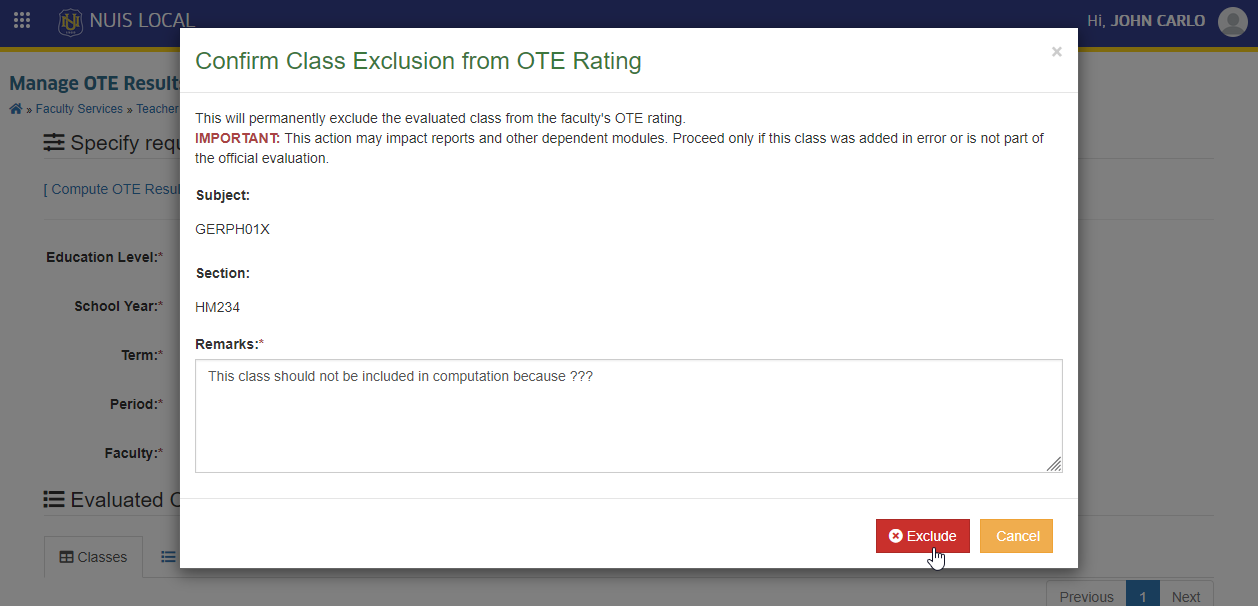
STEP 7. Confirm the action. The selected class will no longer be included in the faculty's final rating.
The final rating shown at the bottom will automatically update after exclusion.
How to Revert or Include the Class Again
If you excluded a class by mistake or need to include it again in the final rating:
- Simply click the button that will appear in place of the Exclude button for that class.
- The class will be re-added to the computation, and the final rating will be updated automatically or upon recalculation.
If you have any questions or concerns not included in this manual, feel free to reach us out at nu-desk@national-u.edu.ph.