OTE Monitoring per Class
The OTE Monitoring per class module lets you quickly check the OTE progress of each class section. This is where you can see how many students have already completed their evaluation and how far each class is in terms of percentage completion.
Required Permission
- OTE Monitoring per Class - Allows the user to view OTE completion data for each class, including the number of students who have completed the evaluation.
What You Can Do in This Module
-
View all class sections for the term.
-
Check the OTE completion percentage of each class.
-
See how many students have completed the evaluation vs. total enrolled.
-
Identify which classes need follow-up based on low completion percentages.
How to Access the Module
To access the module, make sure you have the OTE Monitoring per Class permission. If it doesn’t appear in your portal, request access from your System Administrator.
In NUIS portal, go to Faculty Services > Teacher Evaluation (OTE) > OTE Monitoring per Class. Click the module tab to redirect to the OTE Monitoring per Class page.
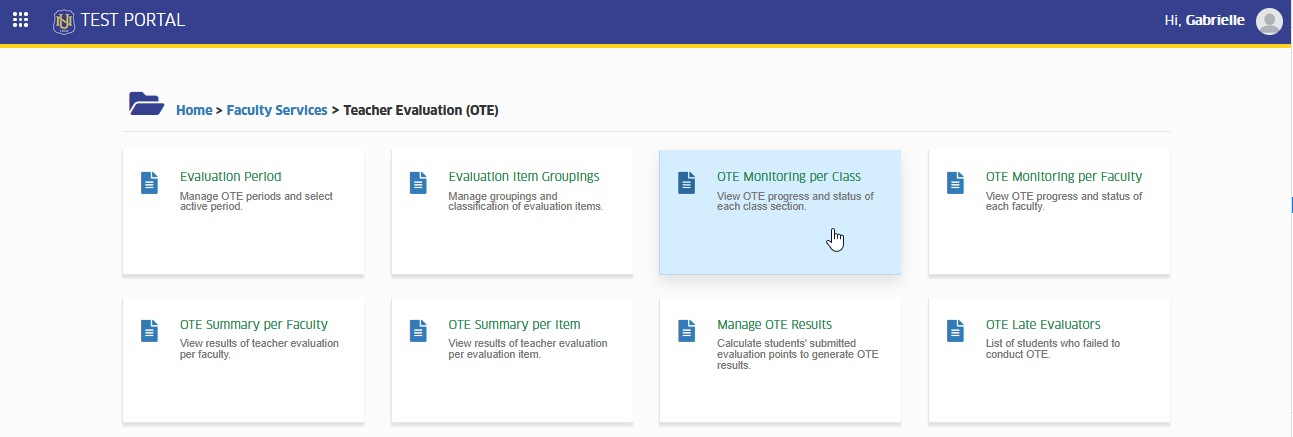
Your department and program access is managed by your Campus IT Administrator. If you can’t view certain programs or faculty members, you may contact your IT Admin for access assistance.
View OTE Completion
This section shows the OTE completion details for each class. Here, you can see the total number of enrolled students, how many have already completed their evaluation, and the corresponding completion percentage. This helps you easily check the progress of every class and identify which sections may need follow-up.
Follow the steps below on how to view OTE completion per class
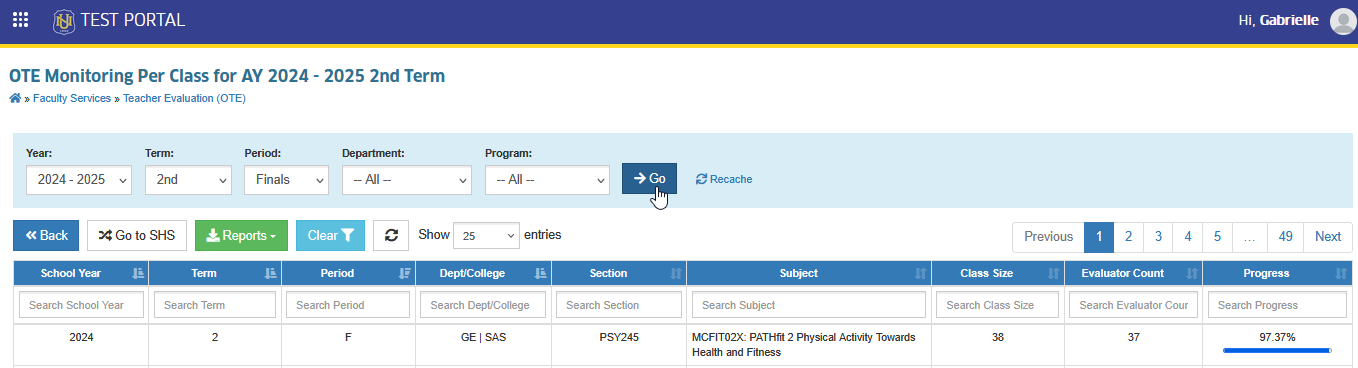
STEP 1. On the OTE Monitoring per Class page, select the Year, Term, Term Period, Department and Program you want to view from the dropdown menus.
STEP 2. Click the button to display all active class for OTE for the term with its ote completion percentage.
Export OTE Monitoring per Class Report
This section lets you download the OTE monitoring data as a report. With just one click, you can export the full list of class along with their completion numbers and percentages. This is useful for documentation, tracking, and sharing updates with your team or department.
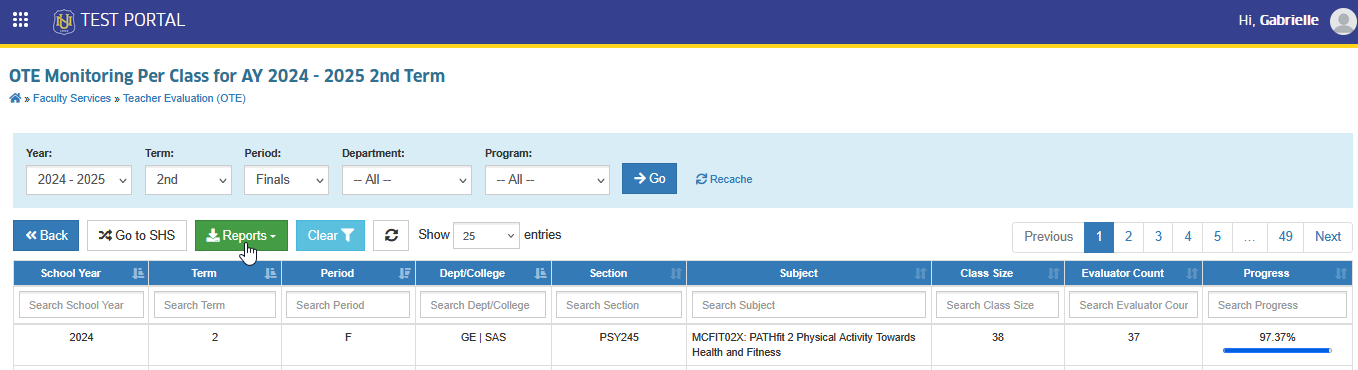
Follow the steps below on how to export the OTE Monitoring per Class report.
STEP 1. In the OTE Monitoring per Class page, click the button.
STEP 2. Click the button.
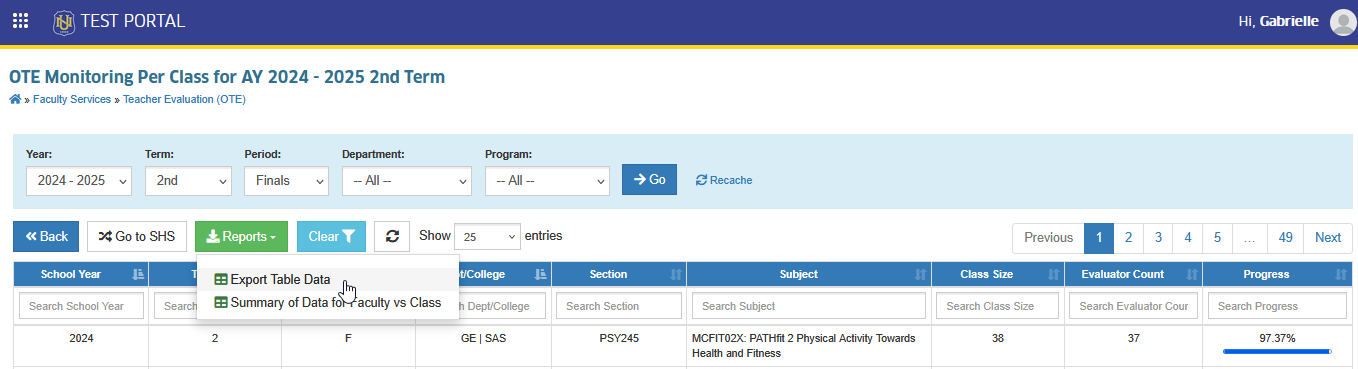
This action will download the ote monitoring per class report in excel format.
Export Summary of Data for Faculty vs Class
This section allows you to download a summarized report that compares each faculty member with the class sections they handle. The report includes key information such as the number of evaluations completed per class, the corresponding completion percentages, and the consolidated results of the OTE. It also provides the overall rating and overall description for every faculty member based on their class evaluations, making it easier to review performance across multiple sections in one file.
Follow the steps below on how to export the report.
STEP 1. In the OTE Monitoring per Class page, click the button.
STEP 2. Click the button.
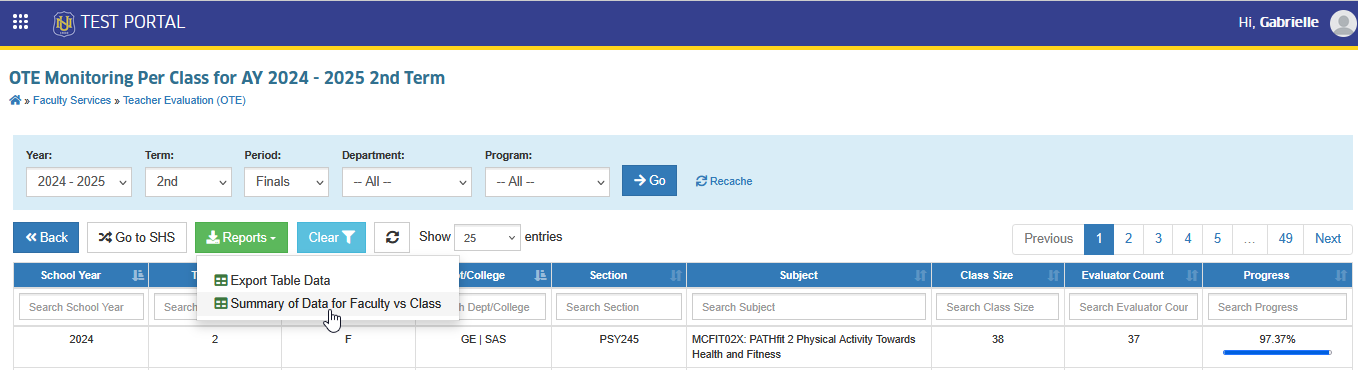
This action will download the report in excel format.
For more questions or concerns, email us at nu-desk@national-u.edu.ph