Sections
The Sections module is used by the Registrar Personnel to manage all department section codes for class blocks.
This is where you create, update, and maintain the section codes that are used in class scheduling and enrollment. Keeping this updated ensures that class blocks are properly organized and assigned.
Required Permission
Add Section - Allows the user to create and register a new section record in the system.
Delete Section - Allows the user to permanently remove a section record from the system.
Edit Section - Allows the user to modify or update existing section record information.
View Section - Allows the user to view and search section records in the system.
How to Access the Module
To access the module, make sure you have the View Section permission. If it doesn’t appear in your portal, request access from your System Administrator.
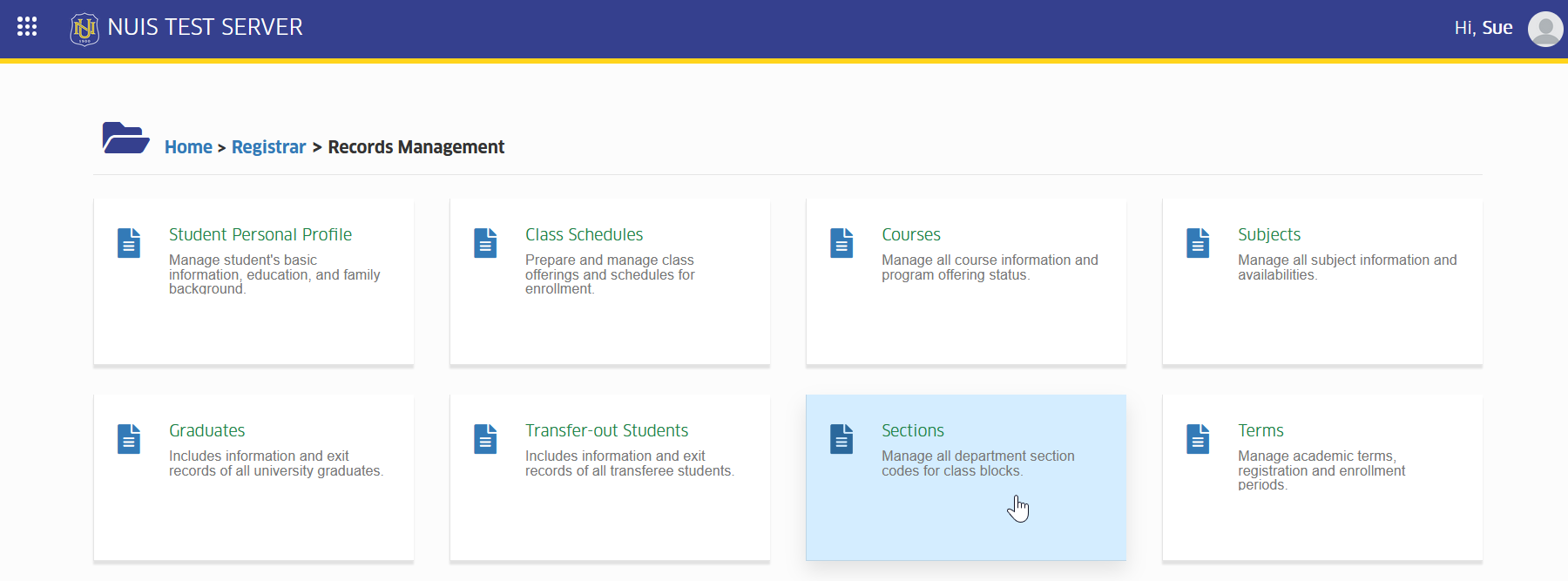
In NUIS portal, go to Registrar > Records Management > Sections. Click the module tab to redirect to the Sections list view page.
How to Use the Sections Module
This section provides the step-by-step procedures for performing different tasks in the module, such as viewing, adding, editing, or removing section records. It guides users through each process to ensure that section information is properly managed and accurately maintained in the system.
Add New Section
Follow the step below to add new section record.
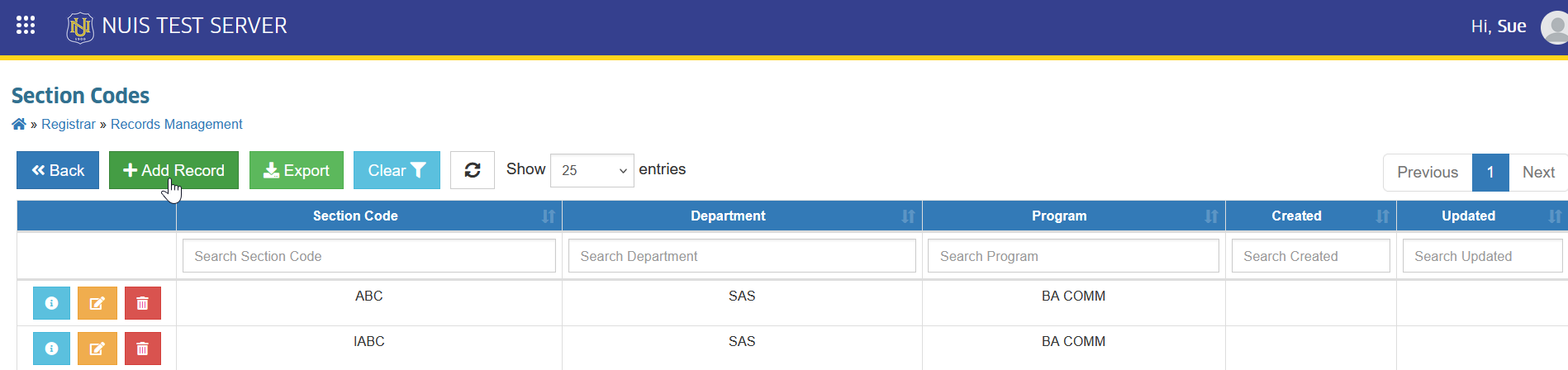
STEP 1. On the Sections list view page, locate and click the button. The system will redirect to the Add Section page.
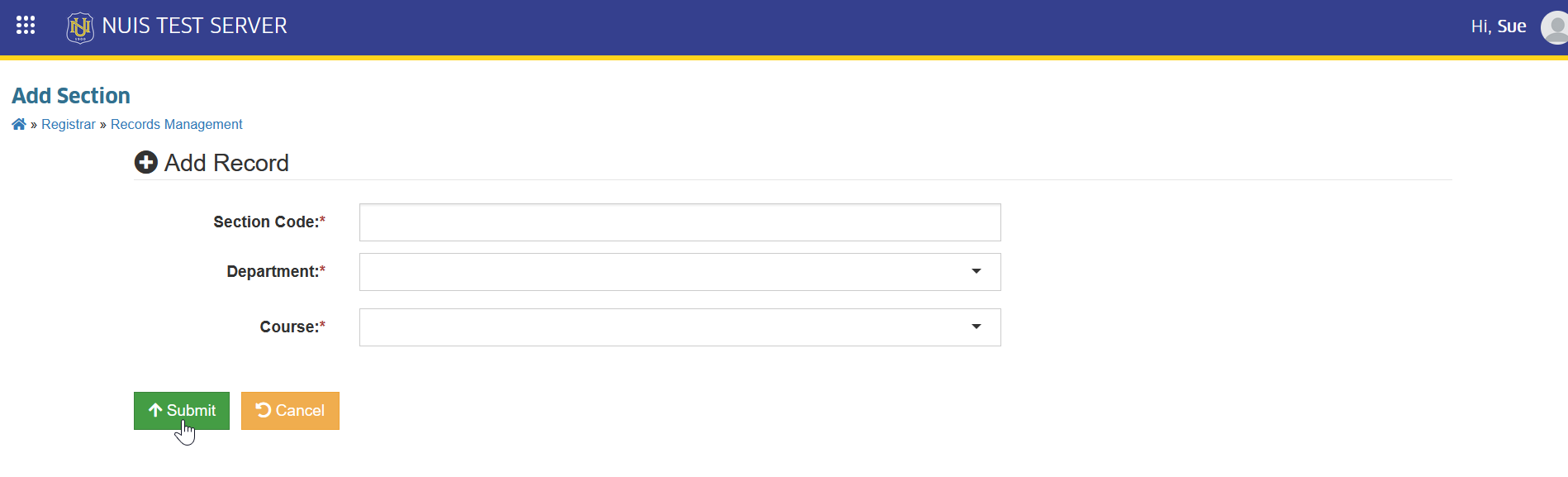
STEP 2. Fill out the required information on the Add Section page.
| Field Name | Description | Is Required |
|---|---|---|
| Section Code | Enter the unique code for the section. This code is used to identify the section in the system. | Yes |
| Department | Select the department where the section belongs from the dropdown list. | Yes |
| Course | Select the course/program associated with the section from the dropdown list. | Yes |
STEP 3. Once completed, click the button to submit and save the new record.
Edit Section
Follow the steps below to edit or modify section record.
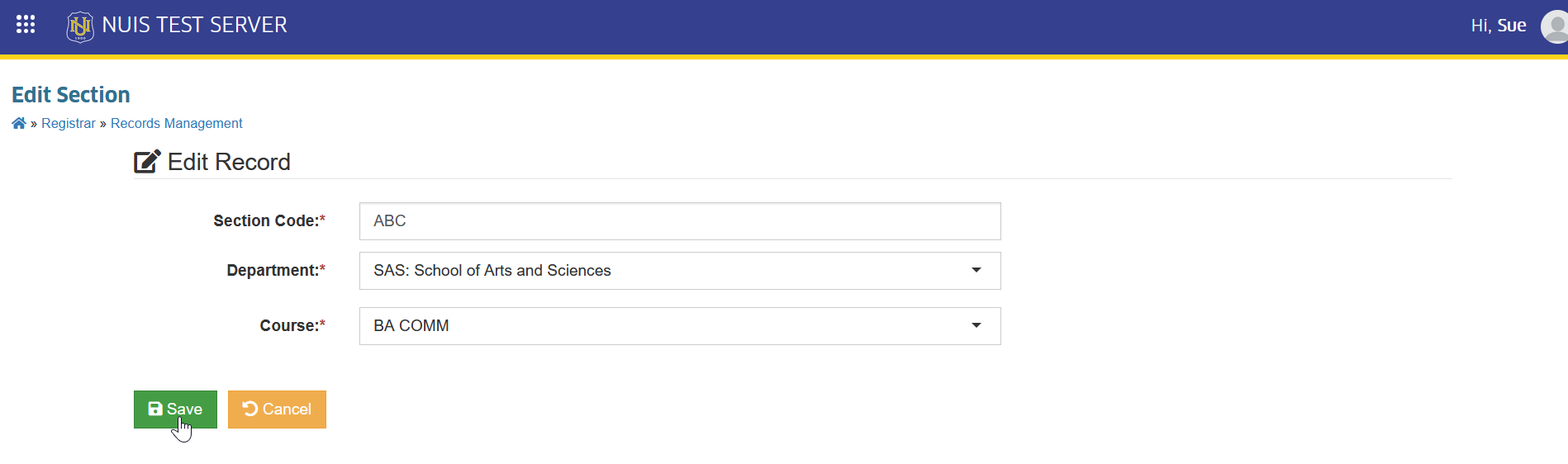
STEP 1. On the sections list view page, click the corresponding button of the record to be modified. The system will redirect to Edit Section page.
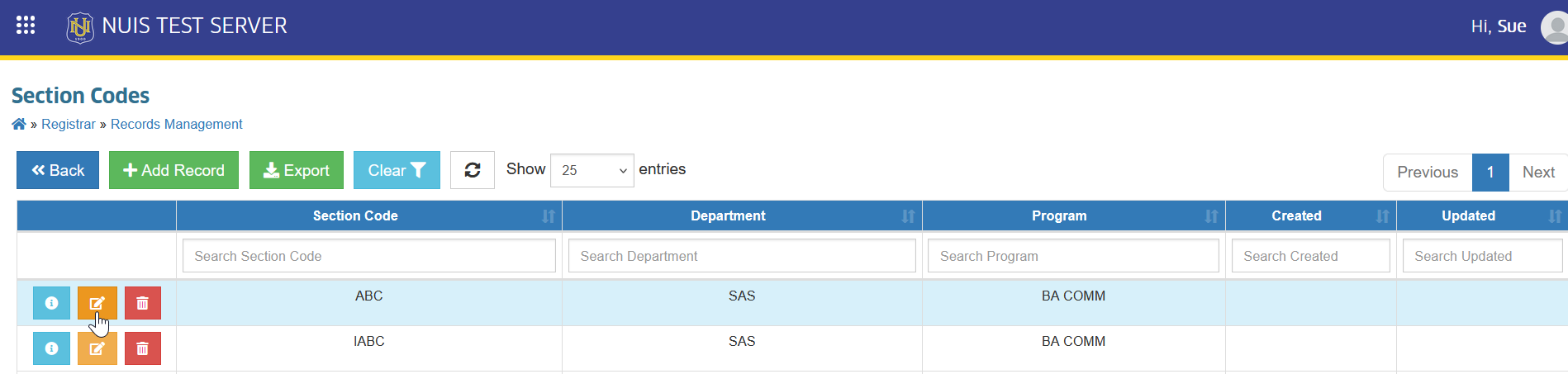
STEP 2. Update the necessary information, then click the button to save the changes.
Delete Section Record
Follow the steps below to delete or permanently remove section record.
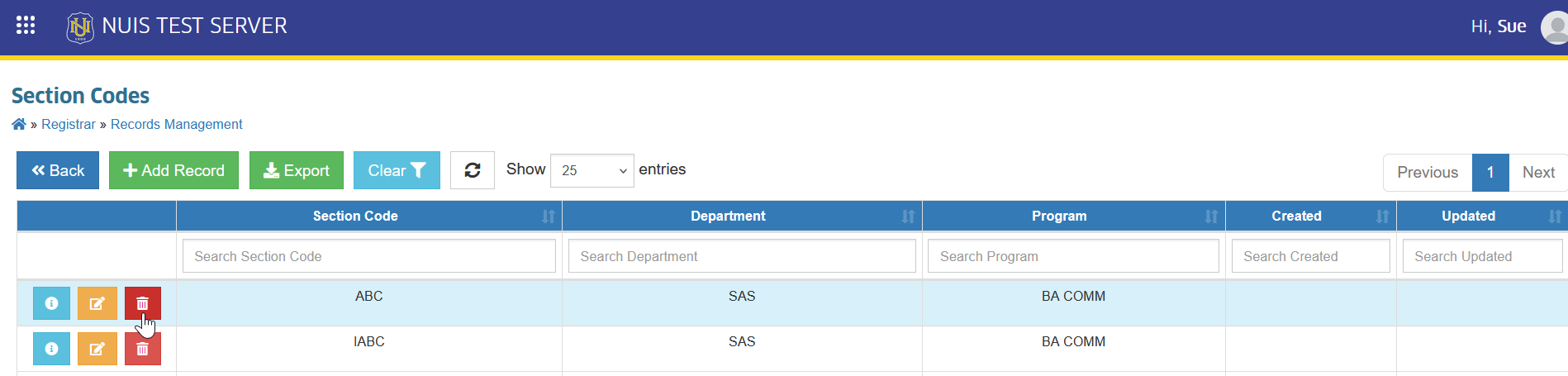
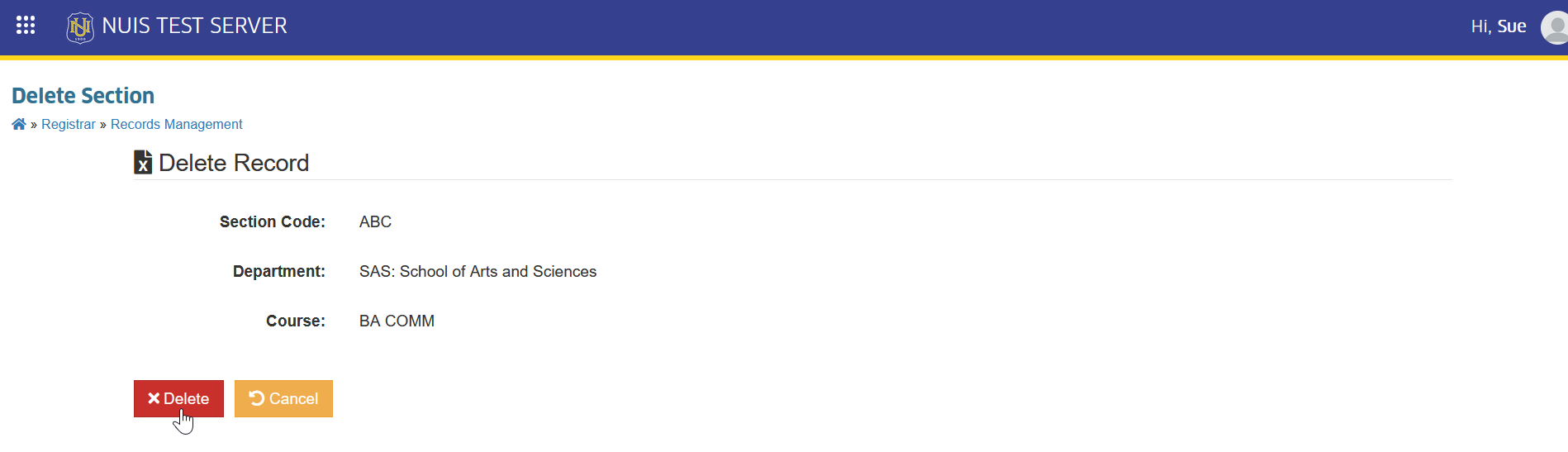
STEP 1. On the Sections list view page, click the corresponding button of the record to be removed. The system will redirect to Delete Section page.
STEP 2. Confirm the deletion by clicking the button.
For more questions or concerns, email us at nu-desk@national-u.edu.ph