Manage Terms & Term Periods
Manage academic terms, registration and enrollment periods.
This module allows the user to create and manage academic terms, as well as set specific periods for registration, enrollment and scholarship application periods.
Module Features
-
Create and manage academic terms.
-
Define registration, enrollment and scholarship application periods.
-
Easily update or modify term settings.
-
Easily download or export term data for offline backups, ensuring data safety in case of unexpected system issues.
Required Permissions
-
Add Terms - This permission allows the user to create new term records within the system. With this permission, users can set up term details including start and end dates, and define specific registration, enrollment periods and other important academic dates for the term.
-
Delete Term - This permission allows the user to remove an existing academic term from the system. With this permission, user can permanently delete terms that are no longer needed, including all associated details like registration enrollment and other important academi dates for the term.
NOTE: A user can delete a term record only if it hasn't been linked or referenced to other records within the system.
-
Edit Term - This permission allows the user to update details of an existing academic term. This includes modifying the term's name, start and end dates, and adjusting the registration and enrollment periods if needed.
-
View Term - This permission allows the user to access and view details of existing academic terms and term periods. Users with this permission can check information such as term names, start and end dates, and defined registration and enrollment periods, but cannot make any changes.
How to access the module
To access the module, make sure you have the View Term permission. If it doesn’t appear in your portal, request access from your System Administrator.
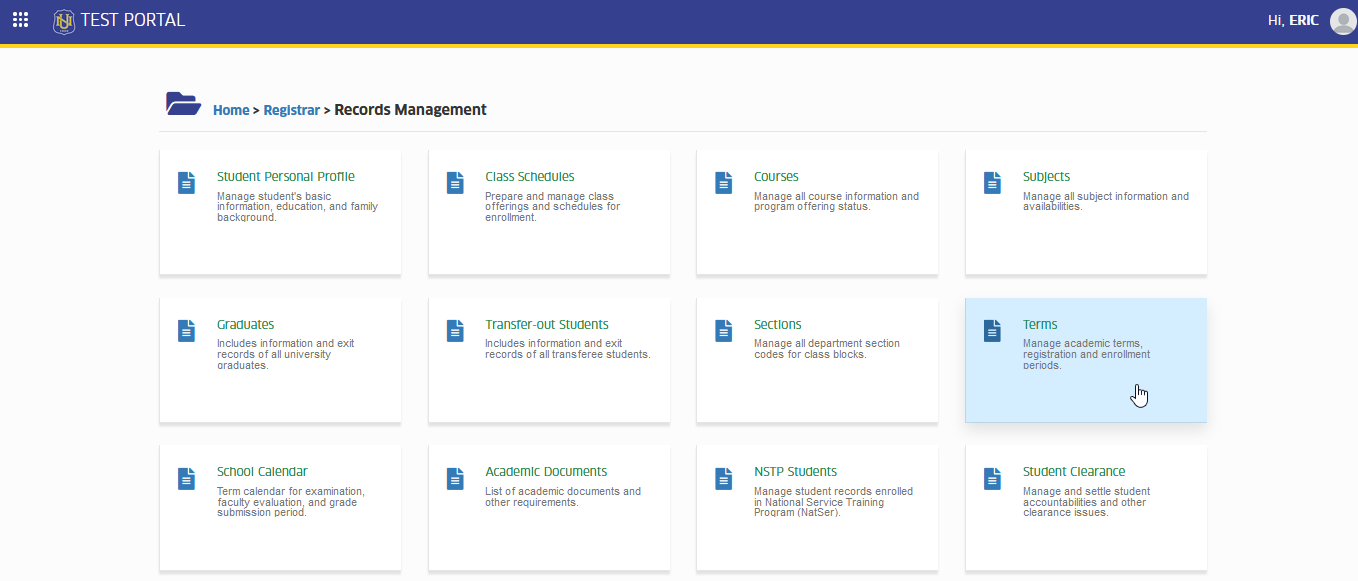
To access the module go to Registrar > Records Management > Terms
Click the module tab to redirect to Manage Terms page.
Required Fields
For Term Record| Field Name | Description | Required |
|---|---|---|
| School Year | The academic year to which the term belongs (e.g., 2024-2025). | Yes |
| Term | The specific academic period within a school year (e.g., 1st, 2nd and 3rd. Select from the dropdown list.). | Yes |
| Class Registration Start | The date when the students can begin registering for classes for the specified term. This marks the opening of the registration period. | Yes |
| Class Registration End | The date when the registration period closes. After which the students can no longer register to classes for the specified term. | Yes |
| New Student Enrollment | The starting date when the newly admitted students can enroll to classes in the university. | Yes |
| Enrollment Start (Continuing) | The date when the continuing or returning students can begin enrolling in classes for the specified term. | Yes |
| Enrollment End | The date when the enrollment period for all students officialy closes for the specified term. | Yes |
| Load Revision Start | The date when the system allows for revision or updates to the class schedules or course offering for the specified term. | Yes |
| Load Revision End | The date when the period for making revisions or updates to class schedules or course offering for the specified term officialy closes. | Yes |
| Term Start | The date when the academic term officialy begins, marking the start of classes and related activities for that term. | Yes |
| Term End | The date when the academic term officialy closes. | Yes |
| Promissory Application Start | The date when the students can begin submitting applications for promissory notes. Coordinate with the campus' Treasury Office for this date. | Yes |
| Promissory Application End | The date when the students can no longer submit an application for promissory notes. | Yes |
| Scholarship Application Start | The date when the continuing students can submit an application for scholarship grants offered by the university. | Yes |
| Scholarship Application End | The date when the continuing students can no longer submit scholarship applications. | Yes |
| Cash Payment Due Date | The date by which all cash payment for tuition and other fees must be submitted for the specified term. After this date, late fees may apply. | Yes |
| Field Name | Description | Required |
|---|---|---|
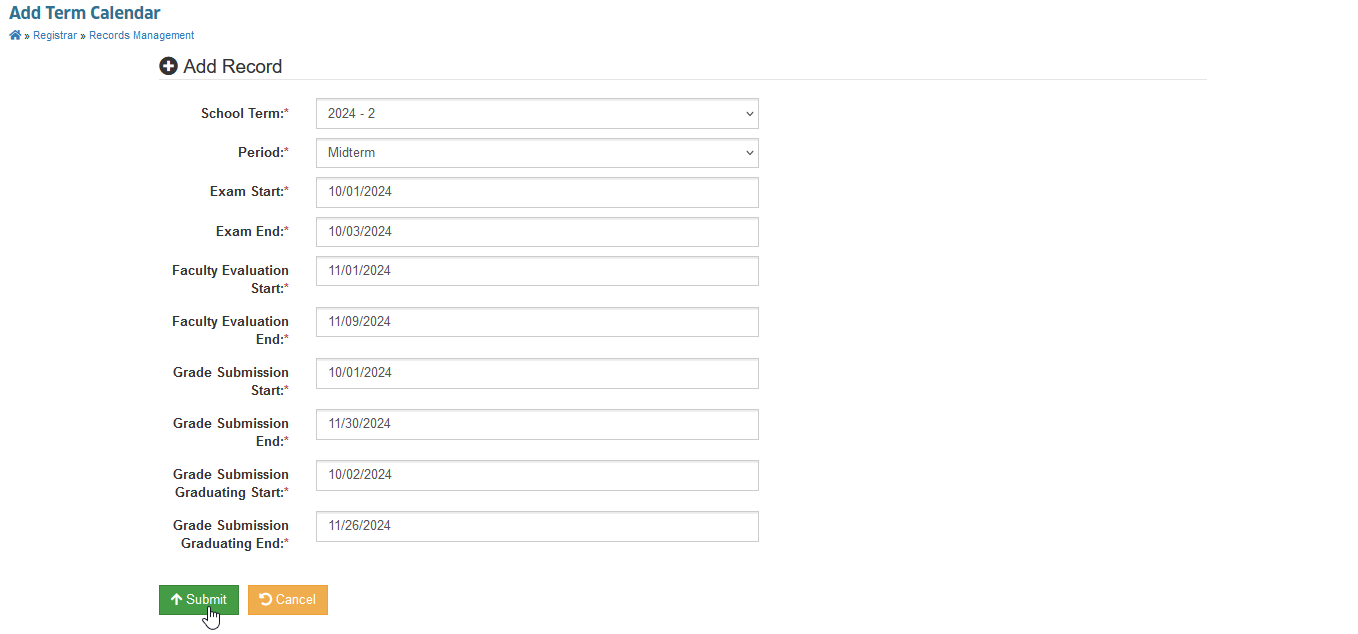
| School Term | The specific school year and term of the period. Select from the dropdown list. | Yes |
| Periods | The specific period of the school term. Select from the available option: midterm or finals. | Yes |
| Exam Start | The date when the examinations for the specific term period begins. | Yes |
| Exam End | The date when the examination for the specific term period ended. | Yes |
| Faculty Evaluation Start | The date when the evaluation process for faculty members begins, allowing the students to provide feedback on their teachers for the specified term period. | Yes |
| Faculty Evaluation End | The date when the evaluation process for the faculty members for the specified term period officialy closes. | Yes |
| Grade Submission Start | The date when the faculty members can begin submitting final grades for courses taught during the specified term period. | Yes |
| Grade Submission End | The date by which faculty members must submit final grades for course taught during the specified term period, marking the deadline of grade reporting. | Yes |
| Grade Submission Graduating Start | The date when the faculty members can begin submitting final grades specifically for graduating students in the specified term period | Yes |
| Grade Submission Graduating End | The date by which faculty members must submit final grades for graduating students, marking the deadling of grade reporting for these students. | Yes |
How to Add Term Record
To add new term record in the system, follow the steps below.
STEP 1. Access the Terms module. Go to Registrar > Records Management > Terms. User will be redirected to Manage Terms page.
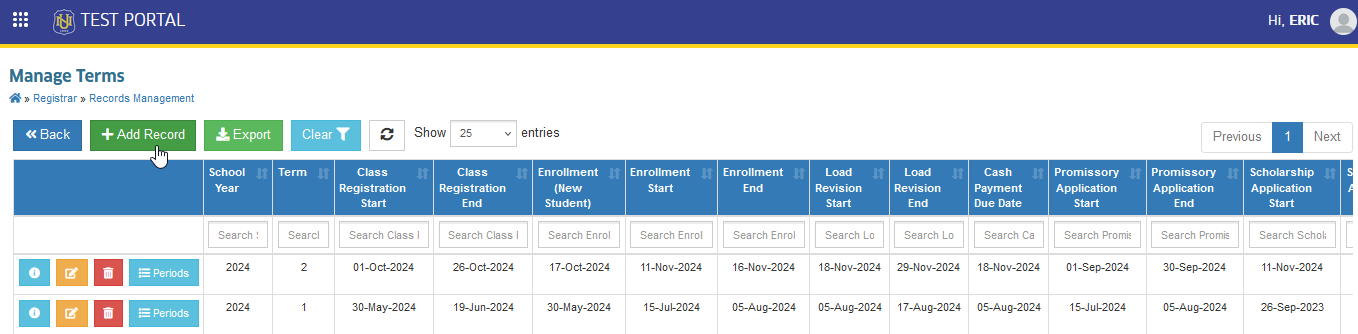
STEP 2. In Manage Terms page, locate and click the button to begin with the creation of new term record. After this action, user will be redirected to Add term page.
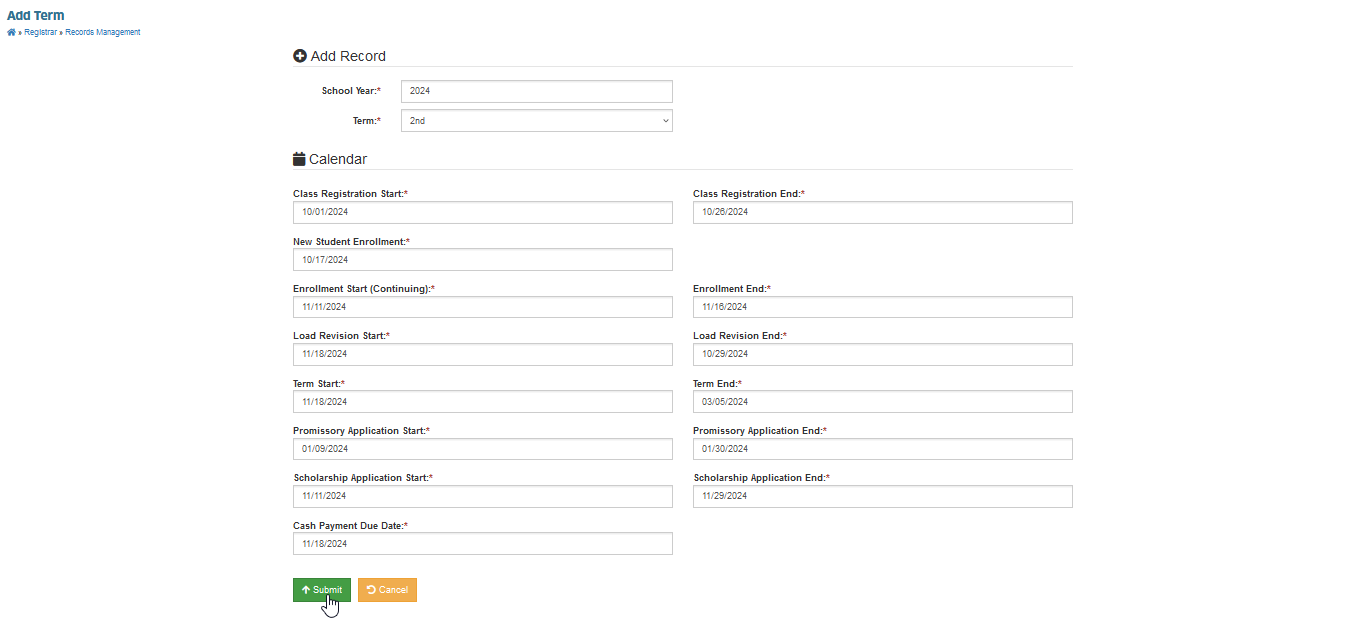
STEP 3. In the Add Term page, specify the required dates. See the Required Fields for reference.
STEP 4. Double-check all entered information for accuracy and click the button to save the record.
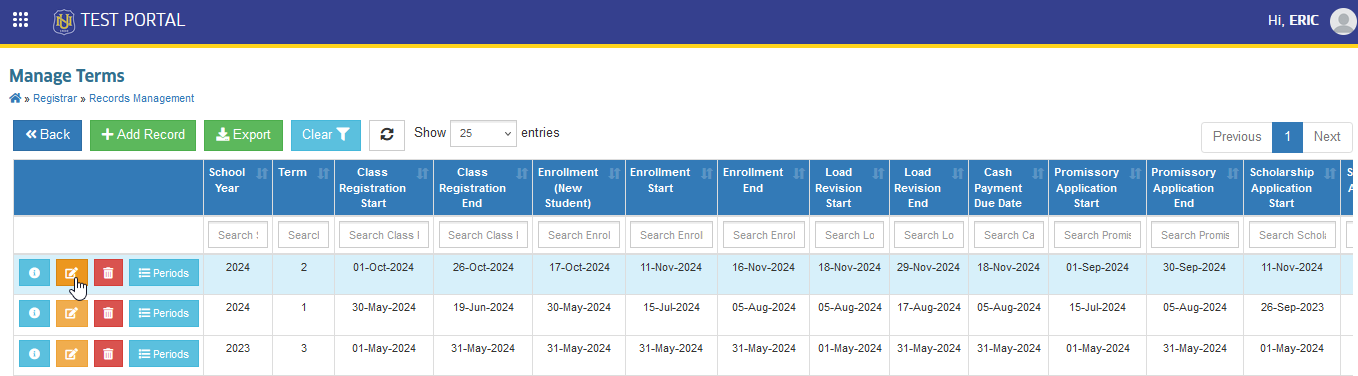
New term record has been successfully added. Make sure to manage also the term period dates by clicking the button of a record.
How to Edit Term
This guide provides step-by-step instructions on how to modify existing term records within the Terms module. Users will learn how to access the term details, make necessary changes to information such as term names, dates, and other relevant details, and save the updates to ensure accurate term management. This process helps maintain up-to-date records and facilitate effective academic planning.
STEP 1. In Manage Terms page, click the corresponding button of a record to modify. User will be redirected to Edit Term page.
STEP 2. In Edit Term page, make necessary changes. Review or double-check all modifications for accuracy and click the button to apply your changes and update the term record in the system.
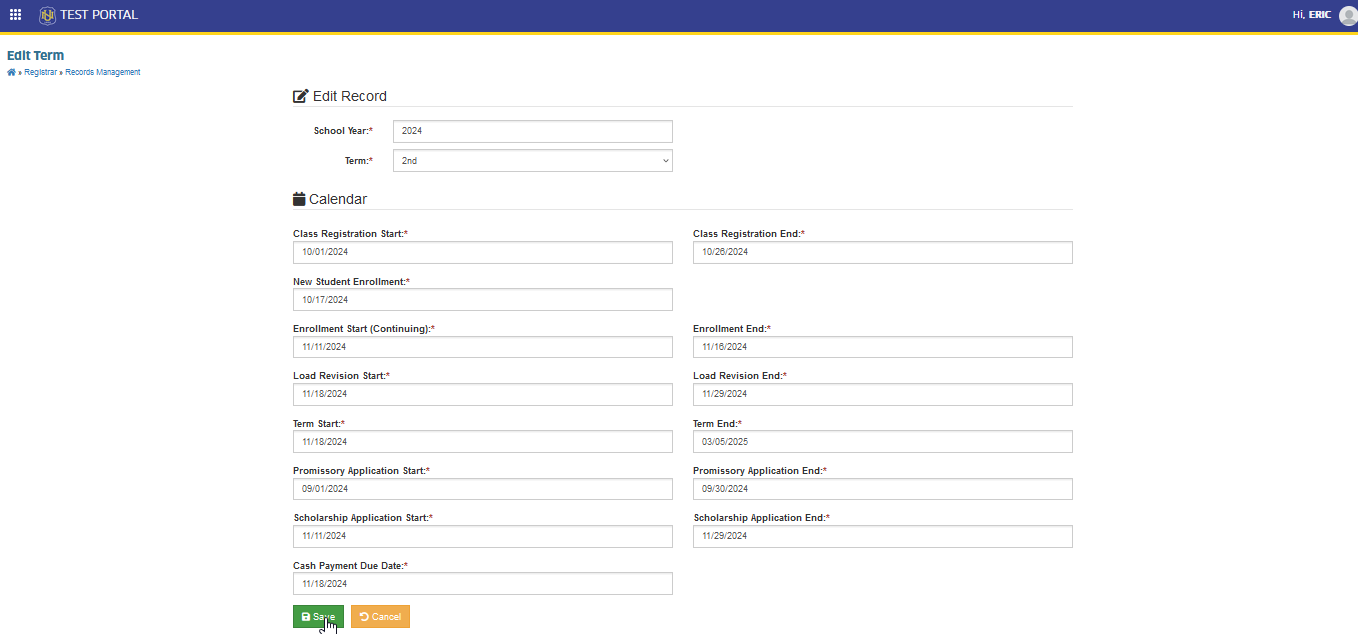
We do not encourage frequent editing of term records. Users should adhere to the dates entered for each term to maintain accurate and reliable academic records.
How to Delete Term
Follow the steps below on how to delete a term record.
STEP 1. In Manage Terms page, click the corresponding button of a record to remove. User will be redirected to Delete Term page.
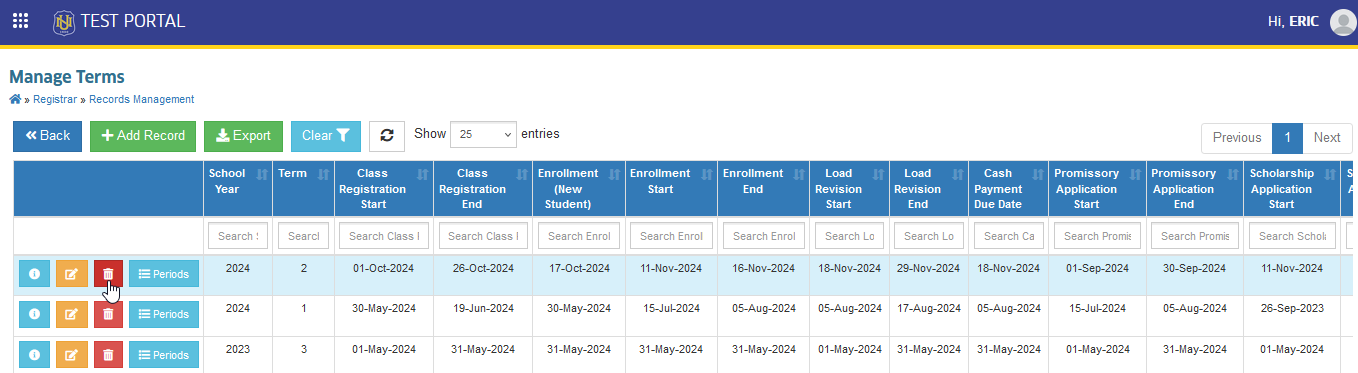
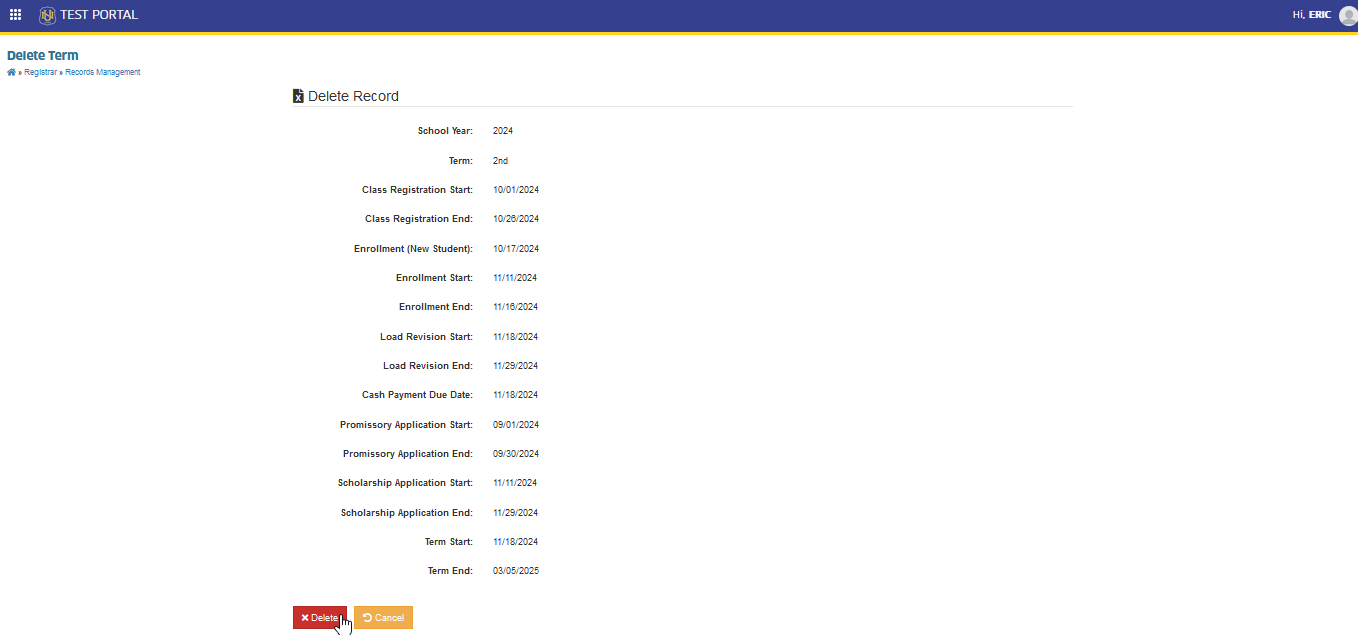
STEP 2. In Delete Term page, click the button to proceed with the deletion of the record. Once confirmed, the term will be removed from the system and cannot be recovered.
-
Deleting a term is irreversible, so please make sure that you truly want to remove it before proceeding.
-
Deleting a term record that is linked or referenced to other records is not allowed.
How To Manage Term Period
Like the Term module, user need to enter the required dates for specific term period. Follow the steps below on how to managa the term periods of the term.
In Manage Terms page, click the corresponding button of a record to manage. User will be redirected to Term Period Calendar page of the specific term record.
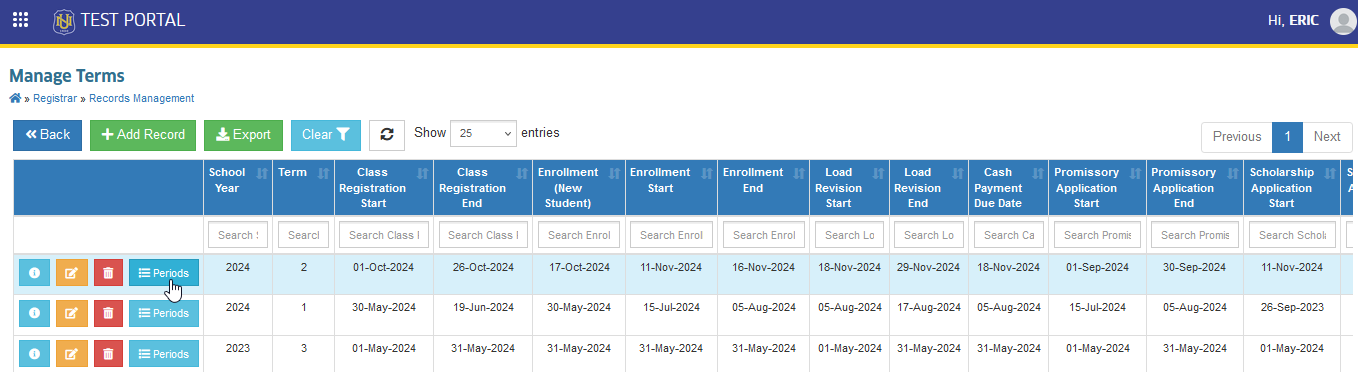
How to Add Term Period record
Follow the steps below to add a term period.
STEP 1. In Term Period Calendar page, locate and click the button to begin with the creation of new term period record. After this action, user will be redirected to Add Term Calendar page.
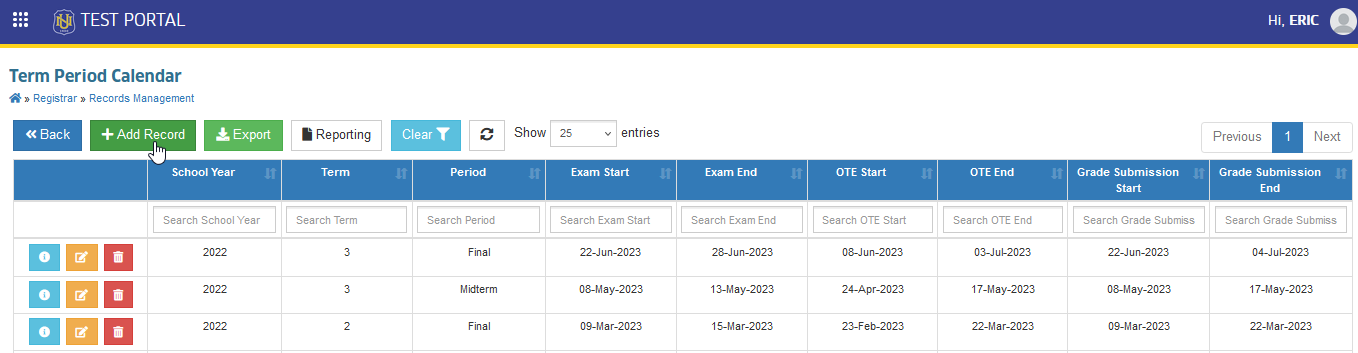
STEP 2. In the Add Term Calendar page, specify the required dates. See the Required Fields for reference.
STEP 3. Double-check all entered information for accuracy and click the button to save the record.
How to Edit Term Period record
Follow the steps below to edit a term period.
STEP 1. In Term Period Calendar page, click the corresponding button of a record to modify. User will be redirected to Edit Term Calendar page.
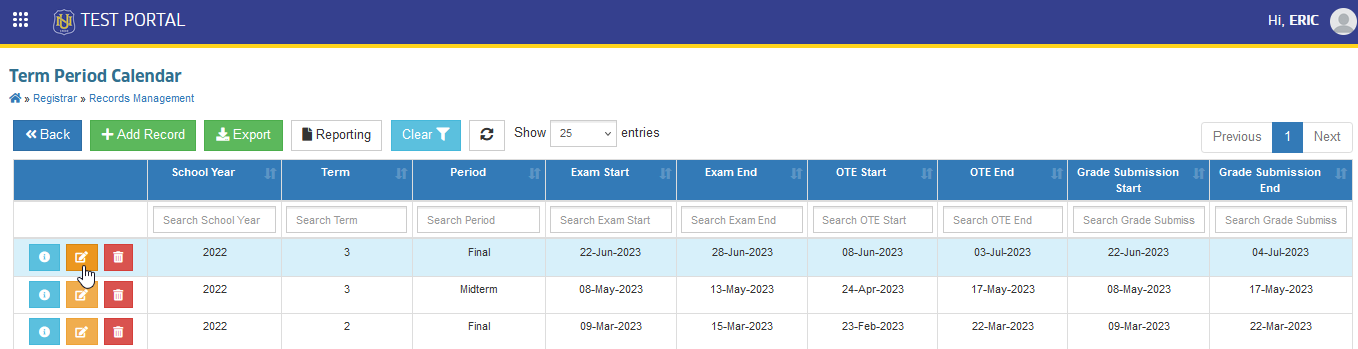
STEP 2. In Edit Term Calendar page, make necessary changes. Review or double-check all modifications for accuracy and click the button to apply your changes and update the term period record in the system.
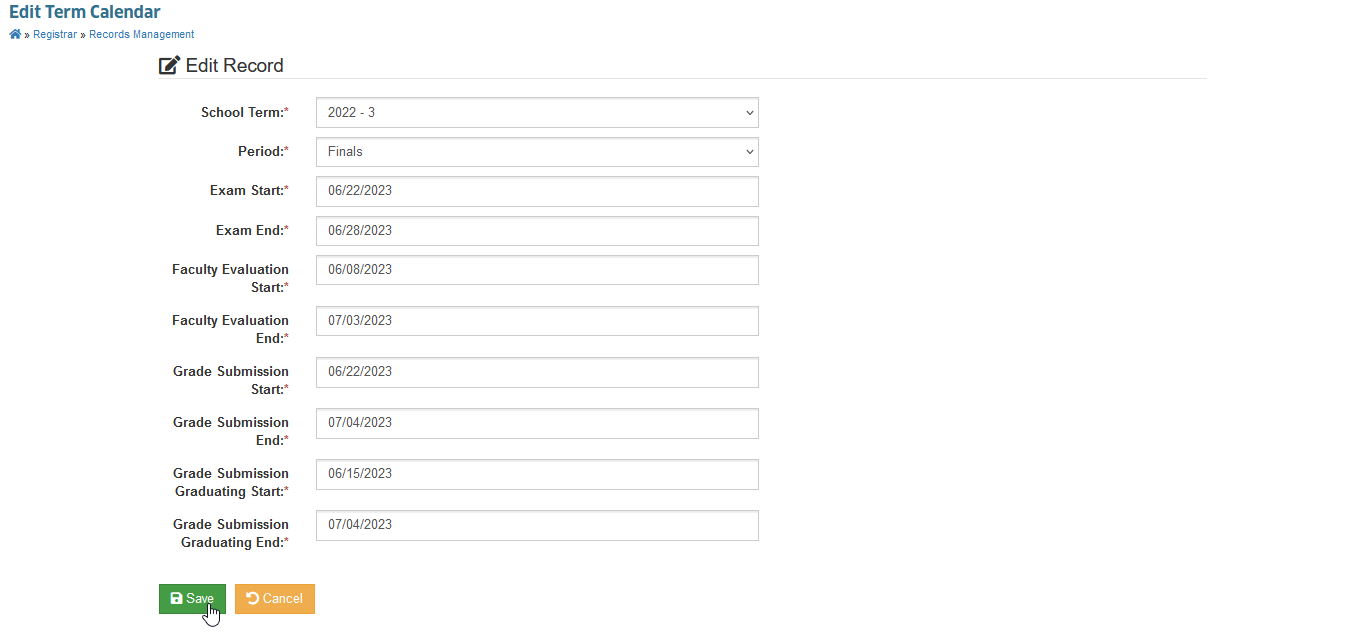
We do not encourage frequent editing of term records. Users should adhere to the dates entered for each term to maintain accurate and reliable academic records.
How to Delete Term Period record
Follow the steps below on how to delete a term period.
STEP 1. In Term Period Calendar page, click the corresponding button of a record to remove. User will be redirected to Delete Term Calendar page.
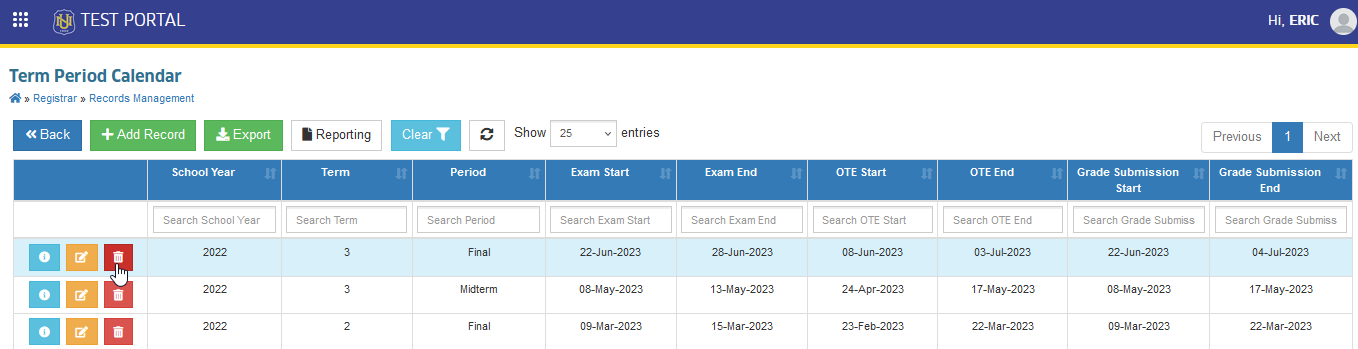
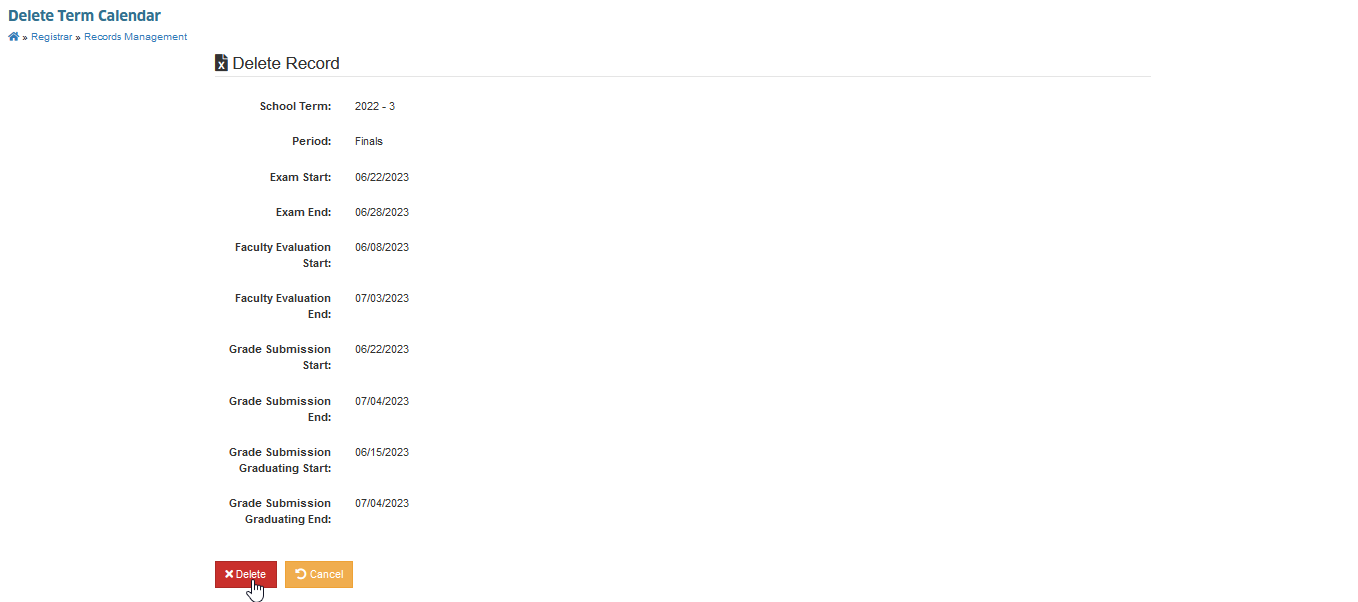
STEP 2. In Delete Term Calendar page, click the button to proceed with the deletion of the record. Once confirmed, the term will be removed from the system and cannot be recovered.
-
Deleting a term period is irreversible, so please make sure that you truly want to remove it before proceeding.
-
Deleting a term period record that is linked or referenced to other records is not allowed.
Here are the important dates or spans to remember during Enrollment Period.
-
The Whole Enrollment starts with Registration Start of Continuing until the Load Revision End.
-
Registration Period is when continuing students can pre-register to their preferred classes for next term.
-
Regular Enrollment (from Enrollment Start to Enrollment End) is when the regular enrollment period is based on academic calendar.
-
Load Revision Period is the period when departments/schools can process student's load revision.
-
Official Enrollment Period starts from Regular Enrollment until Load Revision End.
-
Modifying of Fee Schedules can only be done until last day of Enrollment Period (which is the Load Revision End)