Upload User's Picture
Upload or replace a picture of existing system user.
Required Permissions
- Picture Uploader - permission to upload a user's profile picture.
How to access the module?
To access the module, make sure you have the Picture Uploader permission. If it doesn’t appear in your portal, request access from your System Administrator.
Click the module tab to redirect to Picture Uploader page.
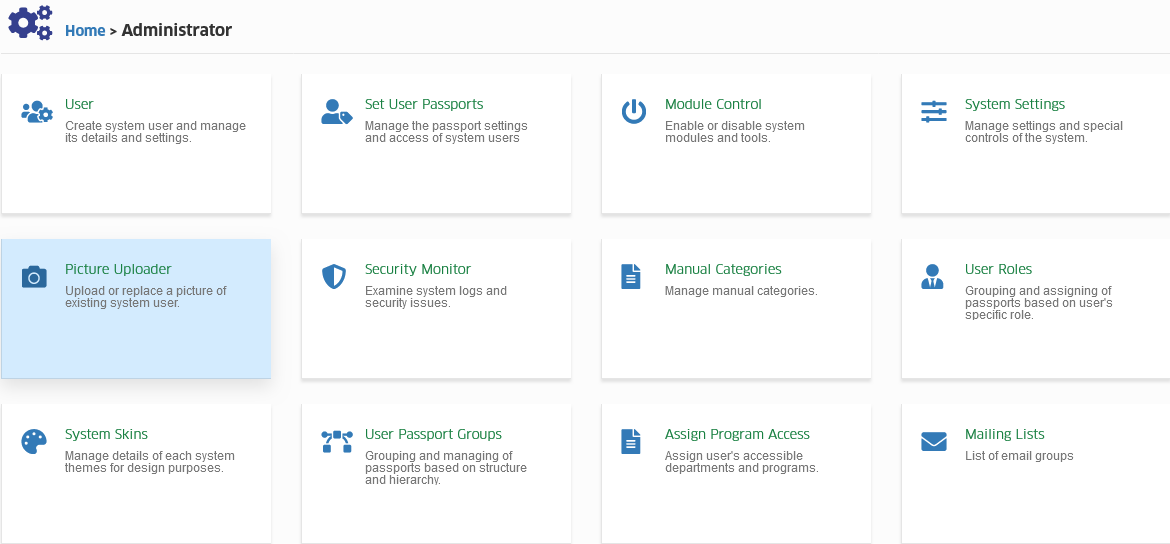
How to upload users profile.
Follow the steps below on how to upload user's profile.
STEP 1. In Picture Uploader page, enter the user's ID on the input field, or you can select a user by click the button.
STEP 2. Find the user by selecting the filtering option you want to use and click the button.
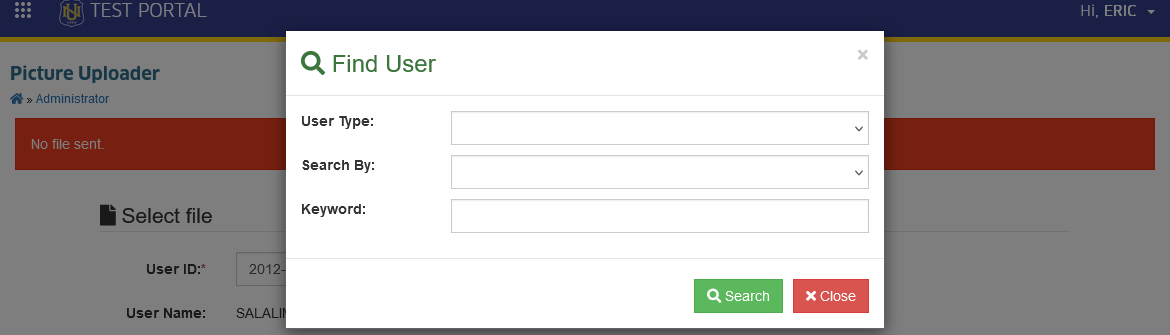
Find User Prompt Field descriptions
| Field | Description | Required |
|---|---|---|
| User Type | The Type of user. Choose from the available option in the dropdown list. | Yes |
| Search By | The primary identifier. Choose from the available option in the dropdown list. | Yes |
| Key Word | It must be related from option you selected in Search By field. | Yes |
STEP 3. Select the user's profile picture file from your storage by clicking the button.
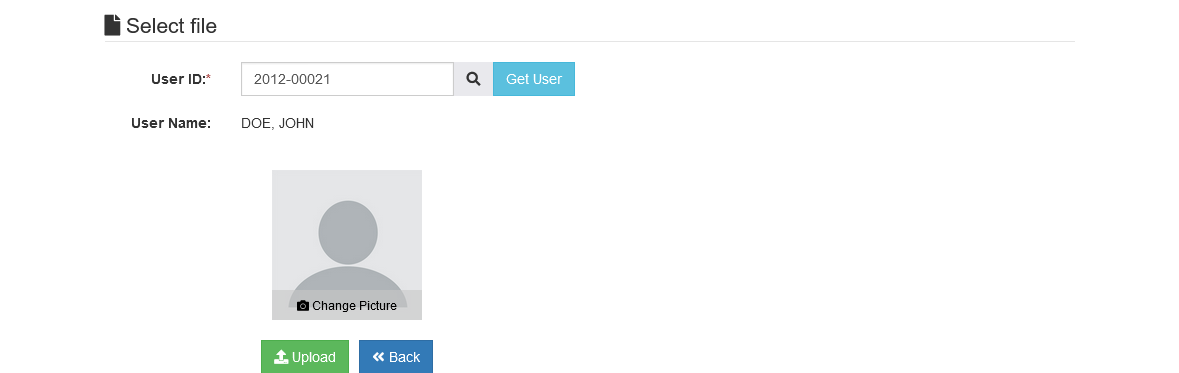
STEP 4. Click the button to upload the profile picture.
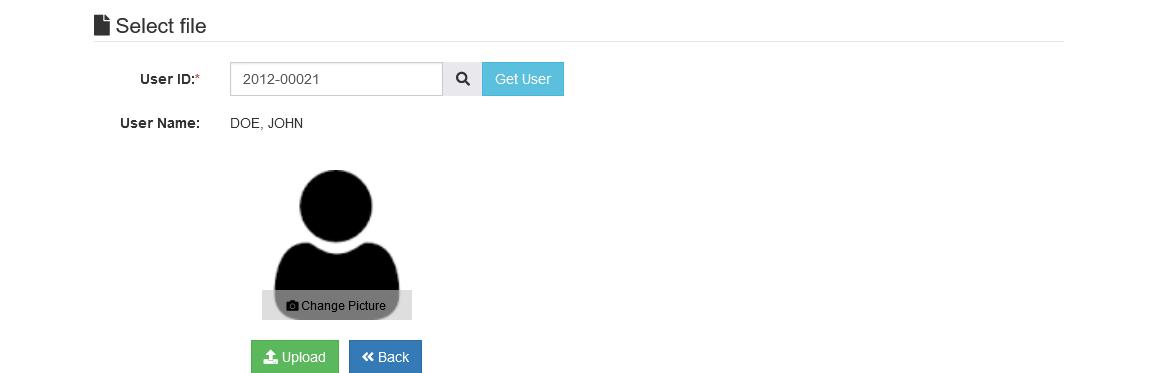
Success
Profile picture has been successfully uploaded.