👨 Manage User Accounts
Create and manage system users' details and settings.
Required Permissions
- View user - permission to view the module
- Add user - permission to add a new user
- Edit user - permission to modify an existing user record
- Delete user - permission to delete an existing user
How to access the module?
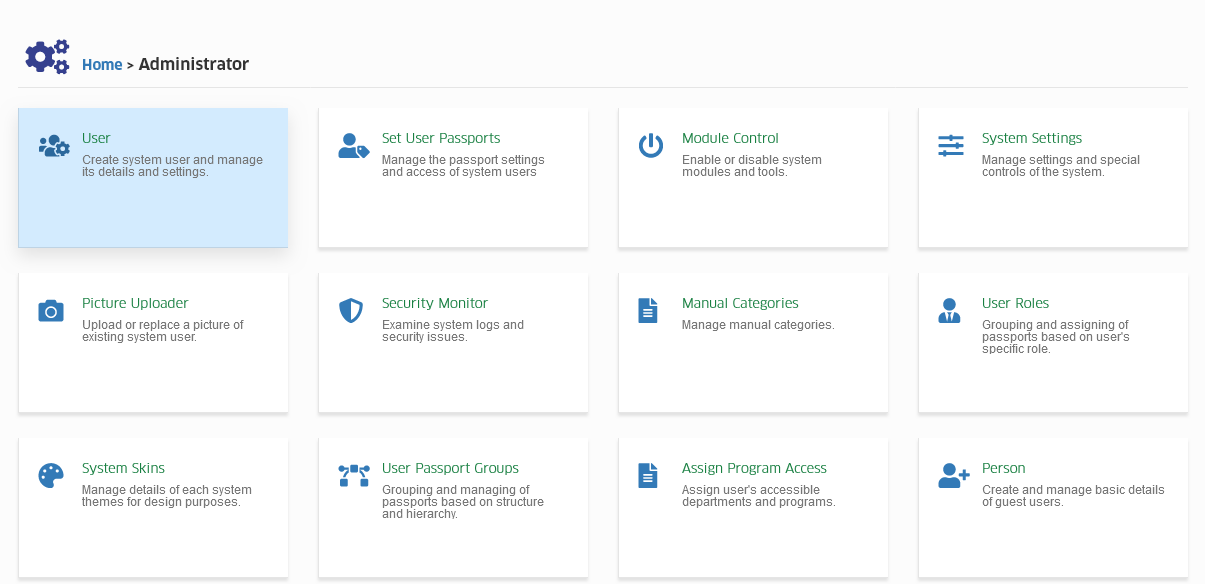
To access the module, make sure you have the View user permission. If it doesn’t appear in your portal, request access from your System Administrator.
Click the module tab to redirect to Users page.
Field Descriptions
| Field | Description | Required |
|---|---|---|
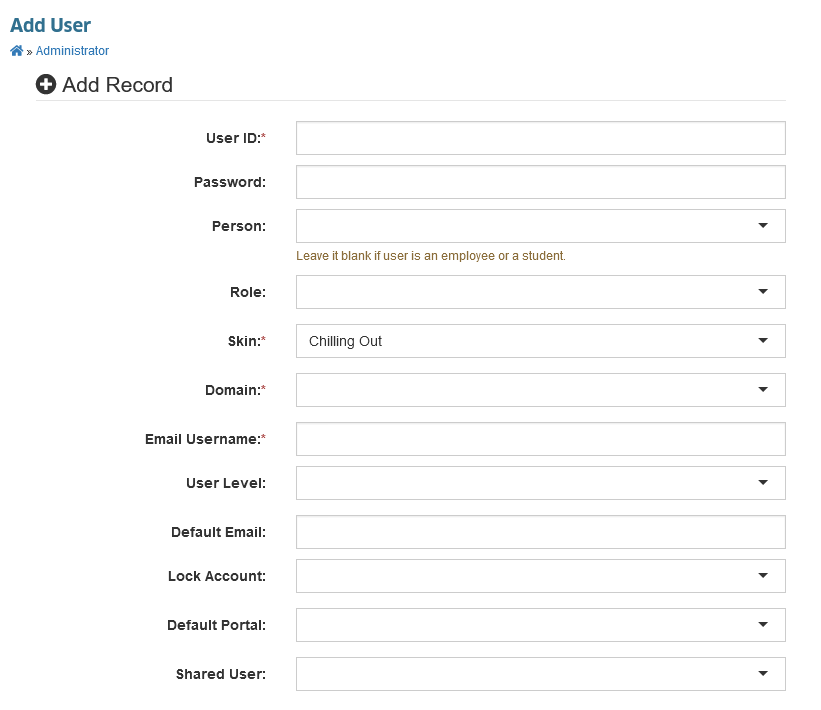
| User ID | User's ID Number (either Student ID or Employee ID) | Yes |
| Password | This field is no longer supported. You may encode any character. | No |
| Person | Leave it blank if user is an employee or student. | No |
| Role | The user's role. | No |
| Skin | The user's theme. | Yes |
| Domain | User's email domain. Select from the available options. | Yes |
| Email Username | The email username of the user. | Yes |
| User Level | User's Education level. Select from the available options. | No |
| Default Email | The user's default email, specify the default email if the user has multiple email address. | No |
| Lock Account | Set to No if the user's account will be accessible, otherwise, Yes. | No |
| Default Portal | Set to NUIS-SHS for SHS students, and SHS faculty members, otherwise, set to NUIS by default. | No |
| Shared User | If the user has account in other campuses, select YES. | No |
How to add a user?
Normally we do not add user accounts, since user accounts is auto registered upon first attempt to login using microsoft credential in NUIS portal. If in case you need to add user accounts, Follow the steps below on how to add a user.
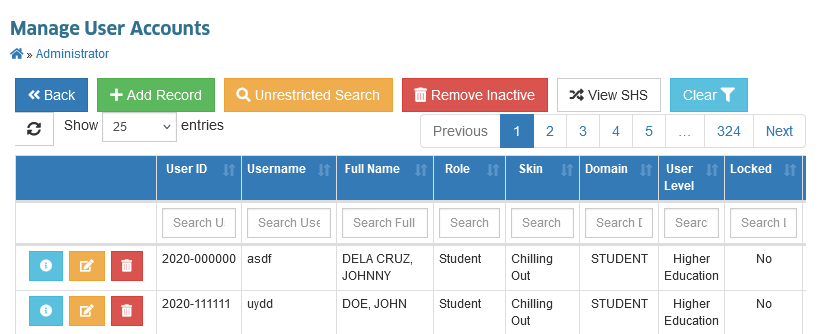
STEP 1. In Manage User Accounts page, click the button to add a record.
STEP 2. The page will be redirected to Add User page, fill out all the required fields. Refer to the Field Descriptions for the guide of each field parameter.
STEP 3. Click the button to save the user's record.
To add employee user accounts manually, make sure that the employee has existing employee profile. Coordinate with the campus HR office for the employee ID number assigned to the employee.
How to edit a user?
Follow the steps below on how to edit a user record.
STEP 1. In the Manage User Accounts page under the actions column, click the button.
STEP 2. The page will be redirected to Edit User page. Modify the fields which need to be updated. Refer to the Field Descriptions for the guide of each field parameter.
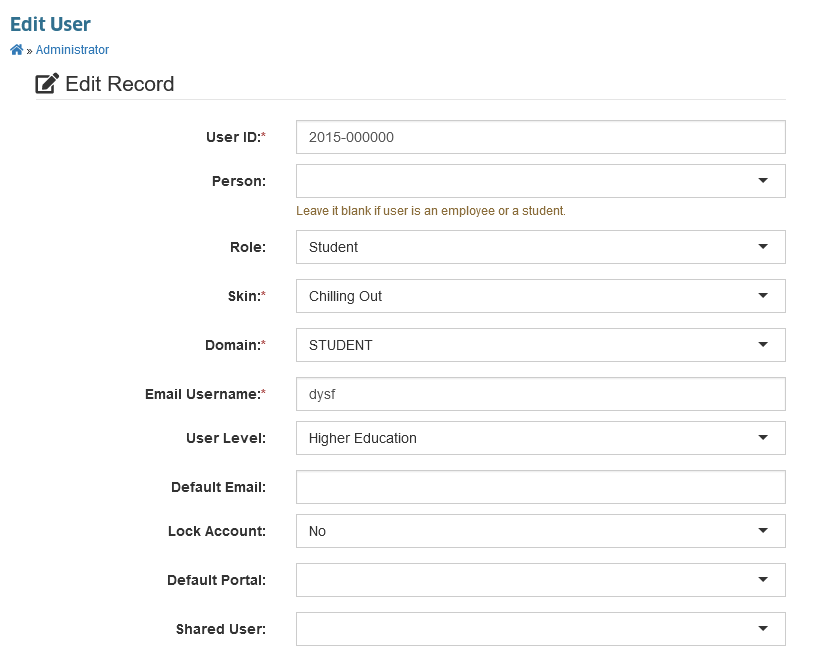
STEP 3. Click the button to save the changes on the user's record.
How to delete a user?
Deleting an existing user will also delete all the assigned permissions.
Follow the steps below on how to delete a user record.
STEP 1. In the Manage User Accounts page under the actions column, click the button.
STEP 2. The page will be redirected to Delete User page.
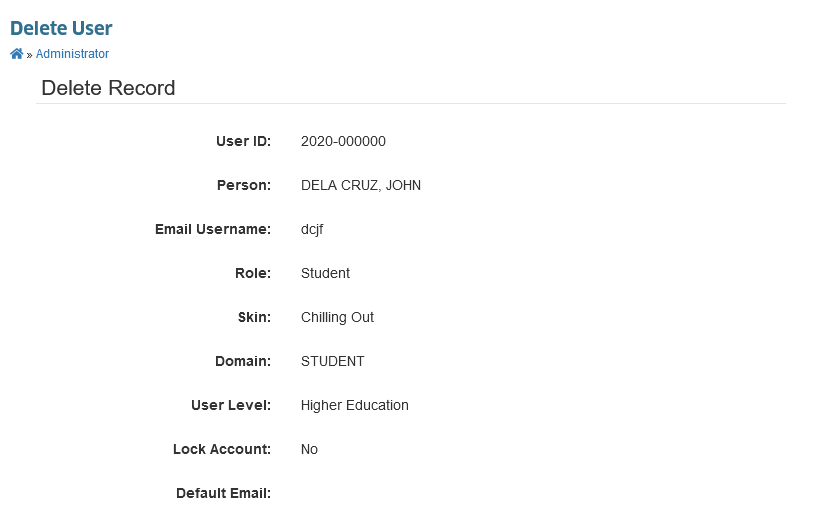
STEP 3. Click the button to delete the user's record.