Update TMS Cache
This module is used to update and sync the cache data coming from the TMS (Top Management System) to NUIS. Since TMS is a separate system, this tool helps make sure that the latest data from TMS is available and viewable in NUIS.
Required Permission
- Update TMS Cache - This permission allows the user to view and access the Update TMS Cache module. It also allows the user to manually send GET or POST request to specific TMS endpoints to update or refresh cached data in NUIS.
How to Access the Module
To access the module, make sure you have the Update TMS Cache permission. If it doesn’t appear in your portal, request access from your System Administrator.
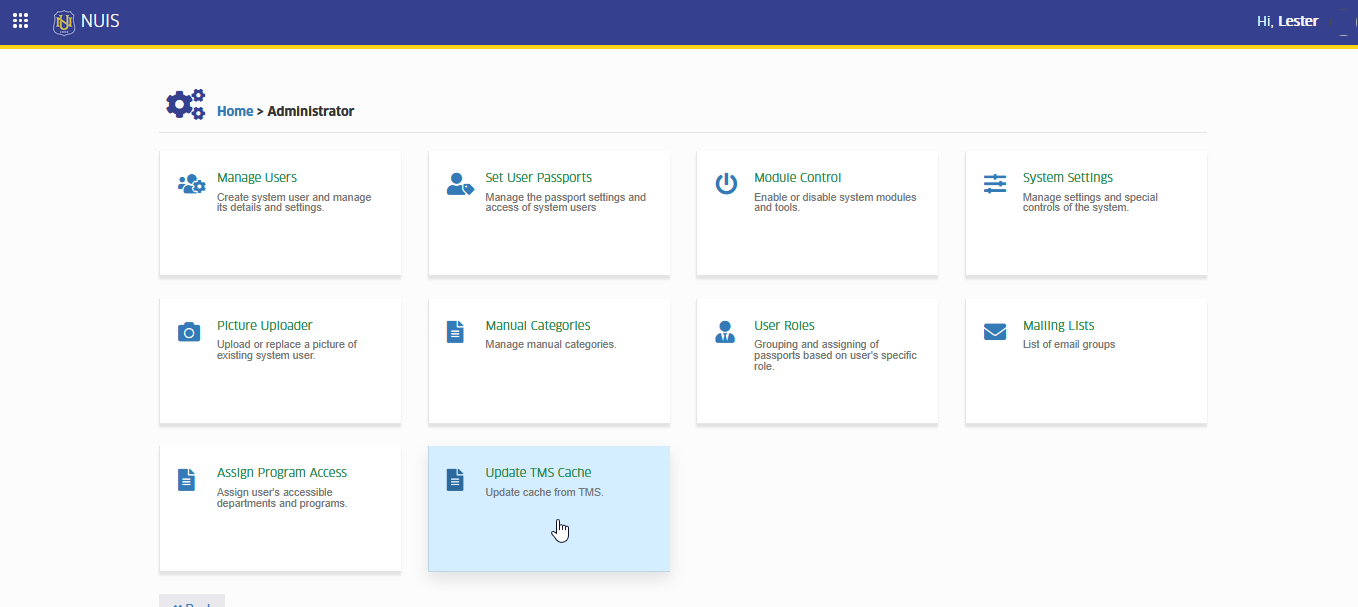
Go to Administrator > Update TMS Cache. Click the module tab to redirect to Update TMS Cache page.
How to use the module
This section guides you through the steps to manually update cache data from the TMS system into NUIS. You'll learn how to select the appropriate method (GET or POST), enter the correct TMS endpoint, and optionally provide parameters before sending the update request.
STEP 1. Go to the Update TMS Cache module under the Administrator group module.
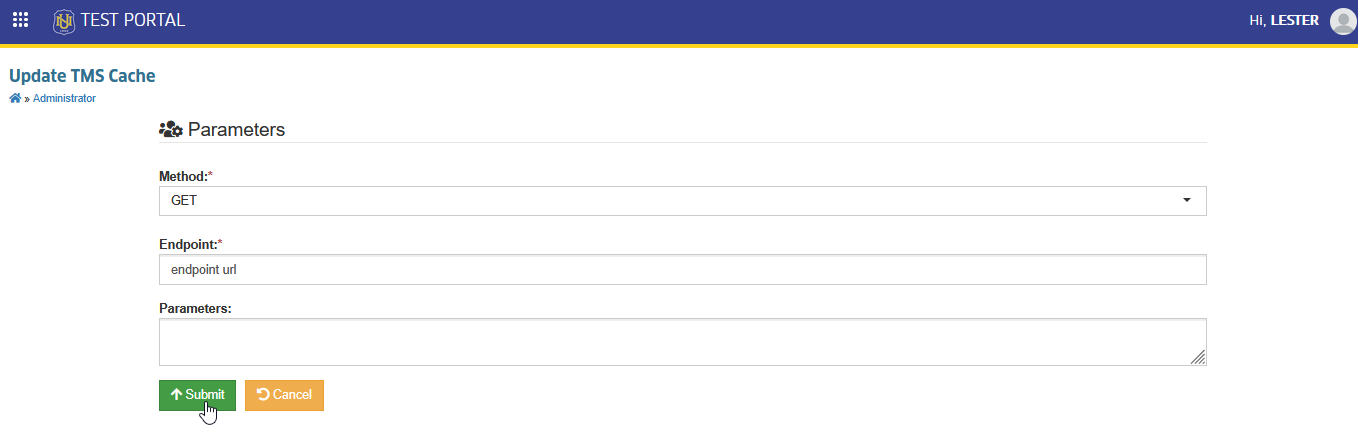
STEP 2. Fill out the required fields :
| Field Name | Description | Is Required? |
|---|---|---|
| Method | Choose either GET or POST depending on how the TMS endpoint is designed to accept requests. | Yes |
| Endpoint | Enter the specific TMS endpoint you want to call. This must be a valid and active endpoint from TMS. | Yes |
| Parameters | If the endpoint requires parameters (e.g., user ID, type of data, etc.), enter them here in the appropriate format. | No |
STEP 3. Click the button.
A success message will appear once the data has been updated and synced with NUIS.

How to update SM Companies List.
This section explains the steps to manually update the list of SM Companies stored in the system. It covers how to send the appropriate request to fetch the latest company data from the TMS and ensure that the updated list is reflected in NUIS.
STEP 1. In Update TMS Cache module, enter this following request.
| Field Name | Value |
|---|---|
| Method | GET |
| Endpoint | sm/companies/list |
| Parameters |
STEP 2. Click the button in the page.
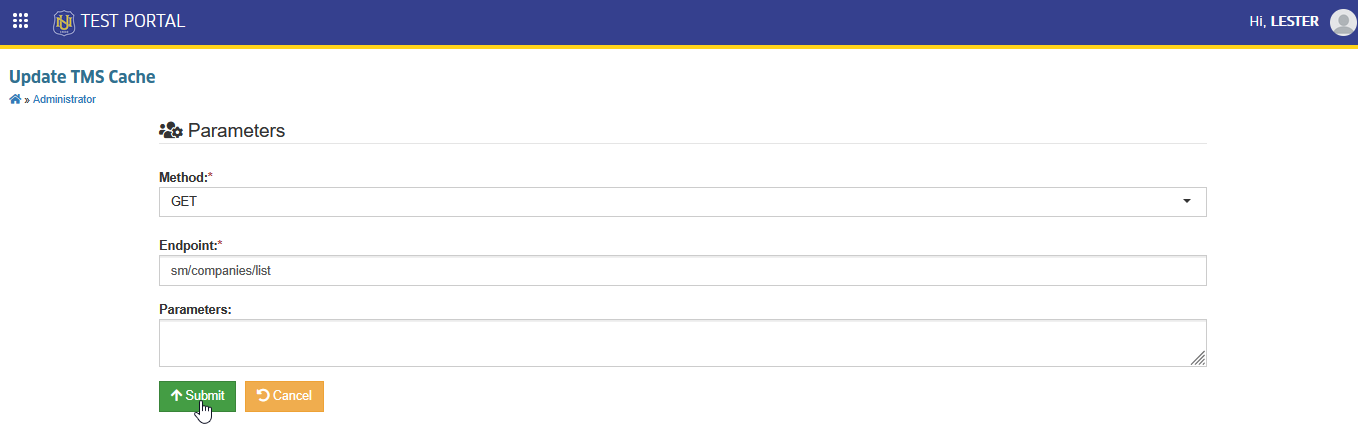
STEP 3. Wait for a confirmation message indicating the update was successful.
-
Make sure you're using the correct method (GET/POST) as expected by the TMS endpoint.
-
Always double-check the endpoint URL before sending the request.
-
Optional parameters should only be added if required by the endpoint.
-
Contact the TSO support if you're unsure which endpoint or method to use, or if an update fails.
For more questions or concerns, email us at nu-desk@national-u.edu.ph