Manage User Roles
Grouping and assigning of permissions based on user's specific role.
Required Permissions
- View user role - To view all user roles.
- Add user role - Permission to add new user role and its assigned permissions.
- Delete user role - Permission to delete an existing user role.
- Edit user role - Permission to modify an existing user role and its assigned permissions.
How to access the module?
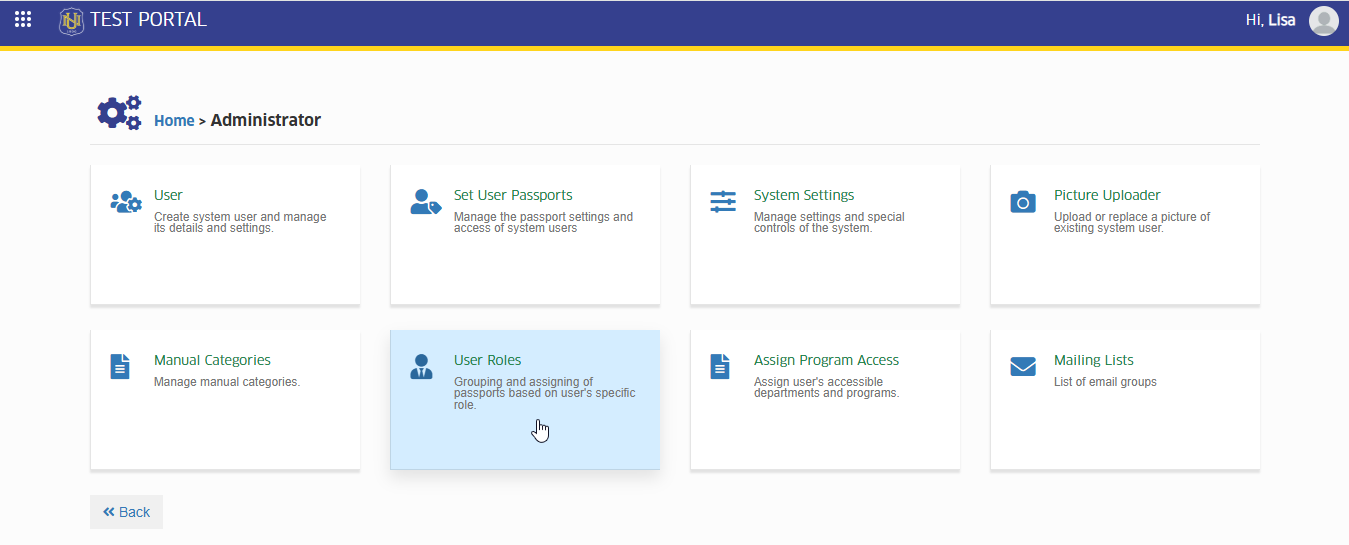
To access the module, make sure you have the View user role permission. If it doesn’t appear in your portal, request access from your System Administrator.
Click the module tab to redirect User Role page.
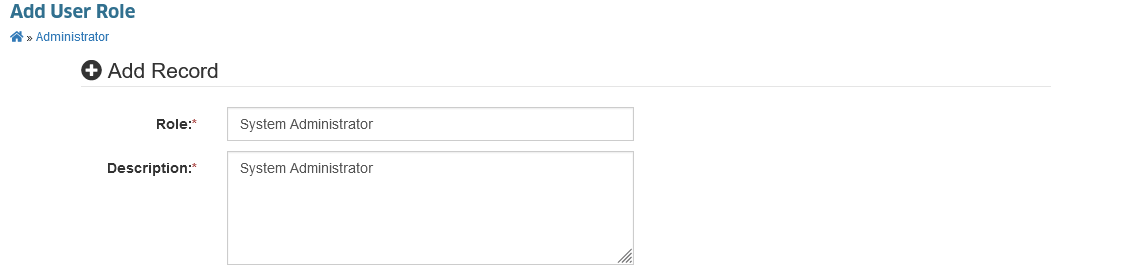
Field Description
| Field | Description | Required |
|---|---|---|
| Role | Role Name | Yes |
| Description | Role Description | Yes |
Default Roles
Below is a list of the default roles that are required to be implemented across all campuses. These roles are essential and must be consistently applied to ensure uniformity and proper functionality throughout the campuses.
| Role Name | Description | NUIS | NUIS-SHS | For Shared |
|---|---|---|---|---|
| Super Admin | Super admin role with 100% system privileges. | ✅ | ✅ | ✅ |
How to create a new user role?
Follow the steps below on how to create a new user role.
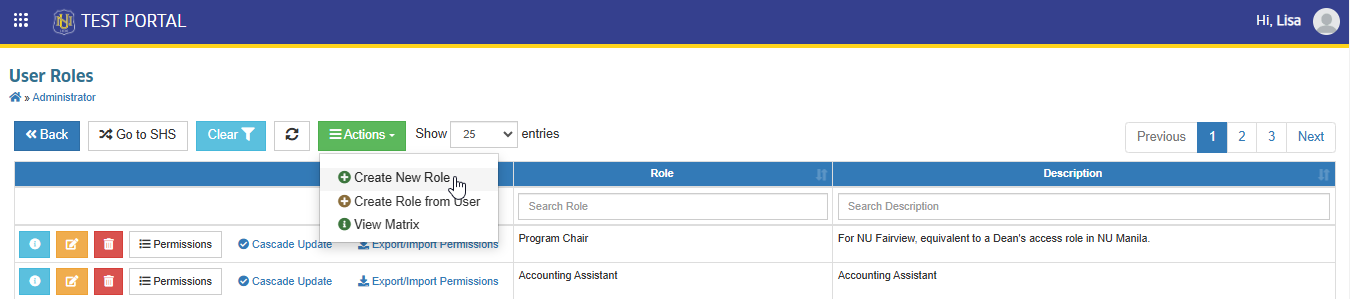
STEP 1. In User Roles page, click the button and select the Create New Role from the dropdown list. User will be redirected to Add User Role page.
STEP 2. In Add User Role page, enter the user role details on the required field.
STEP 3. Click button to save the new user role record.
User role has been successfully added.
Manage user's permissions by importing user role file or manage it manually in this module.
How to edit an existing role?
Follow the steps below on how to edit existing role.
STEP 1. In User Role page, under the actions column, click the button corresponding to the role you want to modify. You will be redirected to Edit User Role page.
STEP 2. In Edit User Role page, modify the user role details.
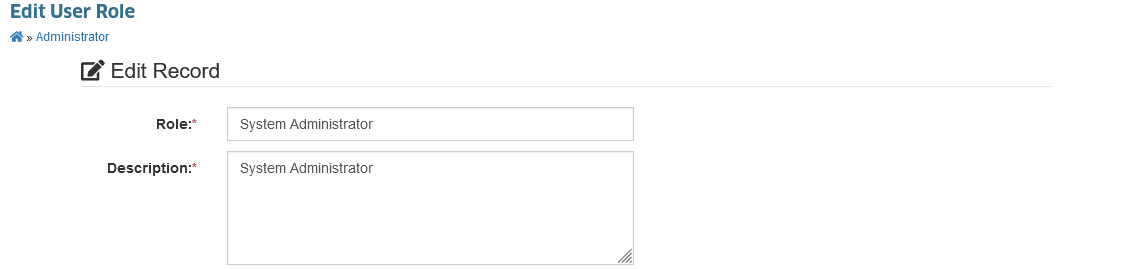
STEP 3. Click button to save changes.
User role has been successfully updated.
Manage user's permissions by importing user role file or manage it manually in this module.
How to delete a user role?
Follow the step below on how to delete a user role record.
STEP 1. In User Role page, under the actions column, click the button corresponding to the role you want to delete. You will be redirected to Delete User Role page.
STEP 2. In Delete User Role page, delete the record by clicking the button.
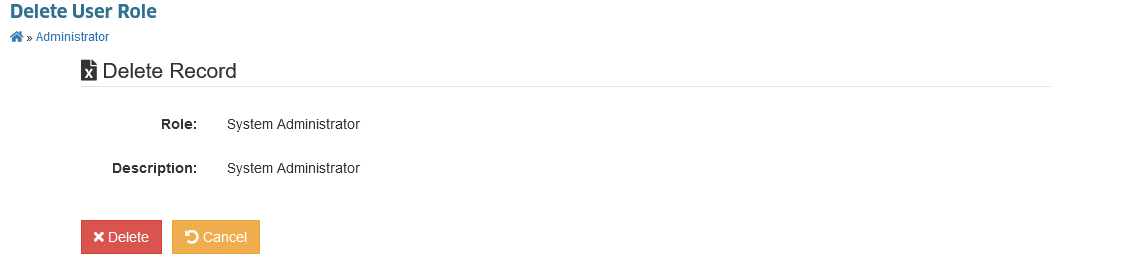
Avoid deleting a user role when this role is currently used by other users.
How to Create New Role from User?
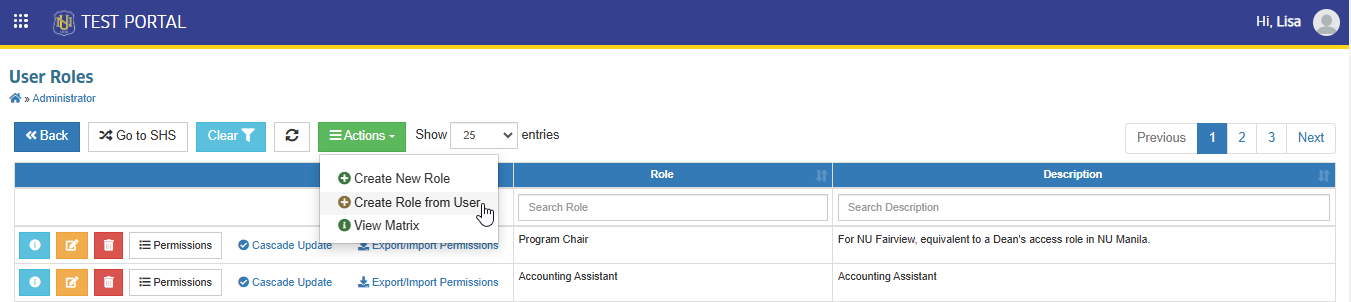
In this module, the administrator can create a custom user role based on the user's current role. Follow the steps below on how to create new role from user.
STEP 1. STEP 1. In User Roles page, click the button and select the Create New Role from User from the dropdown list. User will be redirected to Add User Role Based on User page.
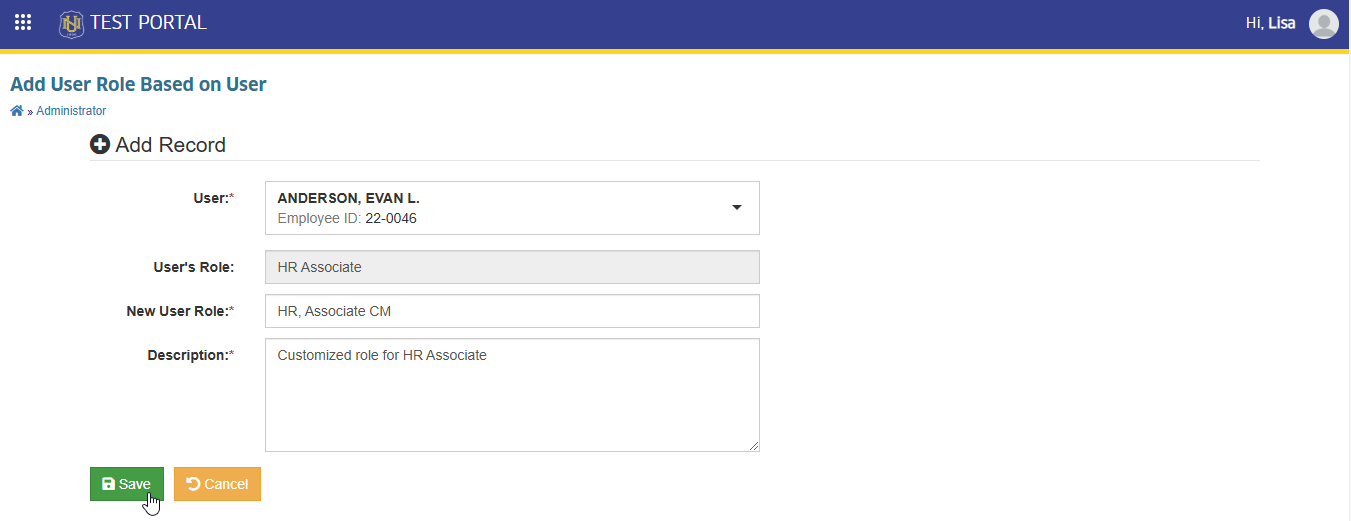
STEP 2. In Add User Role Based on User page, encode the information needed in the required field. Click the button to save the customized role.
STEP 3. Manage the user role's permission by checking the module access that will be added to the role.
How to update permissions of all users under same role?
STEP 1. In User Role page, under actions column click the button. You will be redirected to Role Cascade Update page.
STEP 2. In Role Cascade Update page, click button. Wait for the cascade update to finish.
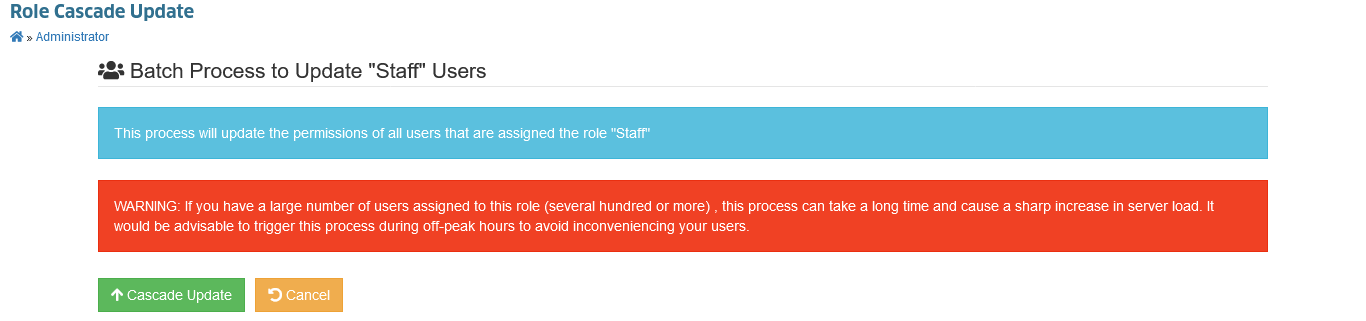
Role cascade update was successful.
How to export user role?
Follow the steps below to export user role.
STEP 1. In User Role page, under actions column click the button. You will be redirected to Role Permissions page.
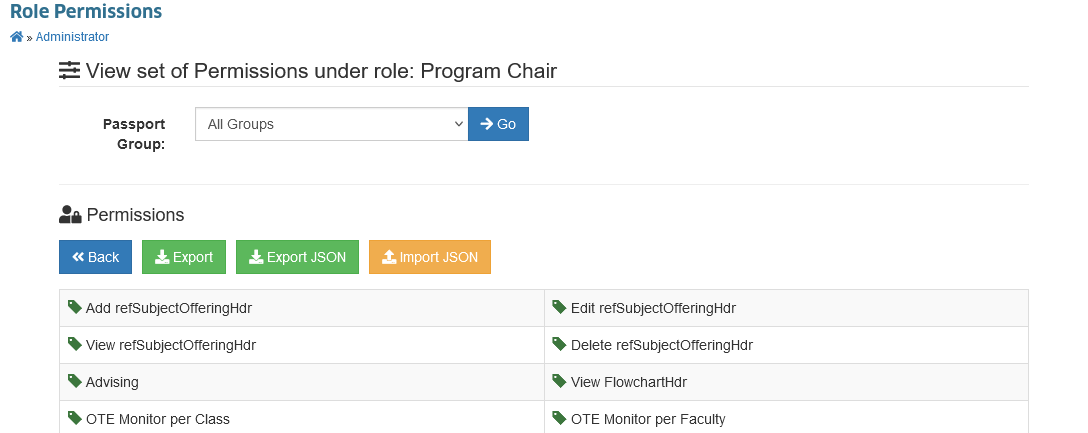
STEP 2. Click button if you want to download the JSON file of the user roles permission.
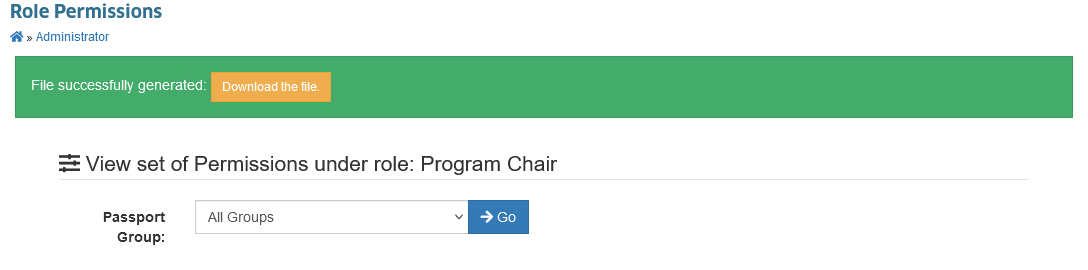
STEP 3. Click the button to download the JSON file of the user role.
How to import user role?
STEP 1. In User Role page, under actions column click the button. You will be redirected to Role Permissions page.
STEP 2. Click button if you want to import the JSON file of the user roles permission.
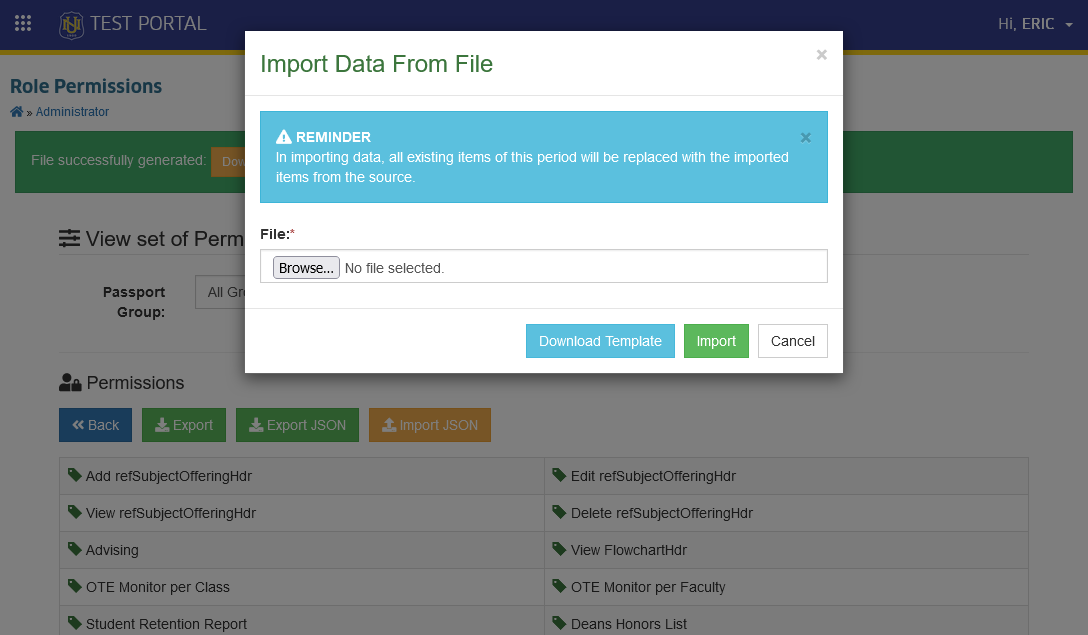
STEP 3. Browse the file in your local storage. Click the button to save the JSON file of the user role.
Role permission has been successfully updated.
How to View User Role Matrix?
This section explains the steps to view user role matrix. An over view of user roles and corresponding access permissions will be provided. This ensures user roles and access assignments are reviewed and manage efficiently.
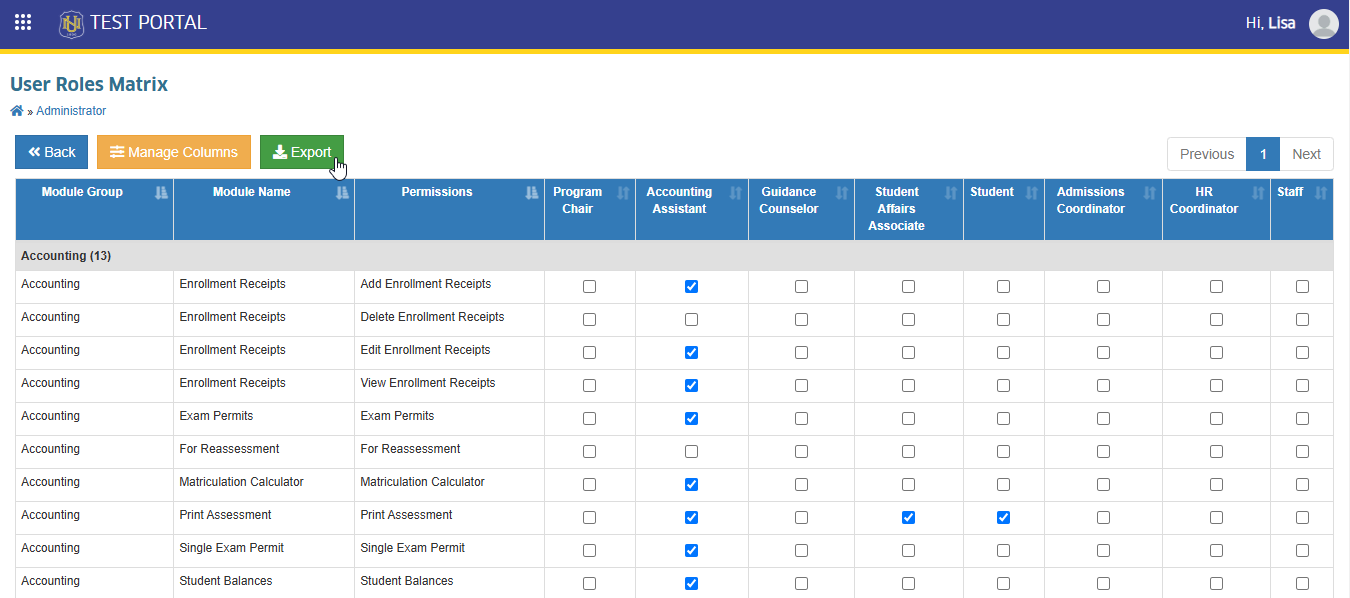
STEP 1. In User Roles page, click the button and select the View Matrix from the dropdown list. User will be redirected to User Roles Matrix page.
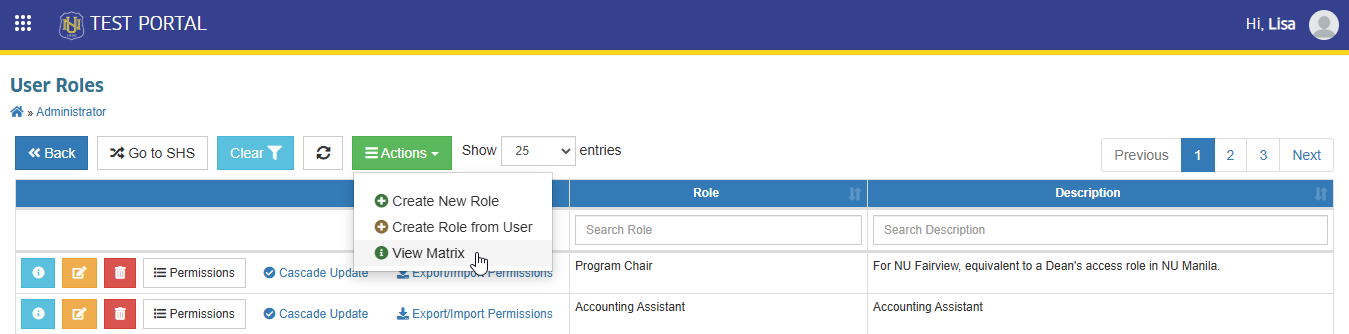
STEP 2. In User Roles Matrix page, All user roles with its corresponding permissions in the campus onlineapp will be displayed. Administrator can generate report and dowload it by clicking the button in the page.