My Student Ledger
View your payment transactions with Treasury Office.
The My Student Ledger module allows students to view their financial transactions, including tuition fees, payments, balances and other charges. This module provides a clear breakdown of all financial activities related to their enrollment.
Required Permissions
- My Student Ledger - This permission allows the user to access the module, enabling them to view their financial transactions, including tuition fees, payments, and outstanding balances. Users can review their payment history and download the statements for personal records. This permission is for viewing only and does not allow payment processing.
Module features
-
View Transactions - Displays a list of verified transactions or payment that was made.
-
Check Outstanding Balance - Shows remaining balance that needs to be paid.
-
Payment History - Allows students to review past payments including other terms assesments and verify transactions.
-
Download Statement - Has download button that enables the student to download or print a copy of the student ledger for personnal record keeping.
How to access the module?
To access the module, make sure you have the My Student Ledger permission. If it doesn’t appear in your portal, request access from your System Administrator.
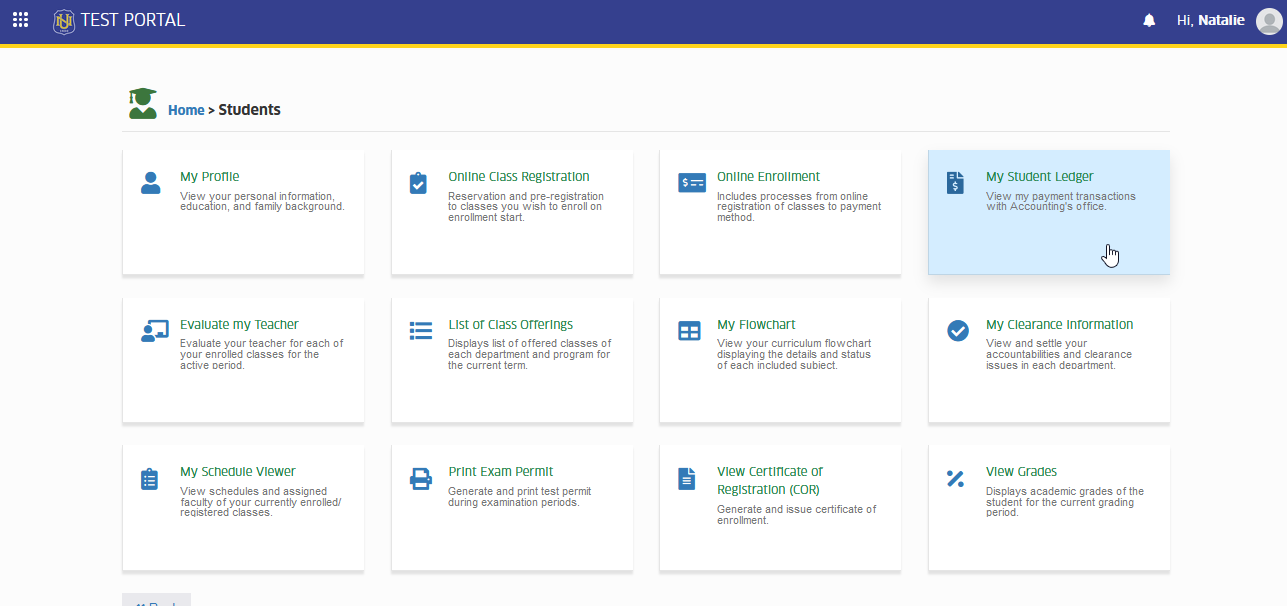
To access the module go to Students > My Student Ledger
Click the module tab to redirect to Student Ledger page.
How to Use the Module?
This section provides step-by-step instructions on how to navigate and utilize the My Student Ledger module. It guides users on reviewing financial records, viewing transaction details, and downloading statements for reference.
-
Some transacations and penalties are not included in the Student Ledger.
-
Total balance reflected does not include late payment charges.
STEP 1. Open the My Student Ledger module from the Students module group. In Student Ledger page, payment transactions for the current term's assessment will be displayed, together with the outstanding balance of the student.
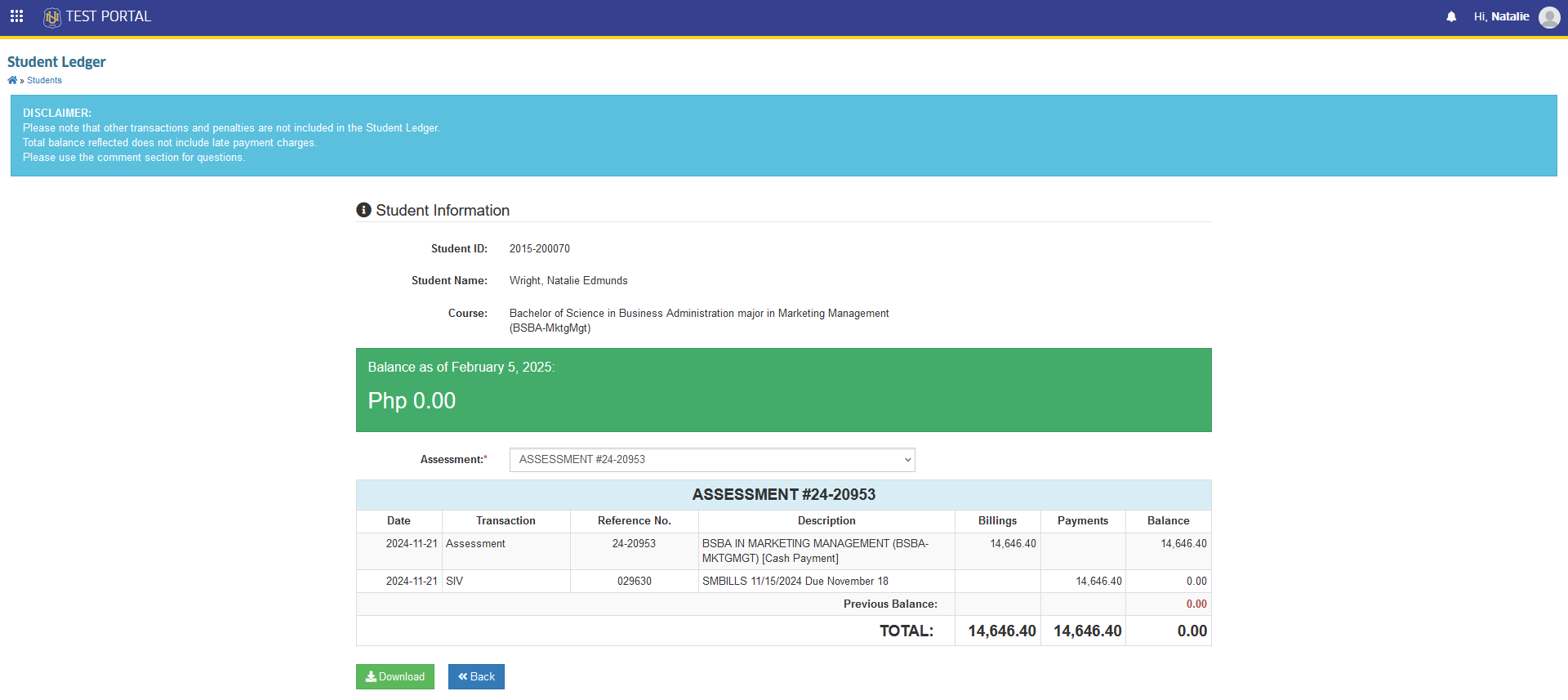
STEP 2. Review the summary of your financial records displayed on the screen.
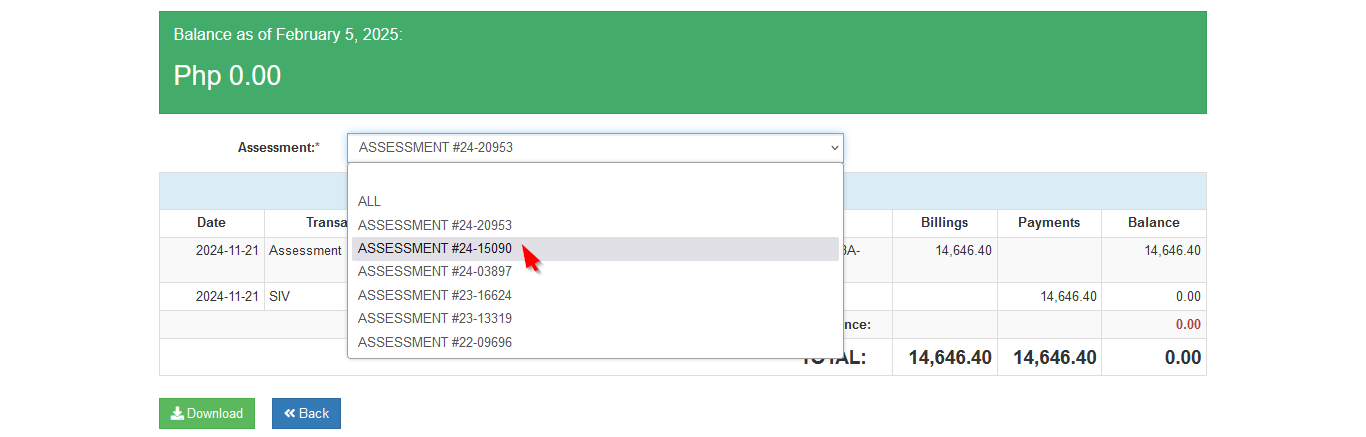
The current terms assessment will be the default display in the module. User may be able to see the previous assessment by seaching it on the assesment search tab.
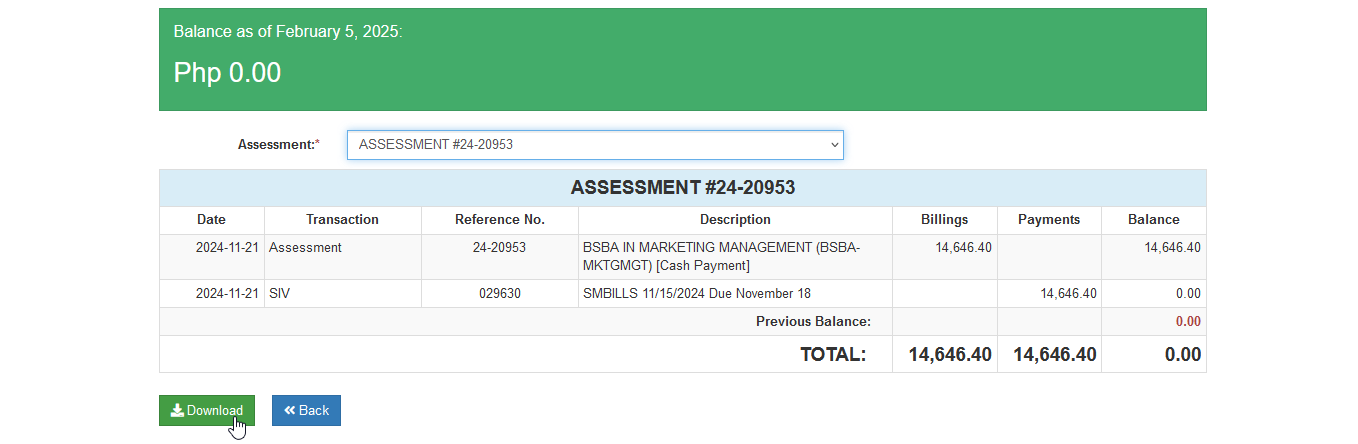
STEP 3. To save a copy of the ledger, download the file by clicking the button located in the lower part of the page.
STEP 4. If further clarification is needed, use the comment section of the page. This message will be sent to the campus's Treasury Office. To add comments, enter your concern in the chat box entry field and then click on the button.

Frequently Asked Questions
You may use the comment section to raise your concern, or you may directly seek assistance from your campus Treasury Office.
This module is for viewing only. To make payments, Log in to your NU Bills portal and access the payment module.
Payment will reflect in student ledger once the Treasury Office issues the official receipt of your payment. Please wait until then.
For more questions or concerns, email us at nuis@national-u.edu.ph