View Grades
Displays academic grades of the student for the current grading period.
The View Grades module allow th students to easily access and review grades for each course they've taken within a selected term. This module displays an overview of grades. It helps student track their overall academic performance and serves as an official record for students to reference throughout the academic term.
Module Features
Term Selection - Students can select the term which they want to view grades, making it easy to access grades from previous terms if needed.
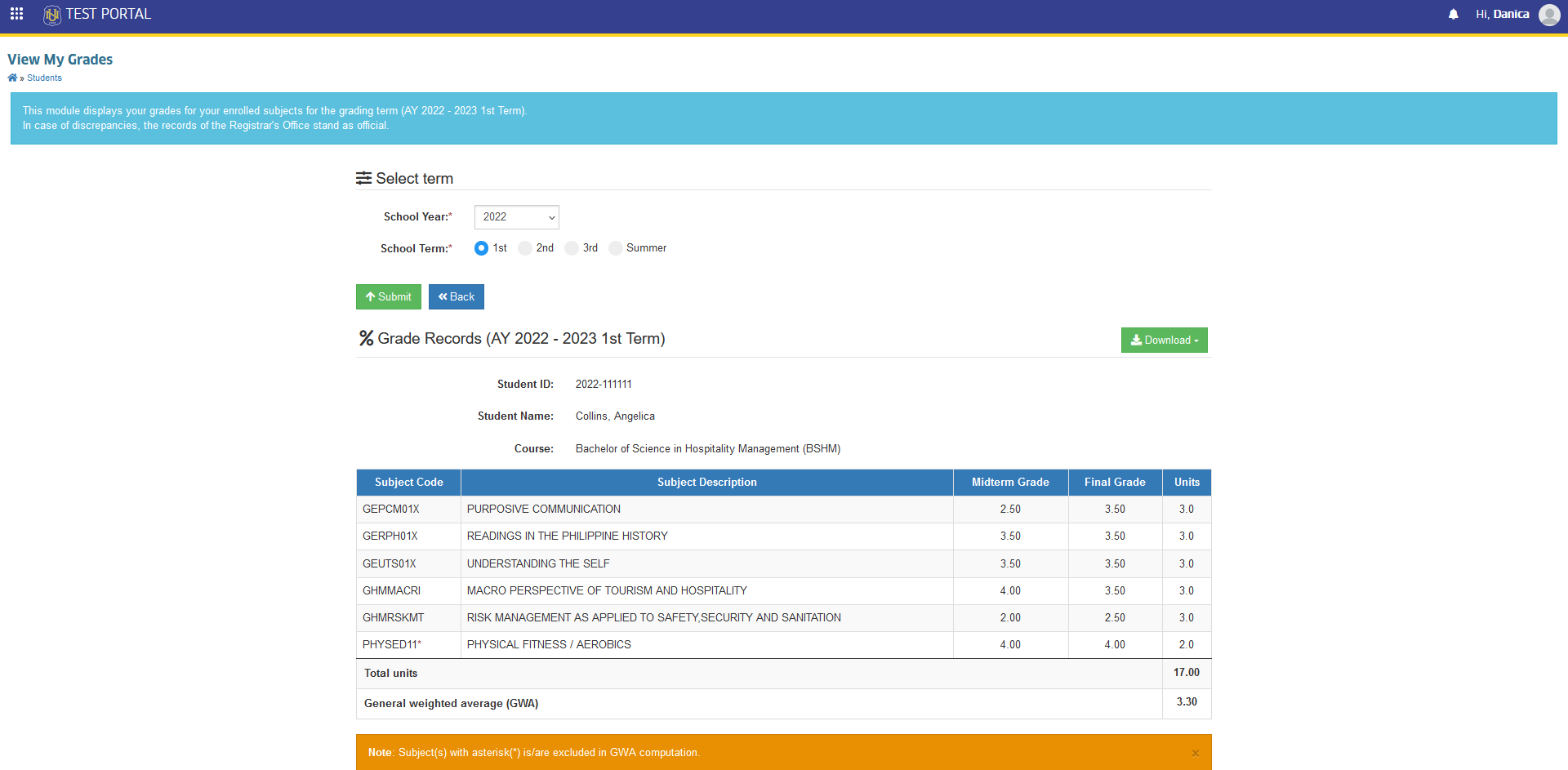
Course List with Midterm & Finals Grades - Displays a simple list of enrolled courses along with the corresponding term period grade (Midterm, Finals) for each course in the selected term.
GWA Display - Displays the term GWA, providing students with an overview of their academic standing.
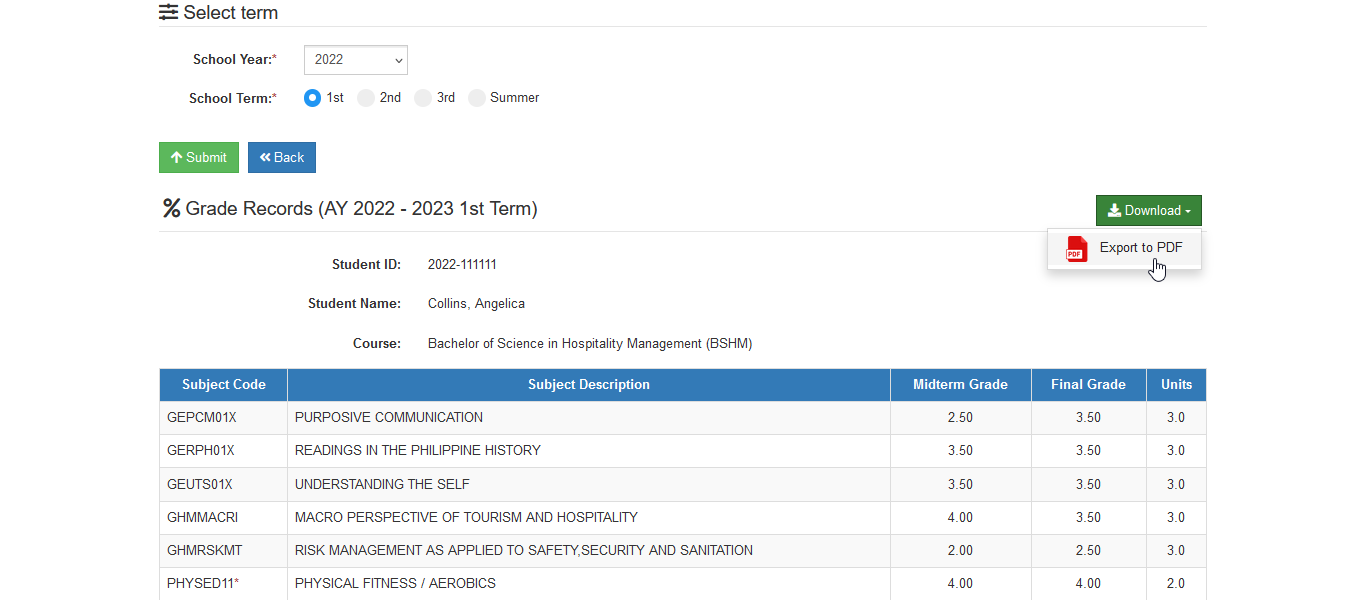
Download Grades - Offers a download option, allowing a students to save a copy of their grades as a PDF format for personal records or future reference.
Required Permission
- View Grades - This permission allows the student to access the module, view their selected term grades, and to download a copy for personal records reference.
How to Access the Module
To access the module, make sure you have the View Grades permission. If it doesn’t appear in your portal, request access from your System Administrator.
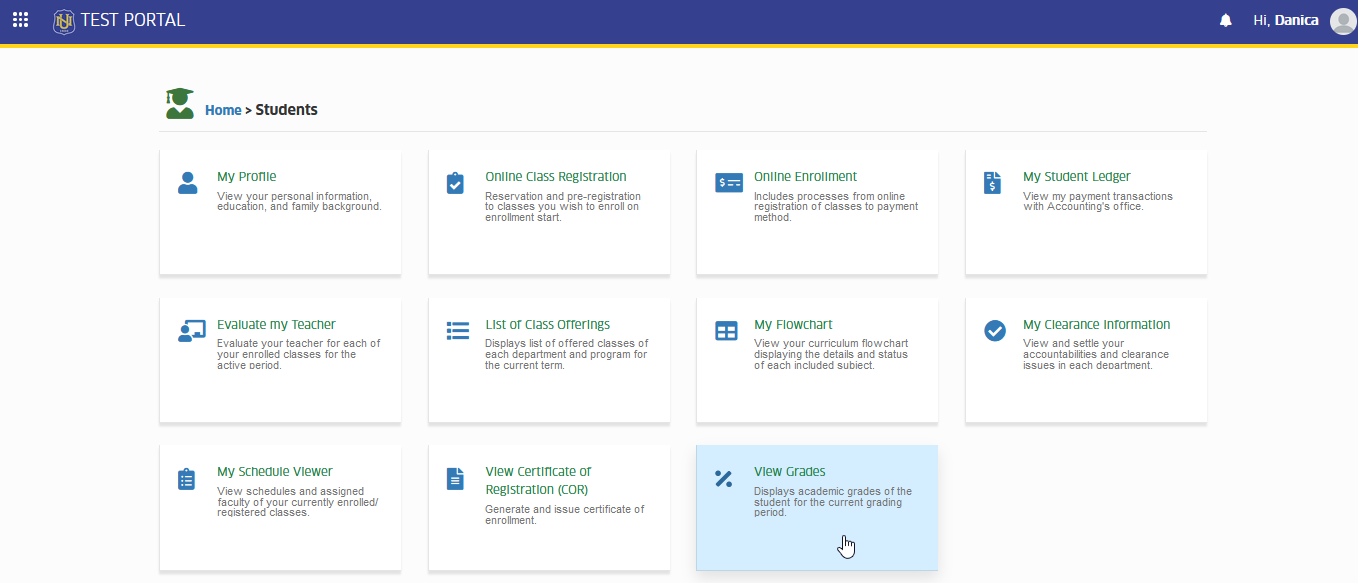
To access the module go to Students > View Grades
Click the module tab to redirect to View my Grades page.
How to View Grades
This section provides step-by-step instruction for accessing and navigating the View Grades module, helping the students to view their grades for the selected term.
STEP 1. In student's NUIS portal, go to Students > View Grades.
STEP 2. In the View Grades module, the current term's list of subjects or courses, along with their corresponding grades, is displayed by default. Specify the school year and term to view grades for a specific term.
-
Grades will be displayed after the last day of the examination.
-
The system will displays the specific term grades.
-
In case of discrepancies, coordinate with the Registrar's office.
How to Download a Copy of Grades
This module has download feature that allows the student to download or save a copy of grades for personal reference. Follow the instruction below how to download the copy of grades.
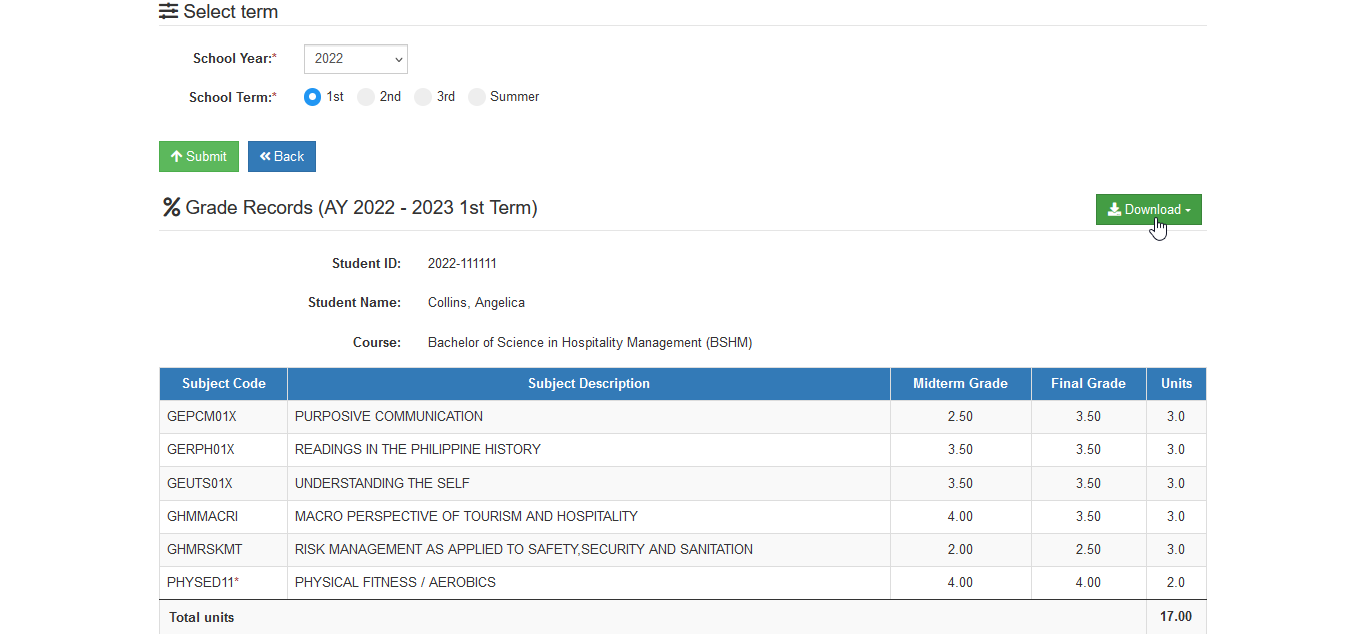
STEP 1. In View my Grades page, locate and click the button.
STEP 2. The file format will appear, and the Export to PDF option should be clicked to downloas the grades as a PDF. A new tab will be opened on your device, displaying the grades in PDF format, where a copy can be downloaded or printed.